You plug in your MacBook, glance at the menu bar, and see the battery icon sitting there with no lightning bolt. Or worse, it says “Not Charging” while the percentage slowly drops. This MacBook Not Charging issue is one of the most stressful small problems a Mac owner can face, especially when you have a deadline, a call, or a flight in a few hours.
The good news is that a MacBook Not Charging that won’t charge is usually a simple problem. In the majority of cases, the cause is a loose connection, a dirty port, a worn cable, or a software setting, not a dead battery. This guide walks through every fix in a logical order, from the 30-second checks to the deeper resets, so you can find the culprit without wasting time or money.
Quick Answer: The Fastest Fixes
If you’re in a hurry, try these in order:
- Check that the outlet, adapter, and cable are all firmly connected.
- Try a different wall outlet and, if possible, a different charger and cable.
- Inspect and gently clean the charging port.
- Restart your Mac.
- Check Battery settings for Optimized Battery Charging and battery health.
- Reset the SMC if you have an Intel-based Mac.
- Update macOS.
- Run Apple Diagnostics and, if needed, book a service appointment.
Most people fix the problem by step 4. Let’s go through each one properly.
First, Understand What “MacBook Not Charging ” Actually Means
Before you start fixing things, it helps to figure out which of three situations you’re in, because each one points to a different cause.
Situation 1: Nothing happens at all. There’s no charging indicator, no lightning bolt in the menu bar, and the battery percentage keeps dropping. This usually points to a power delivery problem: the outlet, adapter, cable, or port.
Situation 2: The Mac says “Plugged In, Not Charging.” The Mac recognizes the power source but isn’t sending power to the battery. This can be a software setting, a thermal protection feature, an underpowered charger, or a battery issue.
Situation 3: It charges very slowly or only to a certain level. If your MacBook stops at 80%, that’s often a deliberate feature called Optimized Battery Charging, not a fault. If it charges at a crawl, the charger may be too weak for your model.
Keep your situation in mind as you work through the steps below.
Step 1: Check the Obvious Things
It sounds basic, but a surprising number of charging problems come down to something simple.
Check the outlet. Plug a phone charger or a lamp into the same socket. If it doesn’t work, the outlet or the power strip is the issue. Try a different wall socket, and skip surge protectors and extension cords while you test, since they can fail or loosen over time.
Check every connection point. The charging setup has several links: the wall plug, the power adapter, the cable, and the Mac’s port. On many chargers the wall plug piece detaches from the brick. Pull it off and reseat it firmly. On a USB-C charger, make sure the cable is pushed all the way into both the adapter and the MacBook.
Look at the charger itself. If you have a MagSafe cable, the LED on the connector is a helpful clue. An amber light means the Mac is charging. A green light means the battery is full or nearly full. If there’s no light at all, power isn’t reaching the connector. Older MagSafe adapters had a status light on the connector as well. If you see no light with a known-good outlet, the adapter or cable is likely at fault.
Try another port. If your MacBook has more than one USB-C port, move the cable to a different one. A single faulty port is a common culprit, and switching ports instantly confirms or rules it out.
Step 2: Inspect the Cable and Power Adapter
Charging cables take a lot of abuse. They get bent, tugged, wrapped tightly around the adapter, and pulled at an angle. Over time the internal wires fray, even when the outside looks fine.
What to look for:
- Fraying, kinks, or bulges near either end of the cable
- Discolored or bent metal contacts on the connector
- A burning smell or visible scorch marks on the adapter
- A brick that feels unusually hot or makes a buzzing or crackling noise
If you see any of these signs while dealing with a MacBook Not Charging issue, stop using the charger immediately. A damaged adapter is a safety risk, not just an inconvenience.
Test with a known-good charger. The fastest way to diagnose a charger fault is to borrow one that you know works, ideally an official Apple charger for the same model. If your Mac charges normally with the borrowed charger, you’ve found the problem. If it still doesn’t charge, the problem is on the Mac side.
Check the wattage. A MacBook Air generally works with a 30W to 70W adapter depending on the model, while many MacBook Pro models need 67W, 96W, 140W, or more. Using a weak charger, such as a phone charger or a low-power travel adapter, can leave the Mac “plugged in but not charging,” or charging so slowly that it can’t keep up with a demanding workload. Use the adapter that came with your Mac or an equivalent that matches its rating.
Be careful with cheap third-party chargers. Some uncertified chargers and cables don’t negotiate power correctly with the Mac and may trigger charging errors. If you buy a replacement, choose a reputable brand that supports USB-C Power Delivery and the right wattage.
Skip the hub test. If your Mac is connected to a dock, hub, or external display that is supposed to deliver power, unplug the setup and connect the charger directly to the MacBook. Hubs and monitors often supply less power than the Mac needs, and some fail to pass power through at all.
Step 3: Clean the Charging Port
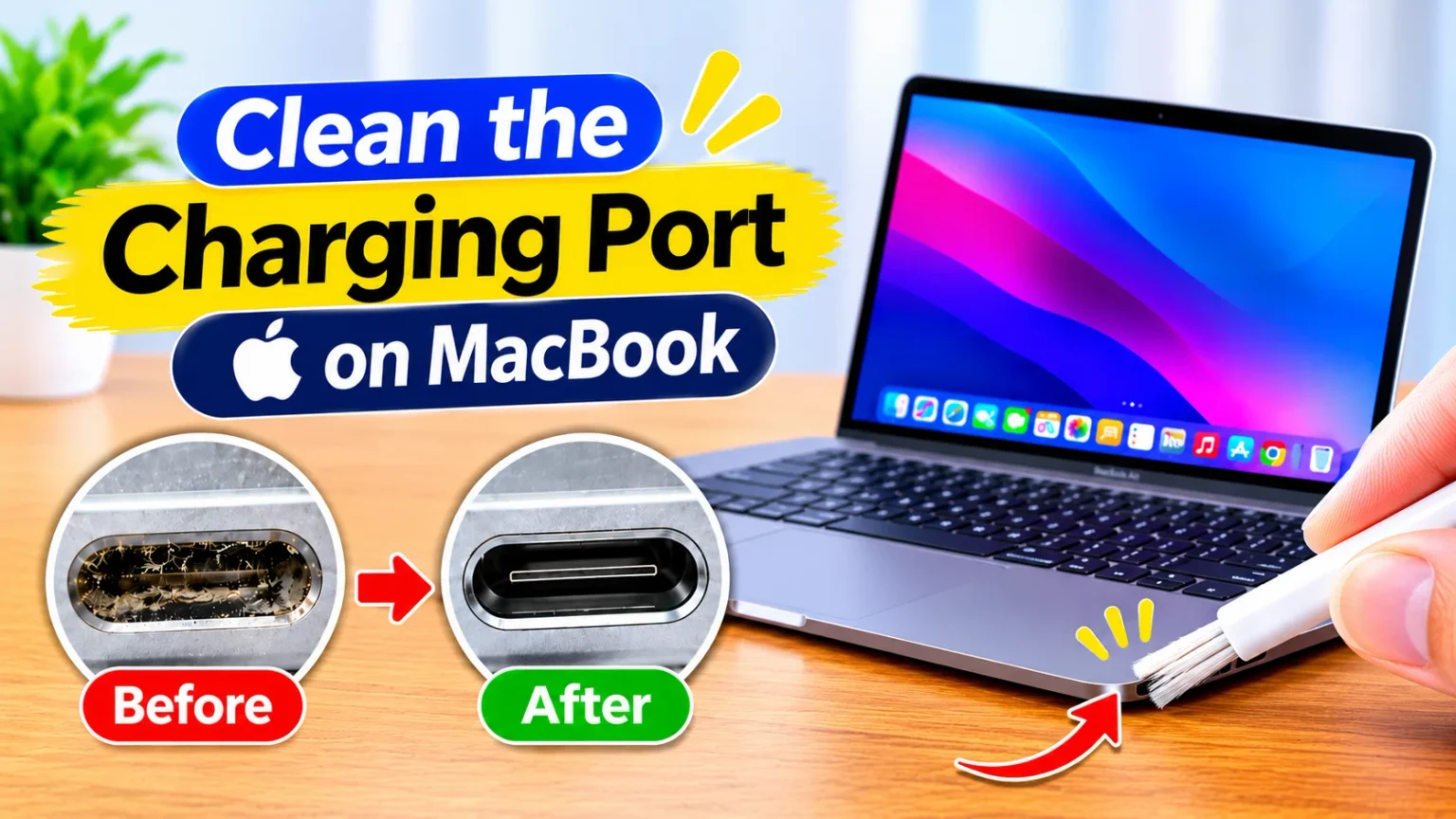
A dirty port is one of the most overlooked causes of a MacBook Not Charging problem. Lint, dust, and pocket debris collect in the USB-C or MagSafe port over months of carrying your laptop around. When enough builds up, the connector can’t seat fully, and the contacts never touch properly.
How to inspect it: Shut the Mac down, unplug everything, and shine a flashlight into the port. If you see grey fuzz or packed debris, it needs cleaning.
How to clean it safely:
- Turn the Mac off.
- Use a non-metallic tool, such as a wooden or plastic toothpick, to gently scrape out the debris. Work along the edges and never force anything.
- Use a short burst of compressed air if you have it, holding the can upright and at a distance.
- Don’t use metal pins, needles, or paper clips. They can short the contacts or bend the pins inside the port.
- Don’t use liquids unless the port is clearly sticky, and in that case use a tiny amount of high-purity isopropyl alcohol on a cotton swab and let it dry fully before powering on.
After cleaning, plug the charger back in and check whether the MacBook Not Charging issue is resolved. You’d be surprised how often this simple step alone brings a “dead” charging port back to life.
Inspect the charger’s connector too. Lint can pack onto the cable’s tip, and the metal contacts can darken with age. Wipe them with a dry, lint-free cloth.
Step 4: Restart Your Mac
It’s the oldest advice in tech because it works. A restart clears temporary glitches in the system’s power management, which can sometimes cause the MacBook Not Charging issue by preventing your Mac from recognizing a charger correctly.
Save your work, shut down your Mac completely (not just sleep), wait about 30 seconds, and power it on again. Then connect your charger and watch the menu bar.
If the charging icon shows up after the restart, the problem was a software hiccup. If it still doesn’t charge, move on.
Step 5: Check Your Battery Settings and Battery Health
Sometimes, the MacBook Not Charging issue doesn’t mean your Mac is broken at all. It’s simply doing exactly what a built-in setting tells it to do.
Optimized Battery Charging
macOS includes a feature called Optimized Battery Charging that learns your routine and holds the battery at around 80% until shortly before you typically unplug. This reduces wear and extends long-term battery lifespan. When it’s active, your Mac may appear to stop charging at 80% even though it’s plugged in.
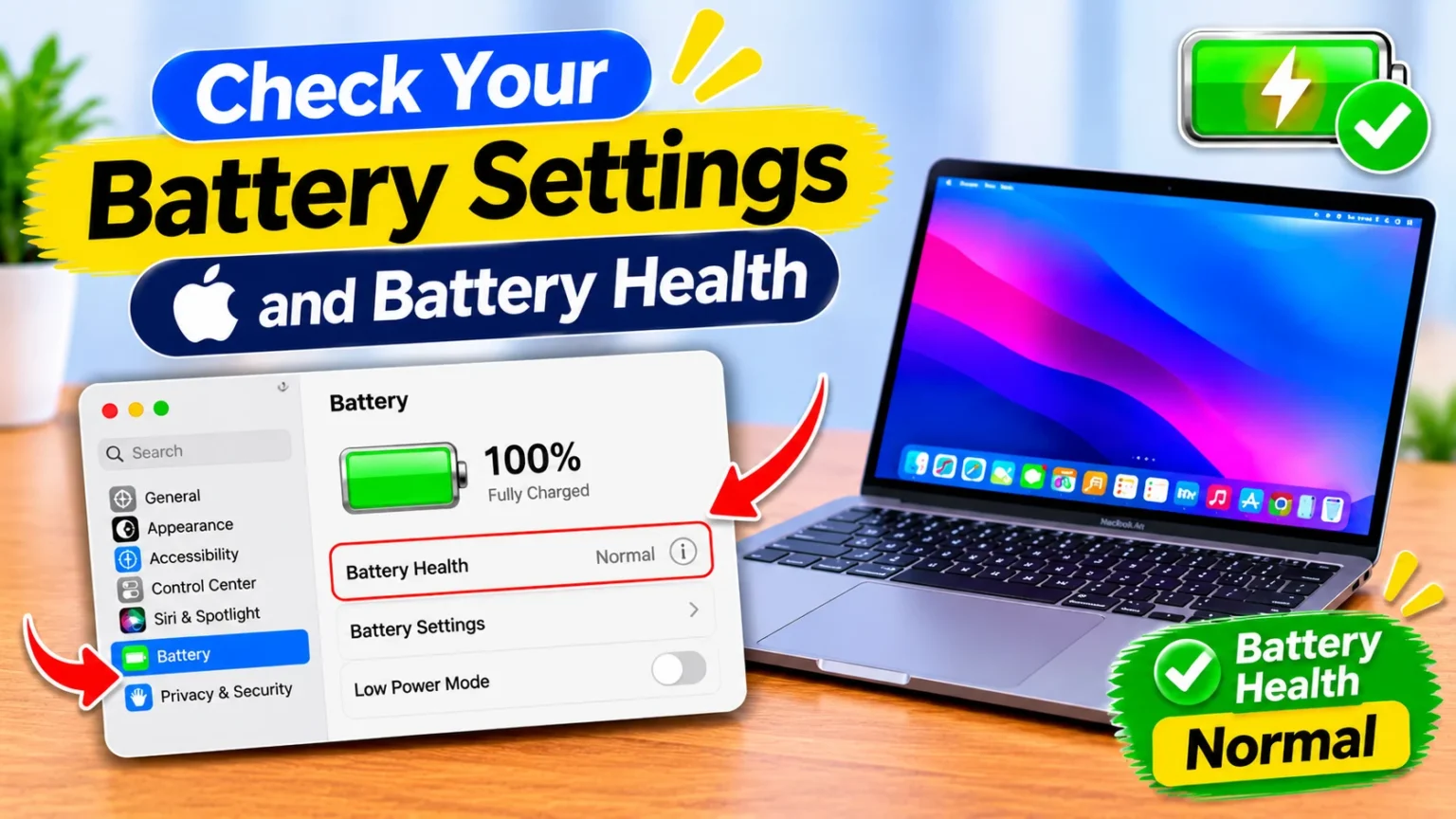
To check it, open System Settings, click Battery, then look at the Battery Health information (on some versions, click the info button next to Battery Health). You’ll see whether Optimized Battery Charging is on. For a quick test, you can turn it off and see if charging resumes to 100%. You can also click the battery icon in the menu bar, where a message may say that charging is on hold and give you a “Charge to Full Now” option.
Check Battery Health
In the same Battery settings, look at the Battery Health status. A healthy battery will usually show “Normal.” If you see “Service Recommended,” the battery has worn down or has a fault, which may explain the MacBook Not Charging issue, unreliable charging, sudden shutdowns, or a quick drop in battery percentage.
For more detail, hold the Option key and click the battery icon in the menu bar. The status may read Normal, Service Recommended, or another condition message.
You can also get the full picture from System Information:
- Click the Apple menu, hold Option, and choose System Information.
- In the sidebar, select Power.
- Under Battery Information, check Cycle Count and Condition.
- Under Charger Information, check whether it lists “Connected: Yes” and “Charging: Yes,” along with the adapter’s wattage.
If the Mac shows “Connected: Yes” but “Charging: No,” it recognizes the charger but isn’t charging the battery. If it shows “Connected: No,” the Mac isn’t detecting the power source at all, which points back to the cable, adapter, or port.
Every MacBook battery is rated for a maximum number of charge cycles, and most recent models are designed to retain up to 80% of their original capacity at 1,000 cycles. If your cycle count is near or above that, an aging battery is a likely contributor.
Heat can pause charging
Macs protect the battery by slowing or stopping charging when it gets too hot. If your laptop has been in direct sun, inside a hot car, or running heavy tasks on a soft surface like a bed or couch, it may trigger the MacBook Not Charging issue as a safety measure. Move it to a cool, hard surface, close demanding apps, let it cool for a few minutes, and check again.

Step 6: Close Power-Hungry Apps
If your Mac is charging but the battery percentage still falls, the MacBook Not Charging issue might be related to power demand rather than supply. Video editing, gaming, virtual machines, and heavy browser use can draw more power than a modest charger can deliver.
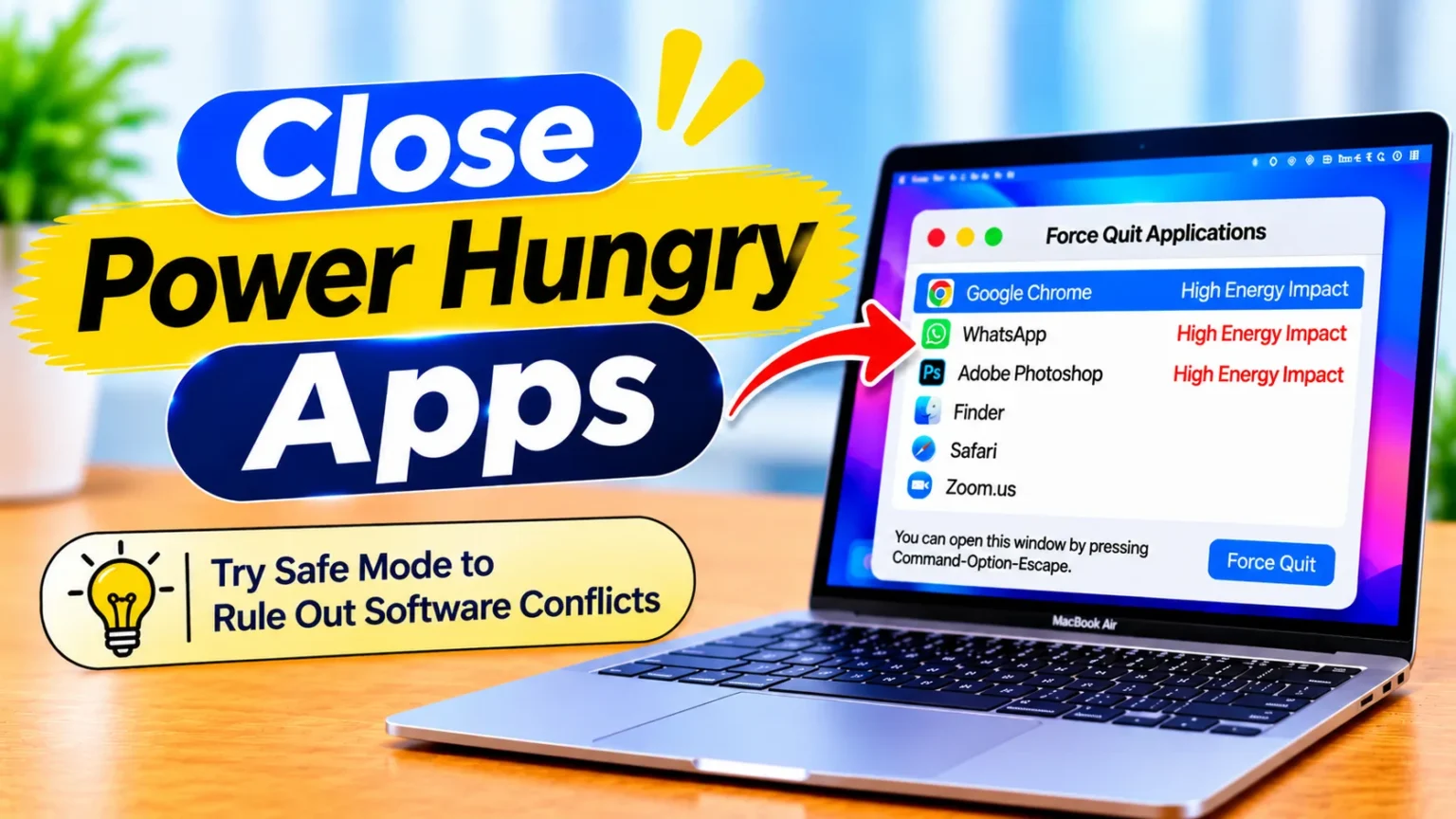
Open Activity Monitor, click the Energy tab, and sort by Energy Impact. If one app is hogging resources, close it and see whether the battery starts to climb. Also watch for runaway processes caused by a stuck app, which can keep the CPU busy and generate extra heat.
Step 7: Reset the SMC (Intel-Based Macs)
The System Management Controller, or SMC, is a chip that manages low-level hardware functions on Intel-based Macs, including battery and charging behavior. When it misbehaves, you can see strange symptoms like a Mac that won’t recognize a charger, an unreliable battery indicator, or fans that run too fast.
Important: Apple silicon Macs (M1, M2, M3, M4, and later) don’t have a separate SMC to reset. On those models, a simple restart accomplishes the same job. If you have an Apple silicon Mac, skip this step.
Not sure which you have? Click the Apple menu and choose About This Mac. If you see “Chip” followed by an Apple chip name, you have Apple silicon. If you see “Processor” with an Intel name, you have an Intel Mac.
For Intel MacBooks with the Apple T2 security chip (roughly 2018 to 2020 models)
- Shut down the Mac.
- Press and hold the right Shift key, the left Option key, and the left Control key for 7 seconds.
- While still holding those keys, press and hold the power button. Keep holding all four for another 7 seconds.
- Release all the keys and wait a few seconds.
- Press the power button to turn the Mac back on.
For Intel MacBooks without the T2 chip and with a non-removable battery
- Shut down the Mac.
- Press and hold Shift, Control, and Option on the left side of the keyboard, then press and hold the power button, all at the same time.
- Hold all four for 10 seconds, then release.
- Press the power button to start the Mac.
After the reset, plug in your charger and see whether charging resumes. Key combinations can vary by model, so if yours doesn’t respond as expected, check Apple’s official support page for your specific MacBook.
Step 8: Update macOS
Software bugs can occasionally cause the MacBook Not Charging issue or battery reporting problems, and Apple often fixes them in software updates. If your Mac is running an older version of macOS, check for available updates and install the latest compatible version.
Open System Settings, choose General, then Software Update, and install anything that’s available. Make sure to back up your Mac first, and if the battery is very low, plug into power during the update. Because a failing charge can interrupt an update, if your Mac can’t hold a charge at all, it’s better to resolve the hardware issue first.
Step 9: Try Safe Mode to Rule Out Software Conflicts
Safe Mode loads only the essentials and disables third-party startup items, so it can help identify whether a conflicting app or extension is causing the MacBook Not Charging issue by interfering with power management.
On Apple silicon: Shut down the Mac, press and hold the power button until you see startup options, select your startup disk, hold Shift, and click “Continue in Safe Mode.”
On Intel: Restart the Mac and immediately hold the Shift key until the login window appears.
In Safe Mode, plug in your charger and check whether charging works. If it does, a third-party app or login item is probably the cause. Restart normally, then remove recently installed battery utilities, system cleaners, or menu bar tools that interact with power settings.
Step 10: Run Apple Diagnostics
Apple Diagnostics is a built-in tool that tests your Mac’s hardware and reports reference codes for any problems.
Disconnect all external devices except the power cable (and keyboard, mouse, display if necessary), then:
- Apple silicon: Shut down your Mac, then press and hold the power button until startup options appear. Press Command-D.
- Intel: Restart your Mac and hold the D key as it starts up.
The test takes a minute or two. If it reports a battery or power-related reference code related to the MacBook Not Charging issue, write it down. You can give the code to Apple Support or an authorized service provider to help speed up the repair process.
When It Is a Hardware Problem
If you’ve worked through every step above and your Mac still refuses to charge, it’s time to consider a hardware fault. If the MacBook Not Charging problem persists, one of the following components may be damaged or malfunctioning. Here are the most common hardware issues:
A worn-out battery. Batteries are consumable parts. After years of use, a battery can degrade so far that it can no longer accept a charge reliably. A swollen battery is a more serious sign: if you notice the trackpad lifting, the case bulging, or gaps appearing along the edges of your Mac, stop using it and get it inspected right away, since swollen batteries can be dangerous.
A failed charging port. The USB-C or MagSafe port can be damaged by repeated use, a hard yank on the cable, or liquid. Because the port is attached to the board or a small subassembly, replacing it usually requires professional service.
A faulty logic board component. Power management chips on the logic board can fail, especially after liquid exposure or a power surge. This is a more expensive repair, but a technician can confirm whether it’s the cause.
Liquid damage. If your Mac recently met a spill and then stopped charging, power it down and get it serviced promptly. Corrosion can spread over time, so waiting makes it worse.
Should You Repair or Replace?
This depends on the age of your Mac and the nature of the fault.
- Battery replacement is usually reasonable on a Mac that is otherwise performing well. It’s typically far cheaper than a new laptop and can give you years of extra life.
- A charging port repair is worth it on most MacBooks that are only a few years old.
- A logic board repair can be expensive. Compare the quote with the cost of a replacement before you decide, particularly for older models.
If your Mac is under warranty or covered by AppleCare+, check coverage before paying anything. Battery service is often covered when the battery’s capacity has fallen below the threshold in the coverage terms. You can book an appointment through Apple Support or visit an Apple Store or authorized service provider. Independent repair shops can be a cheaper alternative, but make sure they use quality parts and offer a warranty on the work.
What to Do If You Need Power Right Now
If you’re dealing with a MacBook Not Charging issue and your battery is nearly dead, you can still keep working while you troubleshoot and look for a solution:
- Lower your screen brightness and turn off keyboard backlighting.
- Disconnect external devices that draw power from the Mac, such as drives and dongles.
- Turn on Low Power Mode in System Settings > Battery.
- Quit heavy apps and close extra browser tabs.
- Borrow a verified Apple-compatible charger from a friend or coworker.
- Visit a nearby Apple Store or authorized reseller to buy a replacement charger. A new official adapter costs far less than a repair.
How to Prevent Charging Problems in the Future
Once you’ve resolved the MacBook Not Charging issue and your Mac is charging again, a few simple habits can help prevent the problem from happening again.
Treat the cable gently. Avoid wrapping it tightly around the brick, and don’t yank it out by the cord. Pull from the connector itself and let the cable rest in loose loops. Use cable protectors or strain relief on the ends if yours tends to fray.
Keep ports clean. Every few months, check the ports for lint, especially if your Mac travels in a bag or backpack.
Use the right charger. Stick with the charger that came with your Mac or a certified equivalent with the correct wattage.
Avoid extreme temperatures. Don’t leave your Mac in a hot car or charge it in direct sunlight. Heat is the biggest enemy of lithium-ion batteries.
Don’t keep it at 0% or hold it at 100% constantly. Keeping the charge level somewhere in the middle most of the time helps battery longevity. Leave Optimized Battery Charging on unless you have a specific reason to turn it off.
Keep macOS updated. Updates include battery management improvements and bug fixes that can prevent odd charging behavior.
Use your Mac regularly on battery. If your laptop stays plugged in 24/7 for months, the battery can behave erratically. A periodic cycle where you let it run down partially and recharge helps keep the battery gauge accurate.
Frequently Asked Questions
Why does my MacBook say “Plugged In, Not Charging”?
The most common reasons are Optimized Battery Charging holding the level at 80%, a charger that isn’t powerful enough, high temperatures, or a worn battery. Check your Battery settings and try a charger with the proper wattage.
Why is my MacBook only charging to 80%?
In most cases that’s the Optimized Battery Charging feature working as designed. It delays charging past 80% until you’re likely to need the full battery. You can turn it off in Battery settings or choose “Charge to Full Now” from the menu bar battery icon.
Can a bad cable stop my MacBook from charging?
Yes. Cables are among the most common failure points. Internal damage may not be visible, so test with a known-good cable before assuming something worse.
Is it safe to use my MacBook while it isn’t charging?
Yes, as long as the battery has charge remaining. But if the cause is a damaged charger, a swollen battery, or a burning smell, stop using the device and get it checked.
Will resetting the SMC fix every charging problem?
No. It helps only on Intel-based Macs and only when the problem stems from power management glitches. Apple silicon Macs have no SMC reset, and a restart is the equivalent step.
How long should a MacBook battery last before it needs replacing?
It depends on use, but many MacBook batteries stay healthy for around 1,000 charge cycles, which typically means three to five years for regular users. If your battery health shows Service Recommended, it’s time to consider a replacement.
Can I charge my MacBook with a phone charger?
A USB-C phone charger may deliver some power, but it’s often too weak to charge a MacBook while you work. It might keep the battery from draining slowly, but it won’t charge it efficiently. Use a charger that matches your Mac’s required wattage.
Final Thoughts MacBook Not Charging
A MacBook that won’t charge feels like an emergency, but the fix is often quick and cheap. Start with the simple checks: the outlet, the cable, the adapter, and the port. Then move on to settings, a restart, and an SMC reset if you have an Intel Mac. If you’ve ruled out those causes, run Apple Diagnostics and talk to a professional about the battery or the charging hardware.
Work through the steps in order and you’ll almost certainly find the problem, often within a few minutes. And once you’ve got your Mac charging again, a few small habits will keep the problem from coming back.