iCloud Backup Failed usually happens for one of four reasons: your iCloud storage is full, your Wi-Fi connection is weak or dropping, your iPhone or iPad is running outdated software, or a temporary glitch stopped the backup process. Fortunately, each issue is fixable, and most take only a few minutes. This guide walks you through seven easy fixes in the order most likely to solve the problem first, so you can stop as soon as your iCloud backup works again.
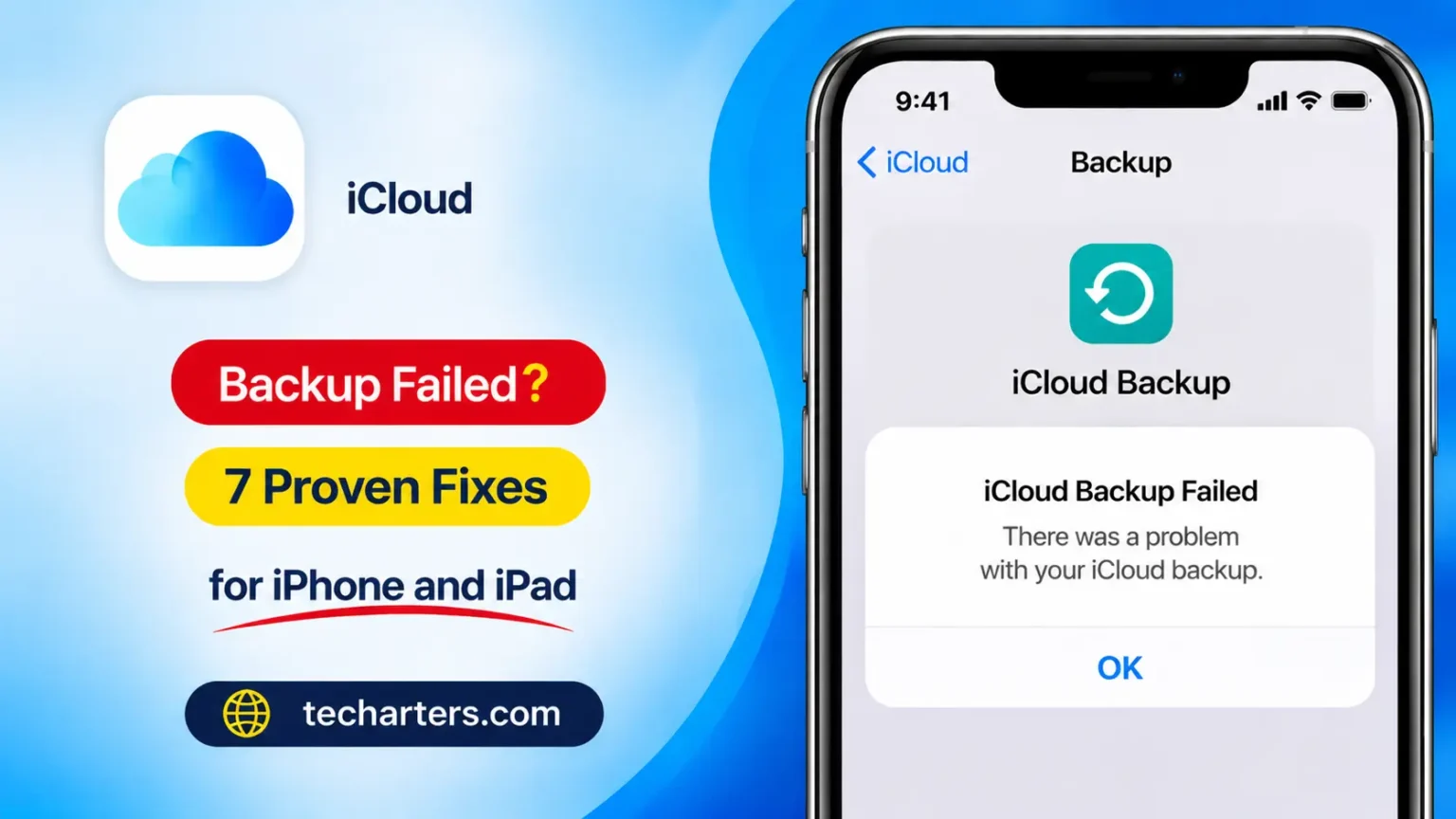
Start by reading the exact message on your screen, because it points to the right fix:
- “Not enough iCloud storage” or “You may not have enough storage for your last backup”: go to Fixes 2 and 3.
- “The last backup could not be completed” or “Backup failed”: go to Fixes 1, 4 and 5.
- Backup stuck on “Estimating time remaining” or taking hours: go to Fix 6.
- Nothing works, or you need a backup right now (for example, before upgrading your phone): go to Fix 7.
Apple’s own support article, If you can’t back up to iCloud, covers the same ground and is worth keeping open alongside this guide. The steps below apply to iPhone and iPad on a recent version of iOS or iPadOS. Menu names shift slightly between versions, but the path is almost always Settings, your name, iCloud.
Fix 1: Check the Basics First
Automatic iCloud Backup only runs when several conditions are met at once: the device is connected to Wi-Fi, plugged into power, and the screen is locked. If any of those is missing, the backup quietly waits, and a backup that never ran can look like one that failed. Run through this short list before anything else.
- Confirm the switch is on. Open Settings, tap your name, tap iCloud, then iCloud Backup, and make sure Back Up This iPhone (or iPad) is enabled.
- Connect to Wi-Fi. A cellular connection is not used by default. Some iPhone models with 5G offer a Back Up Over Cellular option in the same menu, but Wi-Fi is far more reliable for a large upload.
- Plug in the charger and leave the screen locked. Keep the device nearby so the connection stays strong.
- Tap Back Up Now on the iCloud Backup screen and watch what happens. A manual run gives you a real error message to work with, which is more useful than waiting for the nightly attempt.
- Check the date. Under the Back Up Now button, iOS shows when the last successful backup finished. If it was yesterday, your data may be safe and the error was a one-off.
Also try a quick restart. Switch the device off, wait ten seconds and turn it on again. It sounds too simple, but a restart clears stuck background processes that can block a backup, and it costs nothing.
If Back Up Now fails again within a minute or two, read the message carefully. A storage alert means you should go straight to Fix 2. A vague “could not be completed” message means carry on to Fixes 4 and 5.
Fix 2: Check Your iCloud Storage
Insufficient storage is one of the most common reasons a backup fails. Every Apple Account includes only 5 GB of free iCloud space, which is easy to fill once photos, videos, messages and app data pile up, as MacPaw’s troubleshooting guide also notes. That 5 GB is shared across everything iCloud stores for you, not just backups, so mail, iCloud Drive files and Photos all compete for the same space.

To see where you stand, open Settings, tap your name, then tap iCloud. Apple’s support page says the top of that screen shows how much space you have used, and tapping Storage (or Manage Account Storage) breaks the total down by category, as described in Apple’s backup guide. Look at three things:
- Total space used compared with your plan. If the bar is nearly full, the next backup has no room to land.
- The size of the Backups entry. This is the figure that matters most. Your next backup needs room to replace the old one.
- The largest categories. Photos and Messages are the usual culprits.
If you have a lot of free space and the error still says storage is the problem, do not assume the message is wrong. Apple Community threads show people hitting this puzzle, and the usual explanation is that the backup is bigger than it looks, or that old backups from previous devices are taking the space. Fix 3 deals with both.
If you simply need more room, upgrading to iCloud+ is the fastest fix. Open Settings, tap your name, tap iCloud, then Manage Account Storage, and choose Change Storage Plan. Plans start at modest sizes and go up to terabytes, and you can downgrade later. Check the current prices on your own screen, because they vary by country. After upgrading, tap Back Up Now to confirm the problem is gone.
One point worth knowing: the free 5 GB is rarely enough for a modern iPhone. If you back up regularly, a paid plan is usually the simplest long-term answer, and it also keeps your photos and files in sync across devices.
Fix 3: Shrink the Backup and Delete Old Ones
If you do not want to pay for more space, make the backup smaller. Apple’s guidance for the storage alert is to delete unneeded information to reduce the backup size, or to upgrade your plan, as laid out in Apple’s iCloud Backup instructions. Three moves do most of the work.
Delete backups of devices you no longer use. Go to Settings, tap your name, tap iCloud, then Manage Account Storage, and tap Backups. You will see a backup for each device that has used your account, including phones you sold years ago. Tap an old one and choose Delete Backup. Never delete the backup for the device you are currently using unless you have a fresh one ready to replace it.
Turn off apps you do not need backed up. Tap the current device in the Backups list. Under Choose Data to Back Up, iOS lists apps by the space their data uses. Switch off the biggest ones that hold nothing irreplaceable, such as offline video apps, games and podcast caches. Tap Turn Off & Delete to confirm.
Deal with photos separately. Photos are often the largest part of a backup. If you use iCloud Photos, your pictures are already stored in iCloud and do not need to be in the backup as well, which keeps the backup small. If you do not use iCloud Photos, the Photo Library is included in the backup, and a large library can easily exceed 5 GB. Clearing Recently Deleted in the Photos app, as MacPaw suggests in its backup troubleshooting guide, frees space you may have forgotten you were still using.
A warning before you delete anything: if you turn off iCloud Backup entirely for a device, Apple’s documentation says its stored backups are kept for 180 days before being deleted. That gives you a safety window, but it is not a reason to rely on it. Make sure you have another copy of anything important before removing old backups.
After trimming, return to Settings, iCloud, iCloud Backup and tap Back Up Now. A smaller backup that fits in your available space should finish without the storage alert.
Fix 4: Fix Your Network Connection
A backup is a long upload, and a connection that drops for a few seconds can end the whole attempt with a vague “could not be completed” message. If your storage is fine, the network is the next suspect. Apple’s support article lists trying a different Wi-Fi network among its steps, per Apple Support, and it is often the quickest test.

- Move closer to the router. Weak signal causes more failed backups than people expect. Stand in the same room as the router for the test.
- Switch Wi-Fi networks. If you have a second network, such as a phone hotspot (for a small test only, since backups use a lot of data) or a friend’s or office connection, try the backup there. If it works, your home network is the problem.
- Restart the router and modem. Unplug both for 30 seconds, plug the modem in first, then the router, and wait a few minutes before reconnecting.
- Turn off VPNs and private relay features. VPNs and some content filters interfere with long uploads. Disable them while backing up.
- Forget and rejoin the network. In Settings, Wi-Fi, tap the info icon next to your network, choose Forget This Network, then join it again with the password.
- Reset network settings. If nothing else works, go to Settings, General, Transfer or Reset iPhone, Reset, Reset Network Settings. This erases saved Wi-Fi passwords and VPN settings, so have your passwords ready, but it clears many stubborn connection faults.
It is also worth checking whether Apple’s servers are the problem. Visit Apple’s System Status page and look at iCloud Backup. If it shows an outage, no setting on your device will help, and the right move is to wait and try again later.
After each change, tap Back Up Now rather than waiting for the automatic backup, so you know straight away whether it worked.
Fix 5: Update iOS and Refresh Your Sign-In
Outdated software and a stale Apple Account session both cause backups to fail without a clear reason. One group of users on the Apple Community reported that backups stopped working after an iOS update and that updating again did not help at first, so this fix has two halves: update, then refresh.
Update iOS or iPadOS. Open Settings, General, Software Update. If an update is available, install it with the device on Wi-Fi and plugged in. Updates often include fixes for backup and iCloud bugs. Restart afterwards and try Back Up Now.
Check your Apple Account status. In Settings, tap your name. If you see a message asking you to sign in again or verify your account, deal with it first. An account that needs attention cannot back up.
Sign out and back in. If the backup still fails, signing out of your Apple Account and back in refreshes the connection to iCloud. Do this carefully:
- Open Settings, tap your name, and scroll to the bottom.
- Tap Sign Out and enter your Apple Account password if asked.
- When iOS offers to keep a copy of your data on the device, switch on the data types you want to keep, such as Contacts and Calendars.
- Restart the device, then sign in again from Settings.
- Go to iCloud, iCloud Backup and tap Back Up Now.
This step is safe for your iCloud data, which stays in the cloud, but it can briefly pause syncing of photos and documents. Do not do it on a device with low storage or an unstable connection, and have your password handy before you begin.
If you also see an “unable to complete” message with plenty of paid storage, as some Apple Community posters describe, a forced restart is worth trying before contacting Apple. On a recent iPhone, quickly press and release Volume Up, then Volume Down, then hold the side button until the Apple logo appears.
Fix 6: Backup Stuck or Taking Forever
Sometimes the backup does not fail outright. It just sits on “Estimating time remaining” or crawls for hours. Apple’s support article has a dedicated section for a backup that is taking longer than expected, which tells you this is a known and separate problem from a hard failure, as shown in Apple’s support page.
First, work out whether it is really stuck. A first backup, or one after a long gap, can legitimately take hours because it uploads everything. Subsequent backups are incremental and much quicker. As a rough guide, give a first backup several hours on a good connection before deciding something is wrong.
If it is genuinely stuck, try these in order:
- Leave it on Wi-Fi and power overnight. Many backups finish while you sleep. Keep the screen locked so iOS does not pause the job.
- Cancel and restart it. On the iCloud Backup screen, tap Cancel Backup, wait a minute, then tap Back Up Now again.
- Free up space on the device itself. A phone that is almost full of local data can struggle to prepare a backup. In Settings, General, iPhone Storage, remove unused apps and large files.
- Close all apps and restart. Force-quit running apps, restart the device, then try again with nothing else running.
- Pause large syncs. If iCloud Photos is still uploading thousands of pictures, it can compete for bandwidth. Let it finish, then back up.
If the screen stays on “Estimating time remaining” for many hours with no progress even after these steps, the backup data itself may have a fault. In that case, delete the current backup for this device (only if you have another copy of your data, such as a computer backup from Fix 7) and let iOS create a fresh one.
This last step is the most disruptive fix in the guide, which is why it comes late. It rebuilds your backup from scratch and needs enough free iCloud space for a full new copy, so work through Fixes 2 and 3 first.
Fix 7: Back Up to a Computer Instead
If iCloud will not cooperate and you need a safe copy now, for example before upgrading phones or repairing a screen, back up to a computer. An Apple Community reply to a user stuck in exactly this position suggested trying a Mac, pointing to Apple’s guide on backups for iPhone, iPad and iPod touch, as seen in this thread. A computer backup needs no iCloud space at all.
On a Mac. Connect the device with a cable. Open Finder, select the device in the sidebar, and under General choose Back Up All of the Data on Your iPhone to This Mac, then click Back Up Now. Tick Encrypt Local Backup if you want passwords, Health data and Wi-Fi settings included, and write the password down somewhere safe, because it cannot be recovered.
On a Windows PC. Install the Apple Devices app from the Microsoft Store (or use iTunes on older setups), connect the device, select it, choose This Computer under Backups and click Back Up Now.
The main limit is free space on the computer. One Apple Community poster described being unable to back up to either iCloud or a laptop because both were short of room, which is a common trap. Check the computer has at least as much free space as the device uses, or point the backup at an external drive.
A computer backup does not replace iCloud Backup, because it only runs when you connect and click the button. Treat it as a safety net, and as a way to buy time while you sort out the iCloud problem properly.
How to Keep iCloud Backups Working
Once a backup succeeds, a few habits keep it that way.
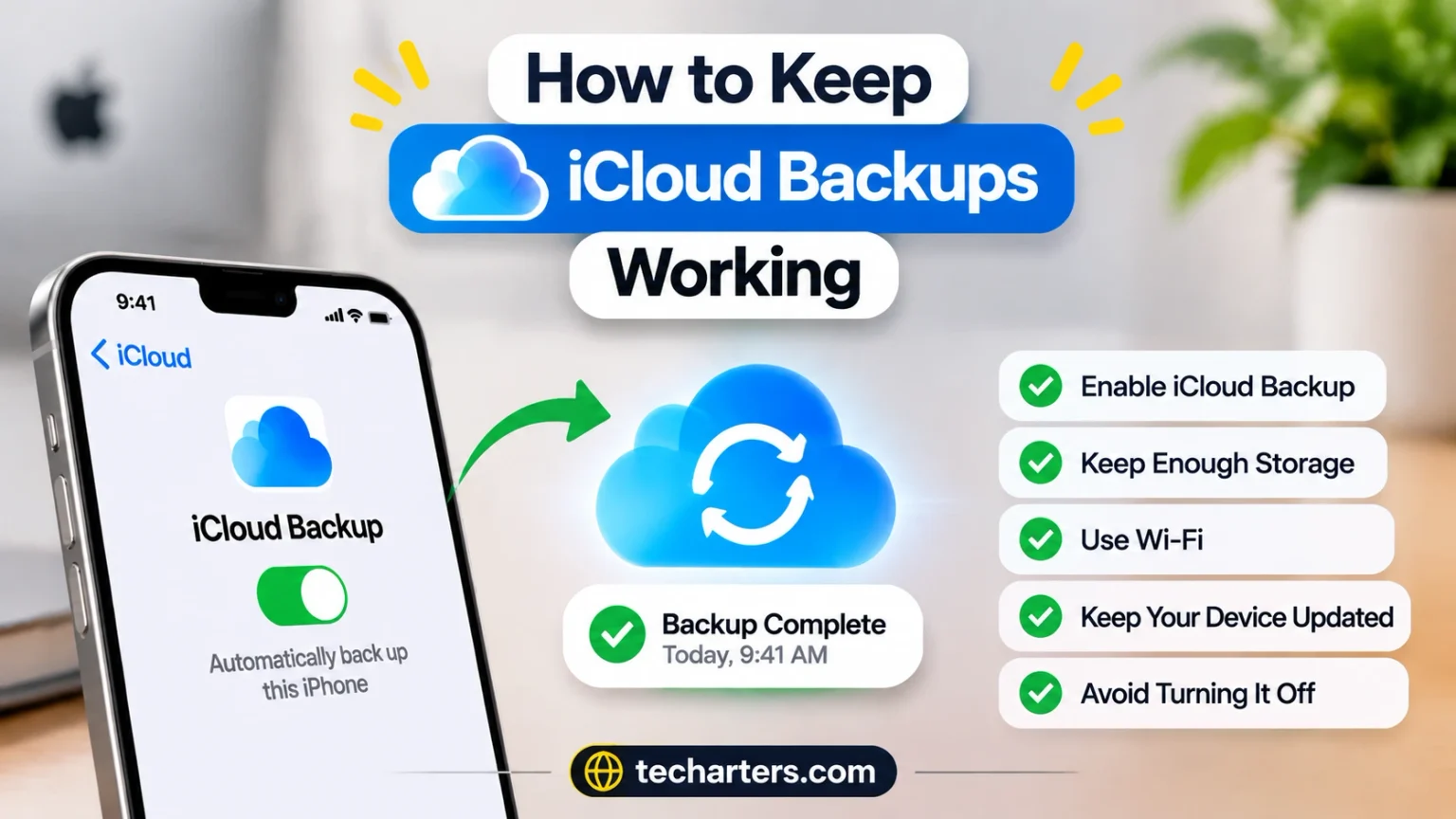
- Check storage monthly. Look at Settings, your name, iCloud once a month. Act when you pass about 80 percent, not when the alert appears.
- Prune old device backups whenever you replace a phone or tablet.
- Choose what to back up. Switch off large apps whose data you can re-download.
- Use iCloud Photos on purpose. Decide whether photos live in iCloud Photos or in the backup, and avoid paying for both.
- Plug in and lock at night. Put the device on its charger on Wi-Fi each evening so the automatic backup can run.
- Install updates promptly. Current software fixes many backup bugs.
- Take a computer backup now and then, especially before big changes such as an iOS upgrade or a repair.
Frequently Asked Questions
Why does my iCloud backup fail when I have enough storage?
The backup may be larger than you think, old device backups may be using the space, or the real problem may be your connection rather than storage. Apple Community users report this often. Check the Backups entry size, delete old device backups and test on a different Wi-Fi network.
What does “The last backup could not be completed” mean?
It is a general failure message. Apple’s support page treats it as its own case. The usual causes are a dropped connection, full storage or a software glitch, so work through Fixes 1, 4 and 5.
How much free iCloud storage do I get?
Every Apple Account includes 5 GB for free. That space is shared by backups, photos, files and mail, so it fills quickly. Paid iCloud+ plans offer more.
Will deleting an old backup delete my photos?
No. Deleting a device backup removes that backup only. Photos stored in iCloud Photos are separate, but photos that exist only in a backup would be lost, so confirm your photos are safe first.
Can I back up over cellular data?
By default, backups use Wi-Fi. Apple notes that some iPhone models with 5G can back up over the cellular network if you switch on Back Up Over Cellular under iCloud Backup, but this can use a lot of data.
What happens if I turn off iCloud Backup?
According to Apple’s documentation, existing backups are kept for 180 days before being deleted. Turn it back on within that time if you want to keep them current.
Is a computer backup as good as an iCloud backup?
It is just as complete, and an encrypted one can include extra data such as saved passwords and Health data. The drawback is that it is manual, so it is a safety net rather than a replacement.
Final Thoughts: iCloud Backup Failed
A failed iCloud backup feels alarming, but it is rarely serious. Most cases come down to full storage or a shaky connection, and both are easy to confirm in a couple of minutes. Read the exact error, check your storage, trim old backups, test another network, then update and refresh your sign-in. If all of that fails, a computer backup protects your data while you get help.
The most important habit is not to ignore the warning. A device that has not backed up for weeks is a risk if it is lost, damaged or stolen. If you have worked through every fix and the backup still fails, contact Apple Support and tell them which steps you have already tried, which saves time on the call.