Few things are more frustrating than seeing your Apple Watch display nothing but a white Apple logo against a black screen. If your Apple Watch stuck on Apple logo issue keeps happening, it may indicate a software glitch, failed update, or startup problem. The good news is that several troubleshooting methods can help restart your watch, restore normal functionality, and protect your important data.
The good news is that an Apple Watch stuck on the Apple logo is usually fixable, and in many cases you can solve it yourself in under an hour without spending a cent. The problem has a handful of well-understood causes, ranging from a drained battery to an interrupted software update, and each one has a matching remedy. Your data is also far safer than you might fear, because your iPhone keeps regular backups of your watch.

This guide walks through everything in a logical order. You will learn what the logo screen actually means, why watches get stuck there, and which fixes to try first, starting with the simplest and least disruptive and moving toward the more drastic. You will also learn how to tell when the problem is a hardware fault that needs professional repair, what to expect at a service appointment, and how to reduce the chance of ever seeing this screen again.
What the Apple Logo Screen Actually Means
Before troubleshooting, it helps to understand that the Apple logo does not always indicate a problem. It appears in at least three different situations, and telling them apart will save you from making unnecessary changes.
Normal startup. Every time your watch powers on, it shows the Apple logo while it loads watchOS. On a healthy watch this lasts roughly 20 to 60 seconds, after which the watch face appears. If you have just restarted the watch, a short wait is completely normal.
Software update in progress. When watchOS installs an update, the watch displays the Apple logo, usually with a thin progress bar beneath it. Updates can take anywhere from a few minutes to well over half an hour, particularly on older models or when the update is large. During this time the watch may restart once or twice. This is not a freeze, and interrupting it is the single most common way people turn a normal update into a real problem.
A genuine hang. If the logo has been on screen for far longer than any of the above, with no progress bar and no change at all, the watch is most likely stuck. A reasonable rule of thumb is that anything beyond an hour on the logo, with the watch on its charger and no visible progress, deserves intervention.
Keep these three situations in mind as you work through the fixes below. The first fix, in particular, is about telling a slow update apart from a true freeze.
Why an Apple Watch Gets Stuck on the Logo
There is rarely a single cause, but the culprits tend to fall into a few familiar categories.
A depleted or very low battery. The Apple Watch needs a minimum amount of charge to complete its startup sequence. If the battery has drained completely and the watch was then turned on with only a sliver of power, it can begin to boot, show the logo, and then run out of energy before finishing. This is especially common on watches that have been sitting in a drawer for weeks or months.
An interrupted or failed software update. If an update was started and then disrupted, by the watch dying mid-install, the iPhone losing connection, or the person removing the watch from its charger, the system files can end up in a half-written state. The watch then tries to boot, fails to find a complete operating system, and lingers on the logo.
Corrupted software or storage. Occasionally a glitch, a failed background process, or a corrupted file stops the boot sequence. This can happen even without an update, though it is less common.
A faulty charger, cable, or power source. A weak or intermittent charging connection can look like a software problem. The watch may appear to be charging but actually receive too little power, causing it to restart repeatedly and never get past the logo.
Battery degradation. An older battery that has lost much of its capacity may be unable to deliver the sudden burst of power the watch needs during startup, causing it to shut down partway through booting and try again, over and over.
Liquid or physical damage. The Apple Watch is water resistant, but that resistance is not permanent and does not cover every kind of exposure. Moisture inside the case, or a hard impact, can damage the logic board or battery and produce boot problems.
Hardware failure. In some cases, the main board, storage chip, or battery has simply failed. No amount of software troubleshooting will help here, and the only solution is repair or replacement.
Understanding which category you are likely in helps you decide how far down the list of fixes you need to go.
Before You Begin: A Quick Checklist
Take a minute to gather a few things and check a few facts. This preparation makes everything that follows smoother.
- Your original charger and cable. Use the magnetic charging cable that came with the watch, or an Apple-certified alternative, connected to a reliable power adapter, ideally one of at least 5 watts. Avoid charging from a weak computer USB port or an unknown third-party puck.
- Your iPhone. Make sure it is nearby, powered on, connected to Wi-Fi, and updated to a recent version of iOS. Many of the later steps depend on it.
- A safe, cool, dry place to work. A flat table with the watch charging in place is ideal. Avoid charging on a pillow, in direct sun, or in a hot car.
- Patience. Several of these steps involve waiting, and rushing is the enemy.
If your watch is wet or has been dropped, skip ahead to the section on hardware problems, because charging a water-damaged device can make things worse.
Fix 1: Put It on the Charger and Wait
The first and simplest step is to place the watch on its charger and leave it alone. This one action solves a surprising number of cases, for two reasons. If the battery was low, the watch needs time to build up enough charge to finish booting. And if it is quietly installing an update, interrupting it could cause harm.
Here is how to do it properly.
- Connect the charging cable to a wall adapter, and plug the adapter into a working outlet.
- Place the back of the watch on the magnetic charger so that it snaps into position. The charger should sit flat against the sensor area on the back of the case.
- Leave the watch undisturbed for at least 30 minutes, and preferably up to an hour or longer if you suspect the battery was fully drained.
- Do not press any buttons, tap the screen, or remove the watch during this time.
Watch for any sign of life. A thin progress bar under the logo means an update is installing, and you should keep waiting. If the screen goes black and then the watch restarts and boots normally, the problem was simply a low battery. If you see no change after an hour and the logo is still frozen, move on to the next fix.
One caution: a completely dead watch sometimes takes several minutes of charging before it shows any sign of life at all. If the screen is blank rather than showing the logo, give it at least 15 to 30 minutes on the charger before you conclude anything.
Fix 2: Force Restart the Watch
A force restart is the equivalent of pulling the plug on a computer. It does not erase your data, and it forces the watch to attempt a clean boot. It is the most important fix in this guide, and it works for a large share of stuck-logo problems.
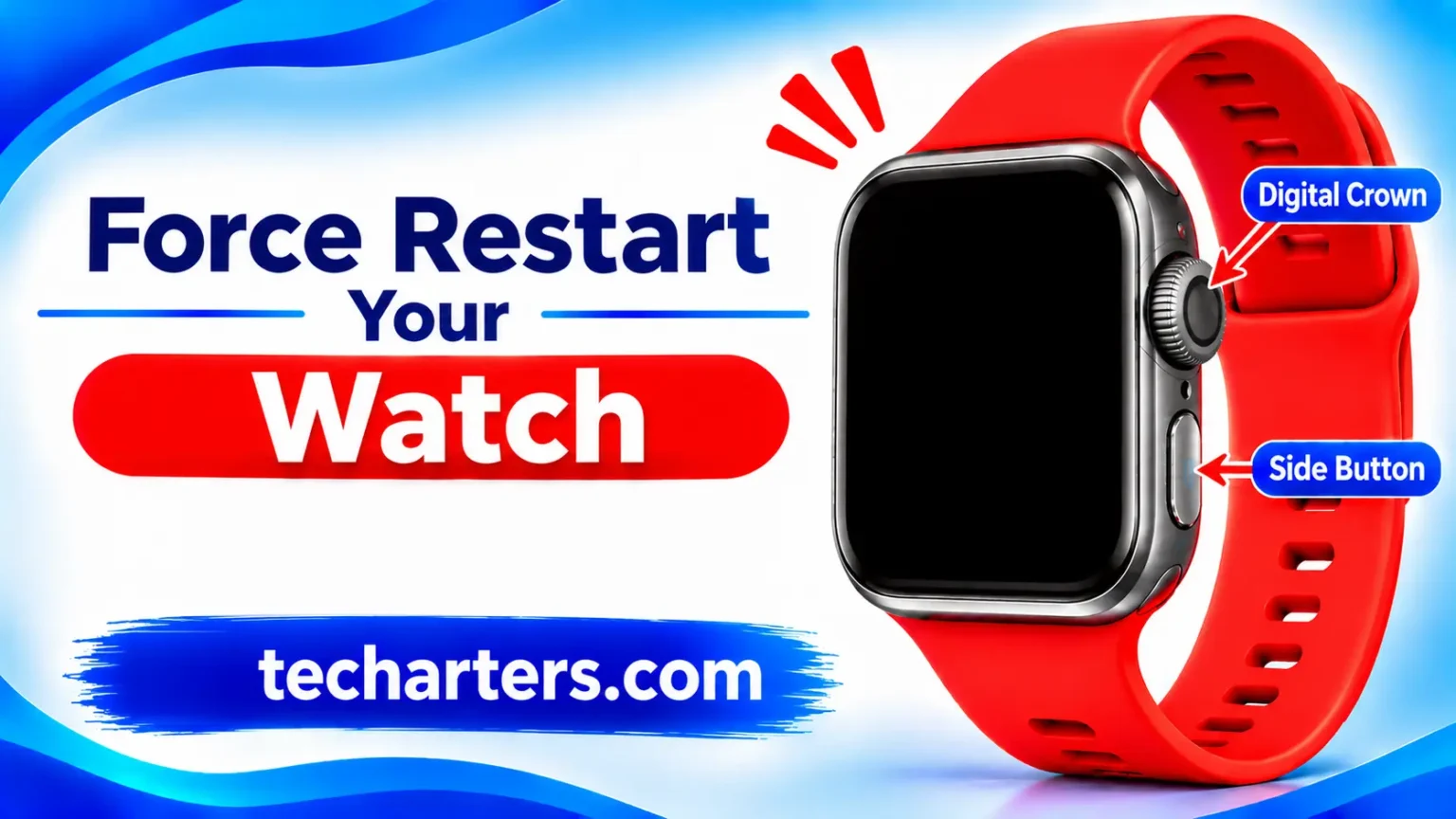
To force restart any Apple Watch:
- Press and hold both the side button and the Digital Crown at the same time.
- Keep holding them for at least 10 seconds.
- Release the buttons when the Apple logo appears again. The screen may briefly go black before the logo returns.
- Wait for the watch to start up. This can take a minute or so.
A few tips improve your odds. Do this while the watch is on its charger if possible, since a stronger power supply helps the boot complete. Make sure you are pressing the right controls: the side button is the flat button below the Digital Crown, not the Digital Crown itself, and you need both held down together. If nothing happens after 10 seconds, keep holding for a few more seconds rather than letting go too early. Some people report that it takes closer to 15 seconds on a stubborn watch.
If the watch boots normally afterward, you are done. It is a good idea to open the Watch app on your iPhone, confirm the watch is connected, and check that everything looks right. If the watch returns to the logo and sticks again, repeat the force restart once or twice, then continue to the next steps.
Fix 3: Rule Out the Charger, Cable, and Power Adapter
A surprising number of stuck-logo cases turn out to involve a charging problem rather than a watch problem. If the watch is not receiving steady power, it can restart in a loop or fail to complete an update. Checking the charging setup costs nothing and takes only a few minutes.
Start with the cable and adapter. Inspect the charging puck for cracks, fraying, scorch marks, or a loose connector. Try a different wall outlet, and if you have access to another genuine Apple charger or a certified one, try that as well. If you were charging from a computer or a power strip, switch to a wall adapter directly.
Next, check the contact surfaces. Dust, sweat residue, lotion, and skin oils can build up on the back of the watch and on the charger, creating a thin barrier that interferes with magnetic charging. Wipe both surfaces gently with a soft, dry, lint-free cloth. If there is stubborn grime, you can use a very slightly dampened cloth on the watch back, but never use liquid cleaners, solvents, or compressed air, and make sure everything is fully dry before charging.
Finally, remove any case, protective cover, or metal accessory that could interfere with the connection. Thick cases and certain magnetic bands can prevent the charger from sitting flush against the back of the watch.
After making these checks, place the watch back on the charger and wait 30 minutes. Watch for the charging indicator, the small lightning bolt icon or the green ring that appears when charging begins on a watch that is booted. On a watch stuck on the logo you may not see these, but the logo itself may pulse or restart when power is applied. Then try another force restart.
Fix 4: Let an Interrupted Update Finish, or Restart It
If the stuck logo appeared during or just after a watchOS update, the update is the prime suspect. There are two sub-cases here, and the right move differs.
The progress bar is visible and moving. Do nothing. Leave the watch on its charger, keep the iPhone nearby, and wait. Updates on older models can take a long time, sometimes more than 30 minutes, and the progress bar may appear to stall for several minutes at a time before moving again. Resist the temptation to restart.
The progress bar is gone or frozen for a long time. If more than an hour has passed with no movement, force restart the watch as described above. In many cases the watch will resume or retry the installation on its own. If it boots to the watch face, open the Watch app on your iPhone and go to General, then Software Update, to check whether the update completed. If the update is offered again, make sure the watch is charging, has at least 50 percent battery, and is within range of the iPhone, then try again.
If the watch will not complete the update on repeated attempts and keeps returning to the logo, the installation may be corrupted, and you may need to erase and restore the watch, covered later in this guide.
Fix 5: Check the iPhone Side of the Equation
The watch and the iPhone work together closely, and problems on the phone can sometimes contribute to stuck-watch situations, especially when an update or a pairing is involved.
Begin by making sure your iPhone is running a current version of iOS. Go to Settings, then General, then Software Update, and install anything pending. An out-of-date iPhone may not be able to communicate properly with a watch running newer software, or may fail to deliver update files correctly.
Next, check that Bluetooth and Wi-Fi are on. Open Control Center and confirm both are enabled, and that Airplane Mode is off. Restart the iPhone as well, since a quick reboot clears temporary glitches that can disrupt communication.
Once the watch finally boots, open the Watch app and check that it shows as connected. If it appears disconnected, try toggling Bluetooth off and on, or restarting both devices. Keep the two devices close together during any update.
These steps will not unstick a watch frozen on the logo by themselves, but they set up the conditions for the later recovery steps to work, and they can prevent a repeat of the problem.
Fix 6: Try a Long, Uninterrupted Charge
If a force restart has not worked, and you suspect a very deep battery discharge, try giving the watch an extended, undisturbed charge. This is particularly relevant for watches that have been stored unused for a long time, which can fall into a deeply discharged state that the watch struggles to recover from.
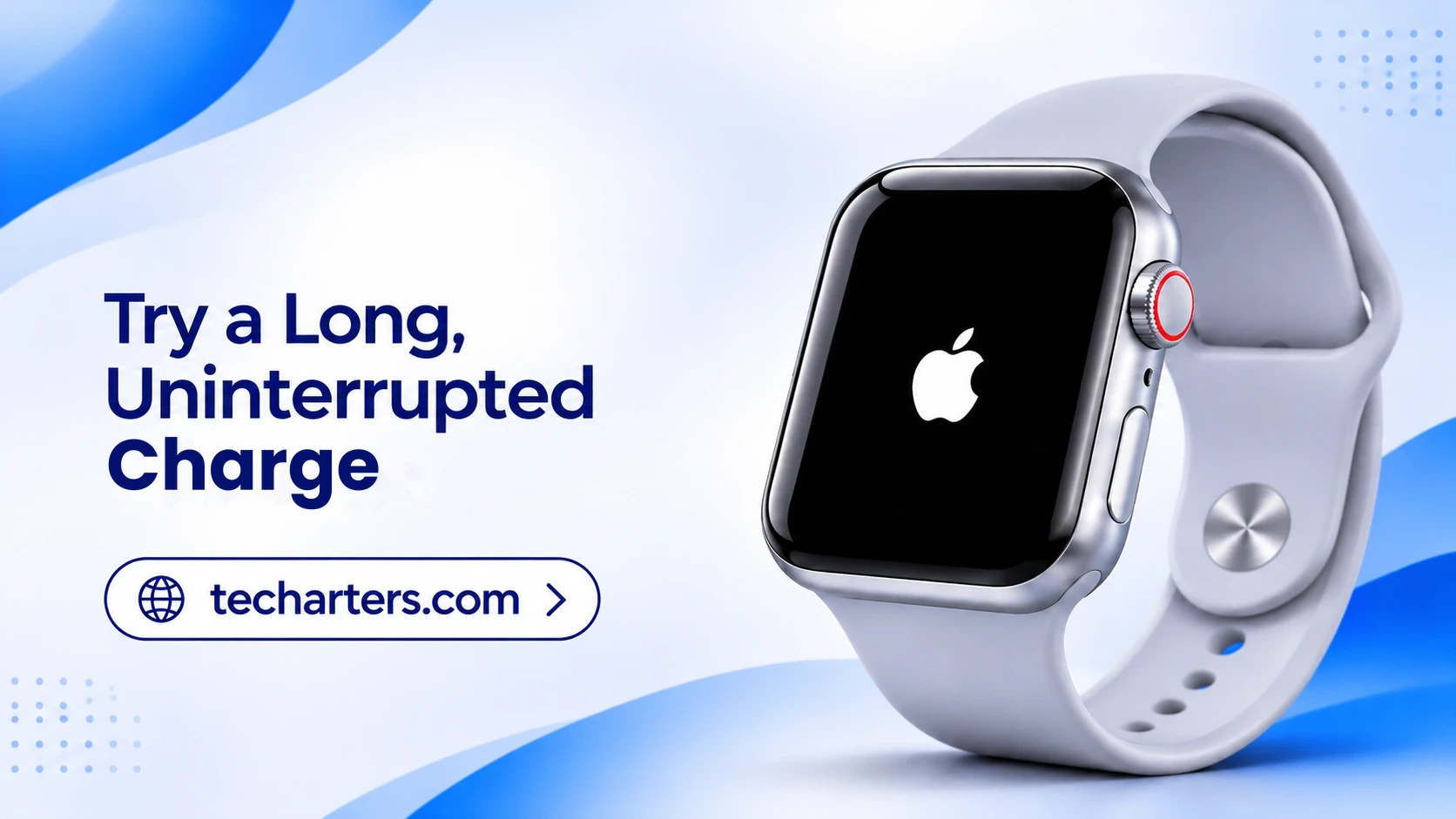
Place the watch on its charger with a known-good cable and adapter. Leave it there for a full two to three hours without touching it. Do not keep checking, since pressing buttons can restart the boot attempt and drain the small amount of charge that has accumulated. After the long charge, perform a force restart while the watch is still on the charger.
Some watches that seem unresponsive come back to life after being charged for several hours. If yours remains on the logo even after a long charge, the issue is unlikely to be the battery level alone, and it is time to consider more involved steps.
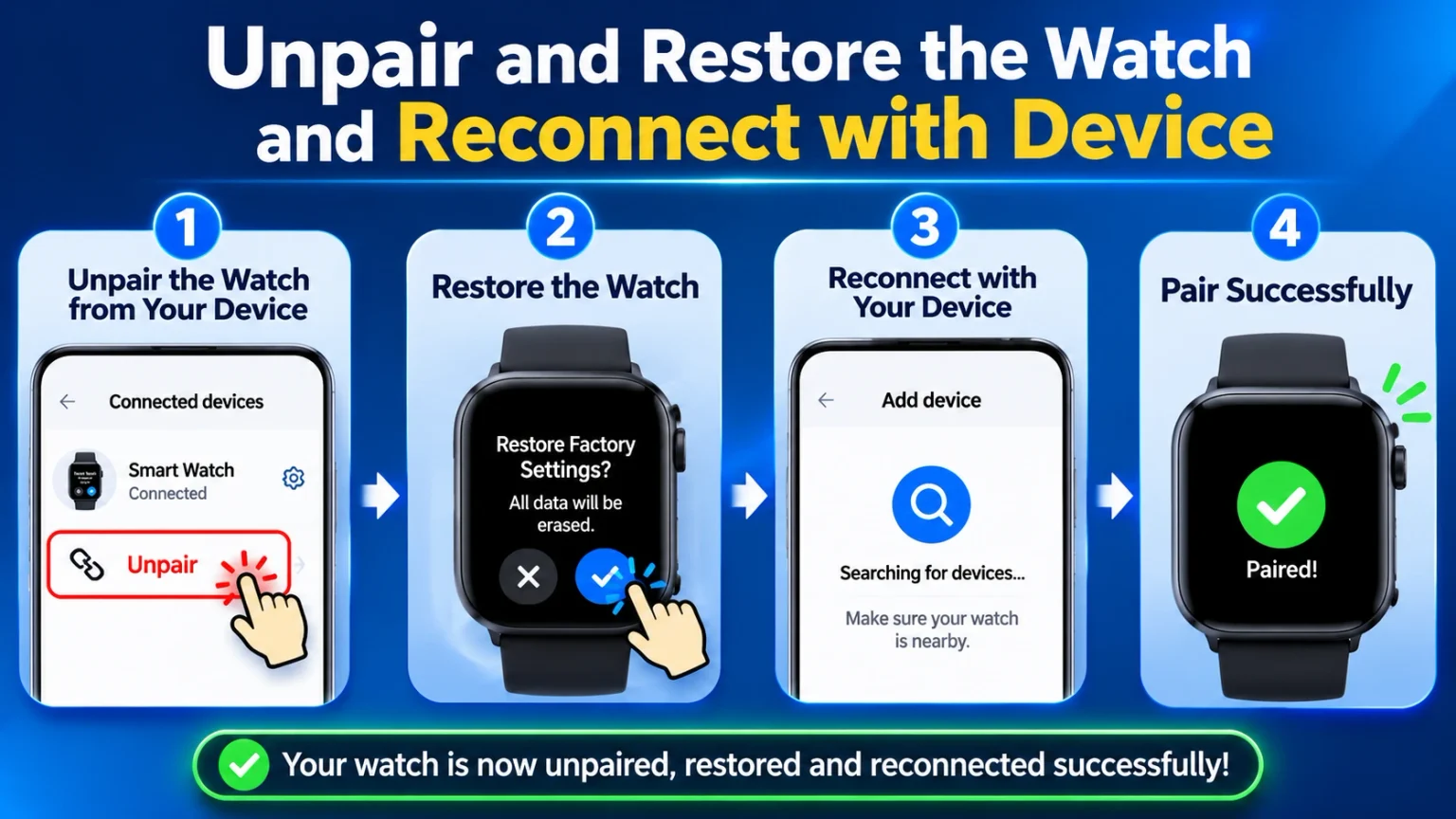
Fix 7: Unpair and Restore the Watch
If the watch eventually boots, even briefly, but keeps misbehaving, or if you can get it to a state where the iPhone can see it, erasing and re-pairing is the most thorough software fix. It is also the step that most worries people, so it is worth understanding how it protects your data.
Your data is likely backed up. When your watch is paired to your iPhone, the iPhone automatically backs up the watch’s data, including settings, watch faces, and app arrangements. Health and activity data is stored in the Health app on the iPhone, and it can also sync through iCloud if you have that enabled. When you unpair, the iPhone creates a fresh backup first, as long as the watch is reachable. When you pair again, you can restore from the most recent backup.
To unpair from the iPhone, open the Watch app, tap All Watches at the top of the My Watch tab, tap the info button next to your watch, and choose Unpair Apple Watch. If you have a cellular model, you will be asked whether to keep or remove your plan. Follow the prompts, and enter your Apple ID password if asked to turn off Activation Lock.
To re-pair, hold the watch near the iPhone, follow the pairing prompts, and choose to restore from backup when offered. Make sure you pick the most recent backup, and allow plenty of time for the restore to complete.
There is an important catch. If the watch is completely frozen on the logo and cannot communicate with the iPhone, you may not be able to unpair it normally. In that situation, the iPhone cannot create a fresh backup, and the unpair process may be unavailable or may erase the watch without saving the latest data. If the watch has never completed booting since the problem began, your most recent existing backup will still be there from before, which is usually enough.
If you cannot get the watch to boot at all, do not keep trying to force the issue indefinitely. A watch that cannot reach the point of pairing needs help from Apple or an authorized service provider, who have the tools to restore the software at a deeper level than is available to consumers.
Fix 8: Consider Whether It Is a Hardware Problem
When every software step has failed, it is time to consider that the watch has a hardware fault. A few signs point in that direction.
- The watch gets noticeably warm on the charger but never progresses past the logo.
- The watch has been dropped, crushed, or exposed to water, steam, or heavy sweat before the problem began.
- The case looks swollen, the screen is lifting at the edges, or the back is bulging. This can indicate a failing battery, which is a safety issue. If you see this, stop charging the watch and contact Apple immediately.
- The watch is several years old and its battery was already degrading, with short battery life and unexpected shutdowns beforehand.
- The watch repeatedly restarts to the logo and then goes black, in a loop, regardless of what you do.
In these cases, the most likely culprits are the battery, the logic board, or the storage chip. None of them can be repaired at home, and attempting to open the watch is both difficult and risky.
Getting Professional Service
When it is time to get help, you have a few options. You can make an appointment at an Apple Store through the Apple website or the Apple Support app, you can use an Apple Authorized Service Provider, or you can contact Apple Support by phone or chat to arrange a mail-in repair.
Before you go, check your coverage. Apple Watches come with a one-year limited warranty, and AppleCare+ extends coverage and adds accidental damage protection. If your watch is within coverage and the problem is a manufacturing defect, repair may be free. For out-of-warranty devices, Apple typically quotes a repair or replacement fee, and for older watches, a battery service or replacement unit may be offered. Prices vary by model and region, so check Apple’s current pricing for your specific watch.
It is also worth considering the age and value of the watch. For a very old model, the cost of repair may approach the cost of a newer watch, and a trade-in or upgrade could make more sense. Ask the technician for a clear quote before you agree to any work.
A few practical steps make the visit smoother. Bring the watch, its charger, and your iPhone. Know your Apple ID and password, because Activation Lock ties the watch to your account, and service staff will need you to confirm ownership or turn it off. Do not remove the watch from your account early unless the technician asks you to, since the watch may not even be able to complete that process while stuck.
If you bought your watch on a cellular plan, you may also want to check with your carrier about suspending or transferring service while the watch is out for repair.
What Happens to Your Data
Because the stuck logo makes people fear permanent loss, it is worth being specific about what is and is not at risk.
Your iPhone holds the primary record of your watch’s data. The Health app stores your workouts, heart rate readings, activity history, and sleep information on the iPhone, and this data does not live only on the watch. If you use iCloud, Health data can also be synced and backed up there, adding another layer of safety.
Watch faces, app layouts, and settings are included in the automatic watch backups the iPhone creates. Those backups are what you restore from when you re-pair after a reset.
The most realistic loss is a small amount of recent data, such as workouts recorded on the watch since the last time it synced with the iPhone, or a handful of recent notifications and changes. If the watch was in the middle of recording an activity when it froze, that session may be lost.
To keep your data safe in the future, make sure your iPhone backs up regularly, keep iCloud Health syncing on if you are comfortable with it, and keep the watch connected to the iPhone as often as possible.
How to Prevent It From Happening Again
Once your watch is working again, a few habits will lower the chance of a repeat.
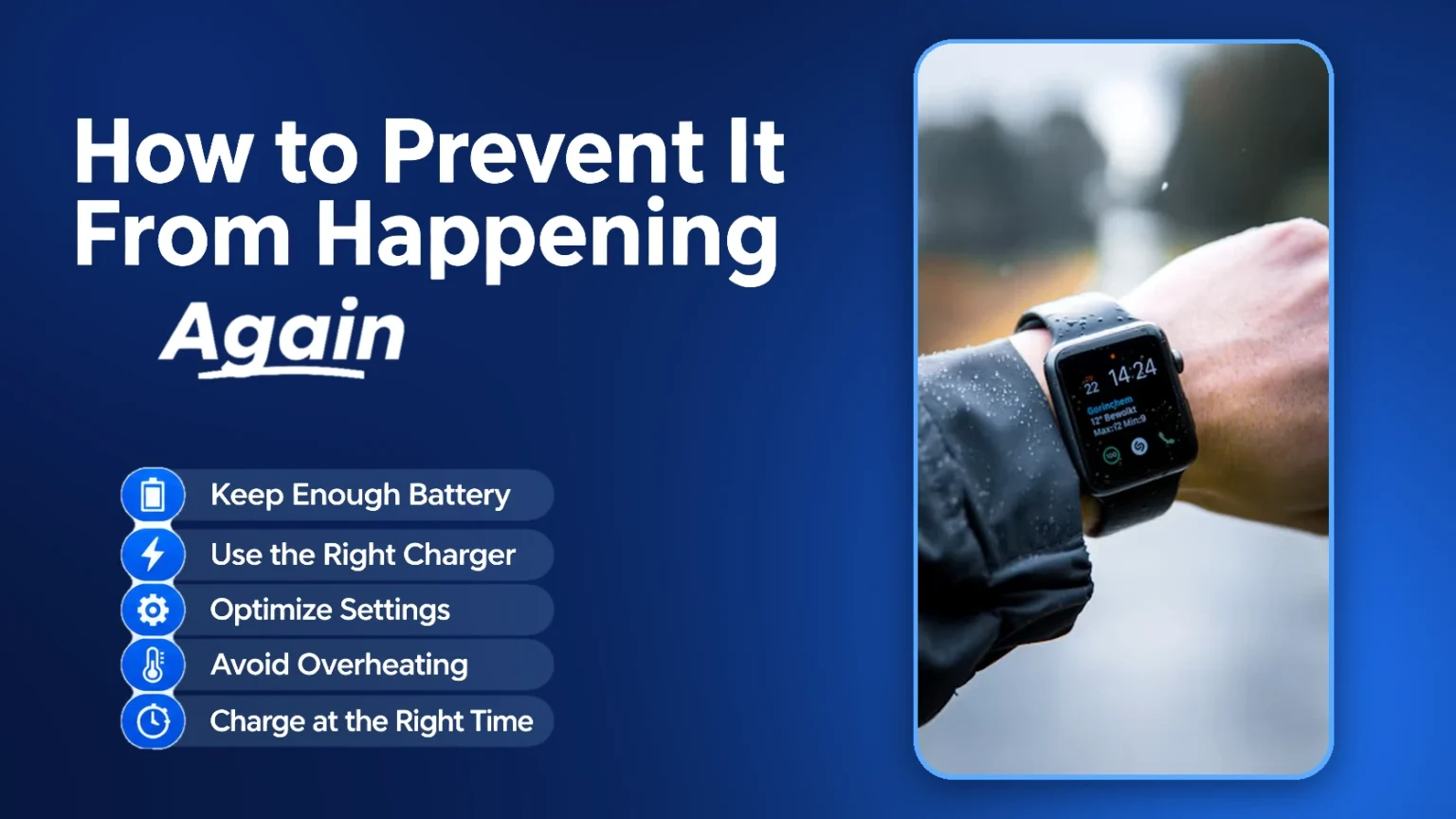
Update carefully. Before installing watchOS updates, make sure the watch has at least 50 percent battery and is on its charger, and that the iPhone is connected to Wi-Fi and close by. Never interrupt an update by removing the watch from the charger or restarting it.
Do not let the battery sit at zero. Charge the watch regularly, and if you store it for a long period, charge it to roughly half and power it down, then top it up every few months.
Use quality charging gear. Stick to Apple’s charger or certified alternatives, and avoid cheap unbranded cables and adapters.
Keep the watch clean and dry. Wipe the back and the charger now and then, rinse the watch with fresh water after swimming in chlorinated or salt water, and dry it thoroughly.
Watch the battery’s health. On many models, you can check battery health in the Settings app on the watch. If capacity has dropped significantly, consider a battery service before it causes boot problems.
Keep software current. Install updates for both iPhone and watch when they are released, since they often include fixes for stability problems.
Frequently Asked Questions
How long should I wait before deciding the watch is stuck?
If the Apple logo has been showing for an hour or more with the watch on its charger and no progress bar, it is reasonable to assume it is truly stuck and to try a force restart.
Will a force restart delete my data?
No. A force restart does not erase anything. It only forces the watch to shut down and start again.
Can I fix it without my iPhone?
The early fixes, such as charging and force restarting, do not need the iPhone. Updating, unpairing, and restoring do.
Is it safe to keep charging a watch that is stuck on the logo?
Generally yes, as long as the watch is not hot to the touch, swollen, or visibly damaged. If it becomes unusually hot or the case looks deformed, stop charging and contact Apple.
Does this mean my watch is broken?
Not necessarily. Many stuck-logo cases are caused by low battery or an interrupted update, and they resolve with a charge and a force restart. Only if everything fails should you suspect hardware.
Can a third-party repair shop fix it?
Some can, but using non-Apple repair can affect your warranty and may involve non-genuine parts. For a watch under warranty or AppleCare+, going through Apple is usually the better choice.
Conclusion Apple Watch Stuck on Apple Logo
An Apple Watch stuck on the Apple logo is stressful, but it is rarely the end of the road. The most common causes, a low battery or a disrupted update, respond well to simple measures. Start by charging the watch and waiting, then force restart it. Rule out charger and cable problems, let any update finish, and make sure your iPhone is in good shape. If the watch still will not boot, an unpair and restore, or a visit to Apple, will resolve nearly every remaining case.
Throughout, remember that your data is much safer than it feels in the moment, thanks to the backups your iPhone maintains. Move step by step, avoid rash actions like interrupting an update, and do not hesitate to ask for professional help when the signs point to hardware. With a little patience, the familiar watch face will almost certainly return to your wrist.