AirPods that refuse to connect to an iPhone are almost always fixable at home, and most fixes take under five minutes. The cause is usually a stale Bluetooth pairing, a low battery, or a software glitch rather than broken hardware.
If your AirPods are not connecting to your iPhone, you may see a pairing animation that never appears, a “Connection Unsuccessful” message, audio playing from the iPhone speaker instead, or one AirPod that stays silent while the other works.
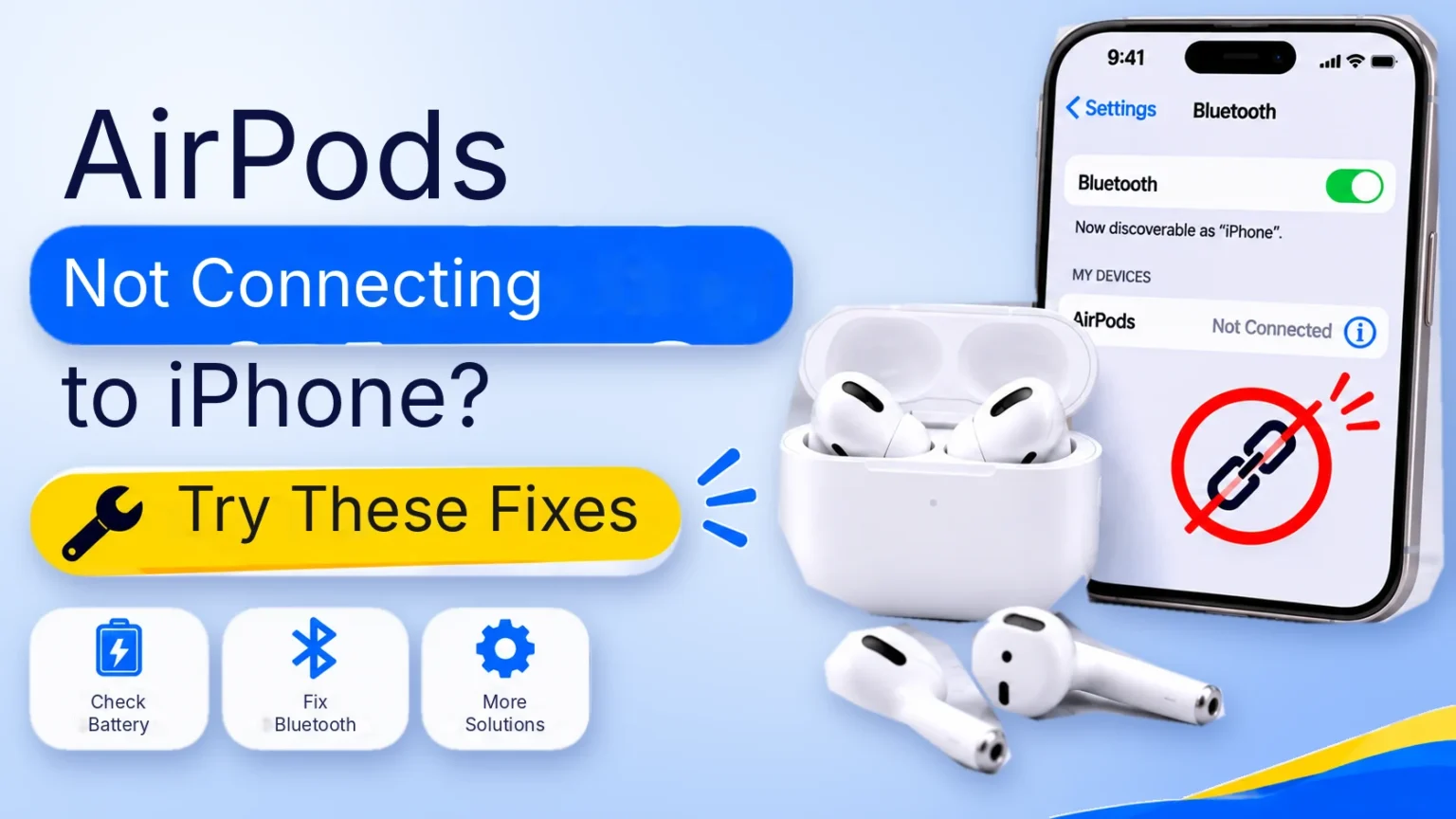
If you’re experiencing AirPods Not Connecting to iPhone, don’t worry. There are several troubleshooting methods you can try to restore the connection and get your AirPods working again.
This guide moves from the simplest checks to the most involved fixes, so you can stop as soon as the problem goes away. It covers quick checks, basic resets, software updates, re-pairing, hardware problems, wireless interference, and the point at which it makes sense to contact Apple. It applies to AirPods (all generations), AirPods Pro, and AirPods Max, and to any iPhone running a recent version of iOS.
Work through the sections in order. Skipping ahead to a factory reset is tempting, but the earlier steps solve the majority of cases without erasing anything, and they help you work out what actually went wrong.
Start with the Quick Checks for AirPods Not Connecting to iPhone
Before changing any settings, rule out the five most common causes. Each takes seconds.
- Charge the AirPods and the case. A depleted battery is the single most common reason AirPods will not connect. Put both AirPods in the case, plug the case in with a Lightning or USB-C cable (or place it on a MagSafe or Qi charger), and wait at least 15 minutes. The status light should turn amber or green.
- Confirm Bluetooth is on. Open Control Center by swiping down from the top-right corner (or up from the bottom on older iPhones with a Home button) and check that the Bluetooth icon is highlighted blue. A grey icon with a slash means it is off.
- Turn off Airplane Mode. Airplane Mode disables Bluetooth unless you manually turn it back on. If the airplane icon is orange, tap it once to switch it off.
- Move closer. Keep the AirPods within a few inches of the iPhone with the case lid open. Bluetooth range is roughly 10 metres in open space, but the initial handshake works best at close range.
- Check the audio output. Your AirPods may already be connected while audio plays somewhere else. Start playing music, open Control Center, tap the AirPlay icon in the music card, and select your AirPods from the list.
Also look at the status light on the case. White flashing means the AirPods are ready to pair. Amber flashing suggests a pairing problem. Steady amber means the battery is low. No light at all suggests the case itself is completely drained or has a fault.
If the AirPods are fully charged, Bluetooth is on, and they still do not appear, move on to the basic fixes below.
Try the basic fixes
These steps clear temporary glitches in the connection without deleting any saved settings.
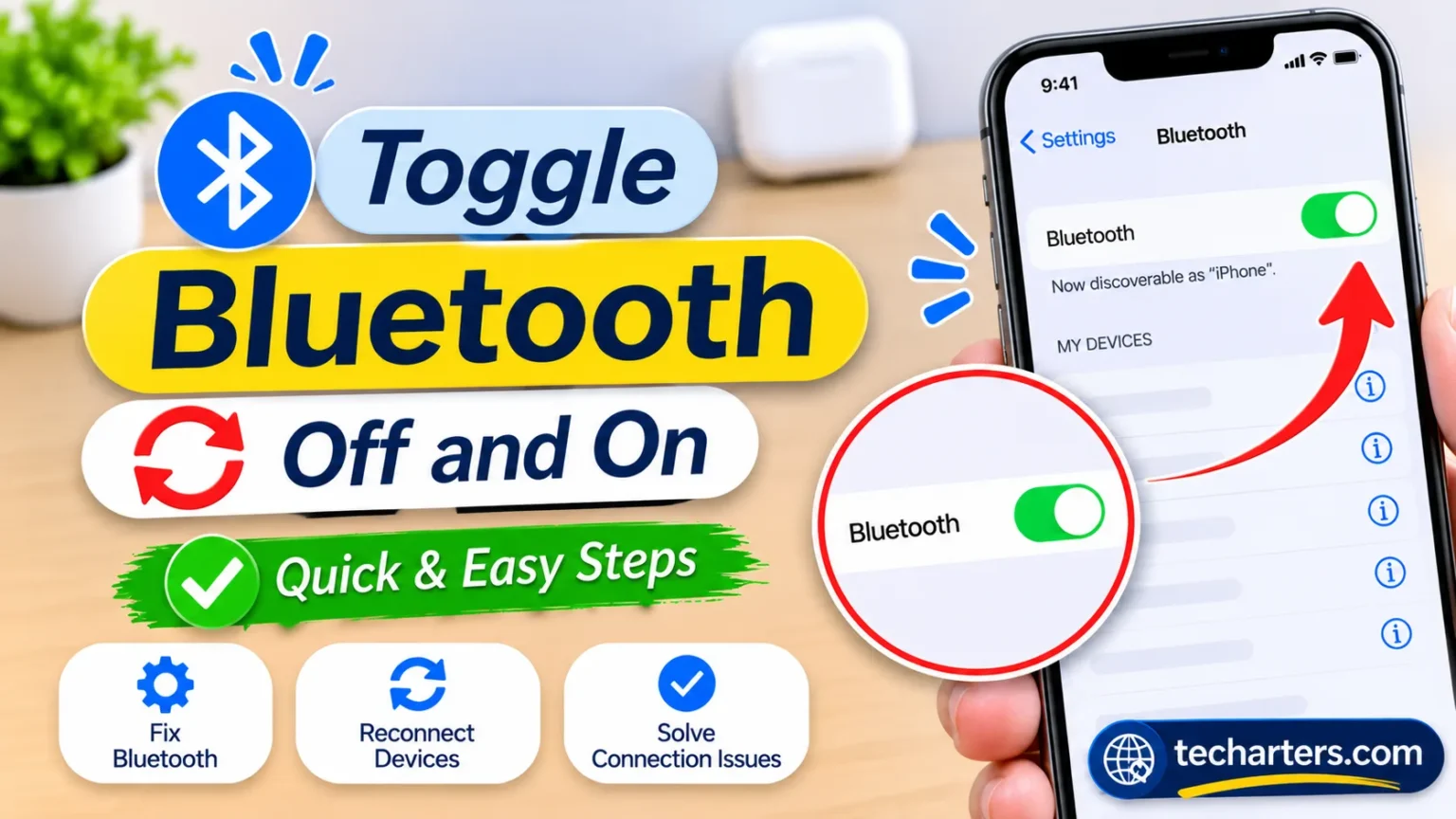
Toggle Bluetooth
Open Settings, tap Bluetooth, switch it off, wait ten seconds, and switch it back on. This forces the iPhone to rescan for nearby devices. If your AirPods show under My Devices as “Not Connected,” tap their name to connect manually.
Reset the case by closing it
Place both AirPods in the case, close the lid, and leave it for about 30 seconds. Then open the lid near your iPhone. This simple step lets the AirPods and case re-establish communication, and it fixes many one-off failures.
Restart the iPhone
A restart clears the memory and background processes that manage Bluetooth. To restart a Face ID iPhone, hold the side button and either volume button until the slider appears, drag it, wait 30 seconds, then hold the side button to turn it back on. On iPhones with a Home button, hold the side or top button instead.
Check what else is using the AirPods
AirPods connect to one device at a time for audio. If they were last used with an iPad, Mac, or Apple Watch nearby, they may have switched to that device. Turn off Bluetooth on your other devices, or open Settings on the iPhone and choose Bluetooth, then tap the info icon beside your AirPods and select Connect to This iPhone. Setting this to “Last Connected to This iPhone” can help if automatic switching is causing trouble.
Disable and re-enable Automatic Ear Detection
In Settings, tap your AirPods under Bluetooth, tap the info icon, and switch Automatic Ear Detection off and on. If audio keeps playing from the phone speaker, this setting is sometimes the cause, particularly after a software update.
If none of these steps restore the connection, the problem is likely in the software layer, which the next section covers.
Fix software problems
If the quick checks and basic fixes fail, outdated or corrupted software is the next suspect. Apple regularly patches Bluetooth bugs in iOS updates, and AirPods receive their own firmware updates.
Update iOS
Open Settings, tap General, then Software Update. If an update is available, install it while the iPhone is charging and connected to Wi-Fi. Many connection failures that appear suddenly after a new AirPods purchase, or after an iPhone has gone months without updating, disappear after installing the latest version.
Update the AirPods firmware
AirPods update their firmware automatically, but only when they are in the charging case, connected to power, and within Bluetooth range of an iPhone that has an internet connection. You cannot trigger the update manually. To encourage it, put the AirPods in the case, plug the case in, leave the lid open or closed near the iPhone, and wait about 30 minutes. To check the version, go to Settings, Bluetooth, tap the info icon beside your AirPods, and scroll to the About section.
Check for restrictive settings
Some settings can quietly block the connection:
- Low Power Mode reduces background activity and can interfere with Bluetooth on some iPhones. Turn it off in Settings, then Battery.
- Screen Time restrictions or a work or school management profile may limit Bluetooth device pairing. Check Settings, General, VPN & Device Management.
- Bluetooth permissions for individual apps can cause audio to fail in one app only. Check Settings, Privacy & Security, Bluetooth.
Reset network settings
If Bluetooth itself seems unreliable, resetting network settings restores the wireless stack to its defaults. Open Settings, General, Transfer or Reset iPhone, tap Reset, and choose Reset Network Settings. Enter your passcode and confirm.
This removes saved Wi-Fi passwords, VPN settings, cellular configurations, and all paired Bluetooth devices, so note your Wi-Fi passwords first. It does not delete photos, apps, or personal data. After the iPhone restarts, pair the AirPods again from scratch.
Forget, reset, and re-pair the AirPods
When the pairing record itself is corrupted, the cleanest solution is to delete it and start fresh. This is the most effective fix for AirPods that appear in the list but will not connect, or that connect and then drop repeatedly.
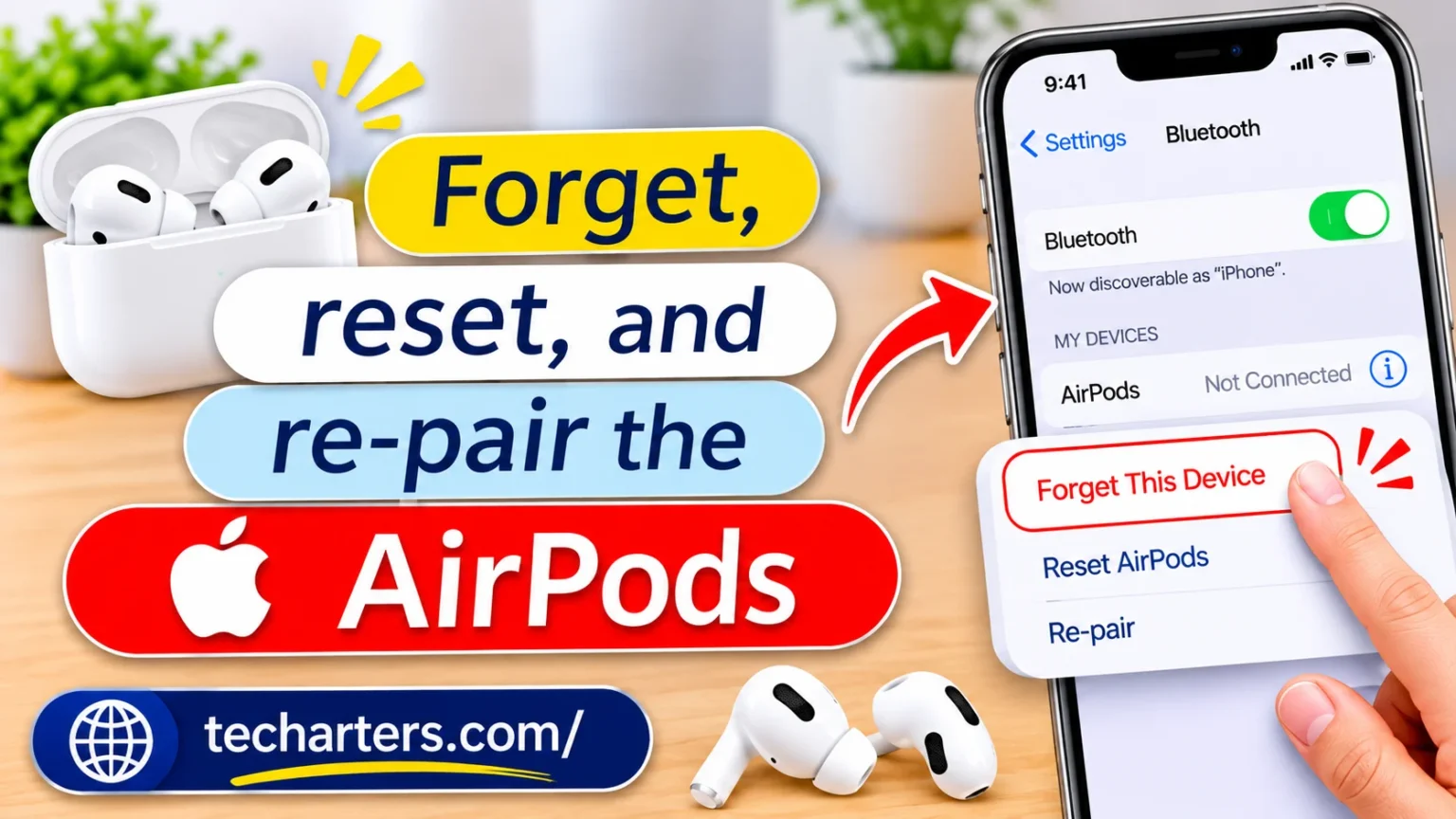
Step 1: Forget the AirPods on the iPhone
- Open Settings and tap Bluetooth.
- Find your AirPods under My Devices and tap the info icon (a lowercase “i” in a circle).
- Tap Forget This Device and confirm.
If you use iCloud, this also removes them from your other Apple devices signed in to the same Apple Account, which is normal. They will reappear once you pair again.
Step 2: Reset the AirPods
- Place both AirPods in the case and close the lid for 30 seconds.
- Open the lid.
- Press and hold the setup button on the back of the case for about 15 seconds. Keep holding until the status light flashes amber a few times, then flashes white.
- Release the button. The reset is complete.
The setup button is the small round button on the back of the standard case. On AirPods Max, hold the noise control button and the Digital Crown together for about 15 seconds until the light flashes amber, then white.
Step 3: Pair again
With the lid open, hold the case close to the unlocked iPhone. A setup animation should appear within a few seconds. Tap Connect, follow the prompts, and tap Done. If the animation does not appear, go to Settings, Bluetooth, and look for the AirPods under Other Devices while the light is flashing white. Tap the name to pair.
If the setup animation never appears
- Make sure the iPhone is unlocked and the screen is on.
- Confirm that the light on the case is flashing white. If it flashes amber, repeat the reset.
- Restart the iPhone and try again.
- Try pairing near a window or in another room, away from other wireless devices.
After a successful re-pair, test the connection by playing audio and walking a few metres away. If audio stays stable, the problem was a corrupted pairing record, and you are finished.
Rule out hardware problems
If a full reset and re-pair does not help, inspect the AirPods and case physically. Hardware faults often show distinctive symptoms.
Dirty charging contacts
Earwax, lint, and skin oils build up on the small metal contacts at the bottom of each AirPod and inside the case. When the contacts are dirty, the AirPods do not charge properly, and the case may not detect them. Wipe the contacts with a dry, lint-free cloth. For stubborn residue, use a clean cotton swab lightly dampened with 70 percent isopropyl alcohol, then let everything dry fully before charging. Clean the speaker mesh gently with a dry soft-bristled brush, and never push sharp objects into any opening.
Only one AirPod works
When one AirPod connects and the other stays silent, try these steps in order:
- Put both AirPods in the case and charge them for 15 minutes.
- Reset the AirPods as described in the previous section and pair again.
- Open Settings, Accessibility, Audio/Visual, and check that the Balance slider sits in the centre. A slider pushed fully to one side mutes the other ear.
- Test each AirPod on its own by placing only one in your ear.
If one AirPod still fails alone, it likely has a battery or hardware fault.
Battery wear
AirPods contain tiny lithium-ion batteries that lose capacity over time. After two to three years of regular use, many people notice that the AirPods last only an hour or two, shut off suddenly, or fail to charge at all. A worn battery can also cause the connection to drop when the charge dips. Apple offers a battery service for AirPods, and a replacement is often cheaper than a new pair.
Case problems
A damaged hinge, a bent connector, a faulty charging port, or a drained case battery can all prevent the AirPods from entering pairing mode. If the status light never turns on even after charging for an hour, try a different cable and a different power source. If it still shows nothing, the case may need servicing.
Liquid and physical damage
Sweat, rain, and accidental drops into water can corrode internal parts. AirPods Pro and later models carry water resistance ratings, but the rating weakens with age and is not permanent. If your AirPods went through a wash, take them out of the case, let them dry for at least a day, and do not charge them while damp. Corrosion or a bent connector is not a home repair, so contact Apple.
Handle interference and multi-device conflicts
Sometimes the AirPods and iPhone are both fine, but the environment or your other devices get in the way. This is especially likely when the connection works at home but fails in a gym, office, or train station, or when audio stutters rather than failing entirely.
Wireless interference
Bluetooth shares the 2.4 GHz band with Wi-Fi routers, microwave ovens, cordless phones, baby monitors, and USB 3.0 hubs. Crowded places such as airports, offices, and stadiums add dozens of competing signals. If audio cuts out in one spot, try these changes:
- Move away from routers, microwaves, and large metal objects.
- Keep the iPhone on the same side of your body as the AirPods. Carrying it in a back pocket makes the signal pass through your body.
- Switch your Wi-Fi router to the 5 GHz band if it supports it, which reduces overlap with Bluetooth.
- Turn off Bluetooth accessories you are not using, such as old speakers, smartwatches, or keyboards.
Automatic switching between devices
AirPods can hop between devices signed in to the same Apple Account. This is convenient, but it can pull the AirPods away from your iPhone just as you try to use them. If your iPad or Mac keeps grabbing the connection, open Settings on the iPhone, tap your AirPods under Bluetooth, tap Connect to This iPhone, and choose When Last Connected to This iPhone. On the Mac, open System Settings, Bluetooth, click the info icon beside the AirPods, and apply the same setting.
Other Bluetooth connections
A car stereo, a Bluetooth speaker, or a smartwatch that connects automatically can take over audio output as soon as you walk into range. Switch off Bluetooth on those devices or forget them temporarily while you troubleshoot.
Sign-in and iCloud issues
Pairing and automatic switching rely on your Apple Account. If the setup animation never appears or AirPods vanish from your other devices, open Settings, tap your name, and make sure you are signed in. Signing out and back in sometimes restores syncing. Also confirm that Bluetooth is turned on for the device you want to use, and that the devices run recent software.
Model notes, fakes, and when to contact Apple
Differences between models
The core steps work for every model, but a few details differ. Standard AirPods and AirPods Pro use a setup button on the back of the case, while AirPods Max use the noise control button and Digital Crown. Older first-generation AirPods need a recent iOS version to use features such as hands-free “Hey Siri,” and very old iPhones that cannot update may not support newer AirPods fully. AirPods Pro models add features such as noise cancellation and Adaptive Audio, which rely on current software, so keep both the iPhone and the AirPods updated.
Counterfeit AirPods
If the AirPods were bought from an unofficial seller or a suspiciously cheap listing, they may be counterfeits. Fakes often fail to show the setup animation, pair as a generic Bluetooth headset, or lack features like automatic switching. To check, open Settings, General, About, and look for your AirPods in the list. The serial number should be accepted at Apple’s coverage-check page. If it is rejected, or the AirPods behave strangely on a real iPhone, they are probably not genuine.
When to contact Apple
Contact Apple Support or visit an Apple Store or authorised service provider if any of these apply:
- The reset and re-pair steps fail on more than one iPhone or device.
- One AirPod or the case never charges, even after cleaning and trying another cable.
- The status light stays off or flashes amber after multiple resets.
- There is visible damage, corrosion, or swelling.
- The AirPods are under warranty or covered by AppleCare+, which can reduce repair costs.
Testing the AirPods on a second device, such as a friend’s iPhone or an iPad, helps you tell whether the fault is in the AirPods or in your iPhone. If they connect there instantly, the problem is in your iPhone settings, and a network settings reset or a full iPhone restore may be the answer.
Prevent future problems
- Keep iOS updated and let the AirPods update in the case near the iPhone.
- Clean the contacts and speaker mesh every few weeks.
- Store the AirPods in the case when not in use, and avoid leaving the case at 0 percent for long periods.
- Avoid extreme heat, such as a hot car dashboard, which accelerates battery wear.
- Buy from Apple or authorised resellers.
Frequently Asked Questions: AirPods
Why won’t my AirPods connect to my iPhone?
The usual causes are a low battery, Bluetooth turned off, or a stale pairing. Charge the AirPods and case, check that Bluetooth is on, then try connecting again. If that fails, forget the AirPods in Settings and pair them again.
How do I check the AirPods battery?
Open the case lid near your iPhone and the battery status appears on screen. You can also add the Batteries widget to your Home Screen or Today View.
How do I reset my AirPods?
Put both AirPods in the case and keep the lid open. Hold the setup button on the back of the case for about 15 seconds, until the light flashes amber and then white. Then bring the case close to your iPhone and follow the prompts.
How do I remove and re-pair my AirPods?
Go to Settings > Bluetooth, tap the (i) next to your AirPods, and choose Forget This Device. Then open the case near your iPhone and tap Connect.
Why does only one AirPod work?
One AirPod may be low on charge, dirty, or not seated properly in the case. Charge both for at least 30 minutes, clean them gently with a dry, soft cloth, and reset them if the problem continues.
Why do my AirPods keep disconnecting?
Common causes are Bluetooth interference, being too far from your iPhone, or outdated iOS. Update iOS, turn Bluetooth off and on, and keep the AirPods close to your phone.
Will resetting my AirPods delete anything?
No. A reset only clears the saved pairing and settings. You’ll need to pair them with your iPhone again.
Do I need to update my AirPods?
AirPods update automatically when they’re in the case, charging, and near a connected iPhone. If an update seems stuck, leave them charging near your phone for a while.
When should I contact Apple Support?
Contact Apple if the AirPods still won’t connect after a reset, or if you see physical damage, a battery that won’t charge, or a case light that never turns on.
I wrote these from general Apple guidance, so check the steps against Apple’s current support pages before publishing, since menu names and button behavior can change with iOS and AirPods models. I can also adapt them for a specific model, such as AirPods Pro, or write them in your site’s tone.
Conclusion
If your AirPods not connecting to iPhone, the problem usually comes down to a low battery, a Bluetooth pairing issue, or a temporary software glitch. Start by charging your AirPods and charging case, toggling Bluetooth off and on, and restarting your iPhone. If the problem persists, update iOS, forget your AirPods from Bluetooth settings, and reset them before pairing again. You should also check for dirty charging contacts, battery wear, or possible hardware damage. By following these troubleshooting steps in order, you can usually fix AirPods connection problems within minutes. If none of these solutions work, contact Apple Support for further assistance.