When Apple Pay is not working at stores, the cause is almost always one of four things: your device, your card, your bank, or the store’s payment terminal. Identifying the reason takes less than five minutes once you know what to look for. This guide explains how to troubleshoot Apple Pay not working at stores and get contactless payments working again.
Few checkout moments are more awkward. You hold your iPhone or Apple Watch to the reader, and nothing happens. Or you get the dreaded “Payment Not Completed” message while a line forms behind you. The good news is that most failures are temporary and easy to fix. Many can be solved right at the counter.
This guide starts with a short explanation of how Apple Pay communicates with a store terminal, making every troubleshooting step easier to understand. It then covers quick fixes you can try at the register, followed by more advanced solutions for your iPhone, Apple Watch, cards, and bank. You’ll also learn about store-side issues that are beyond your control, hardware problems that may require Apple’s support, and a handy checklist you can save for future reference. Whether you’re dealing with a declined payment or a failed transaction, this guide helps you understand and fix Apple Pay Not Working at Stores.
A quick note: Apple renames menus from time to time. If a setting path below doesn’t match your phone exactly, search for the setting name in the Settings app’s search bar.
How Apple Pay Not Working at Stores
Apple Pay uses NFC (near-field communication), a short-range radio that only works within a few centimetres. Your device has to be almost touching the terminal’s contactless symbol for the two to connect.
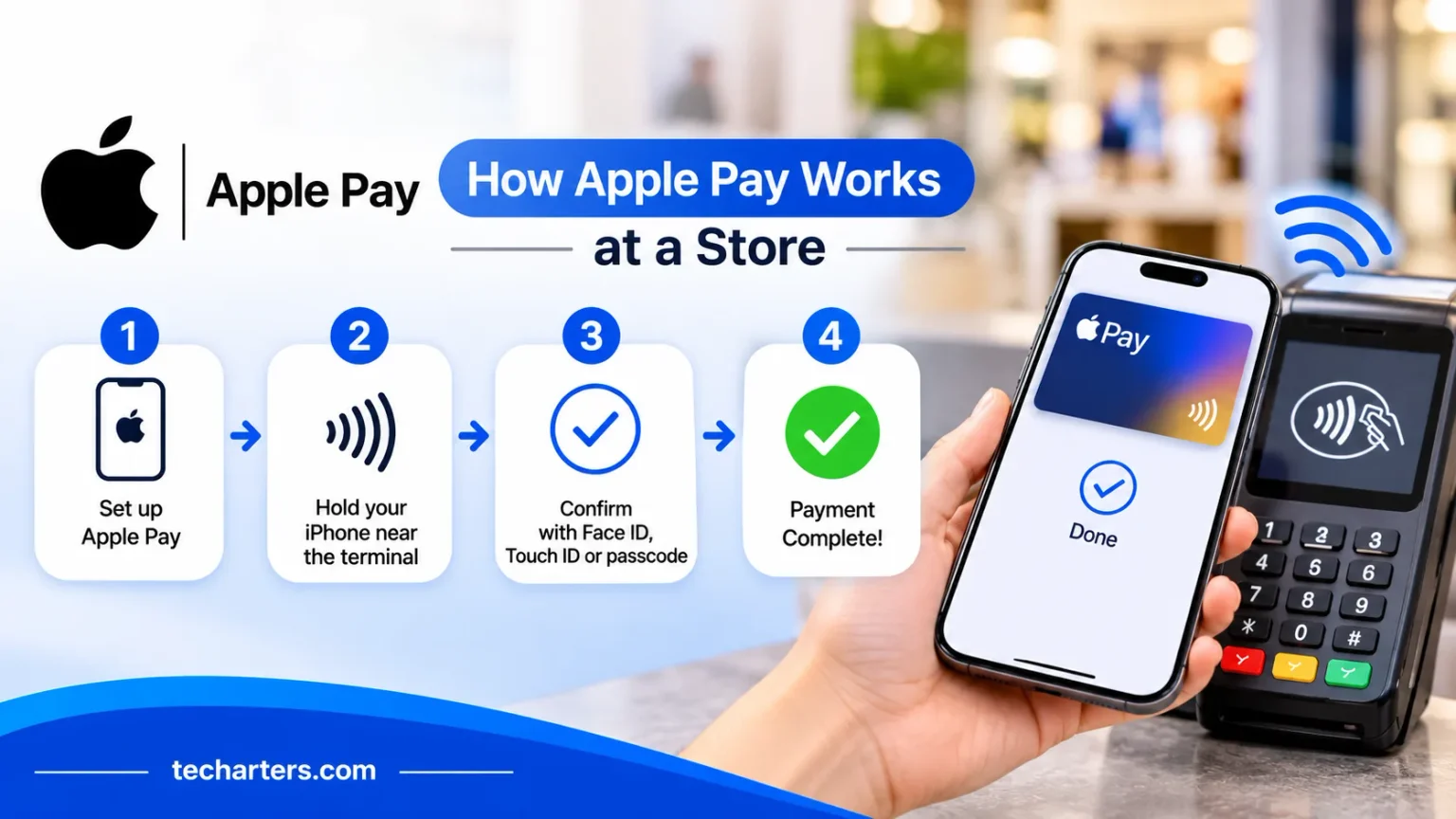
When you add a card to Apple Pay Not Working at Stores, your real card number is never stored on the device. Instead, your bank issues a substitute number called a Device Account Number, or token. It is stored in a protected chip called the Secure Element. At checkout, the device sends that token plus a one-time security code to the terminal. The payment network and your bank then check them and approve or decline the charge.
Each part of this chain can break:
- The device must have NFC working, a card in Wallet, and a way to confirm it’s you (Face ID, Touch ID, passcode or a wrist-detected Apple Watch).
- The token must still be active. Your bank can suspend it, and it can go stale if your card is replaced.
- The bank and network must approve the transaction, just as they would for a physical card.
- The terminal must accept contactless payments, have NFC switched on, and be set up for your card’s network.
Keep this chain in mind. When something fails, the error you see usually points to one link in it.
Quick fixes at the checkout counter
Try these troubleshooting steps in order to fix Apple Pay Not Working at Stores. Most take only a few seconds and can resolve common counter-side payment failures.
- Wait for the terminal to be ready. Many readers only switch on contactless after the cashier finishes ringing up the total. Tapping too early often does nothing. Wait for the total to show, or ask, “Is it ready for tap?”
- Hold the top of your iPhone near the reader. The NFC antenna sits near the top edge, by the cameras. Hold it flat over the contactless symbol and keep it still for a second or two. On Apple Watch, hold the face toward the reader.
- Remove a thick or metal case. Metal plates, magnetic grips, card wallets stuck to the back, and thick rugged cases can block the signal. A credit card in a case wallet can also confuse the reader, which sees two cards at once.
- Bring up Wallet first, then tap. On an iPhone with Face ID, double-click the side button. With Touch ID, double-click the Home button. Authenticate, then hold the phone to the reader. This is more reliable than letting the terminal wake Wallet.
- Choose a different card. If one card is declined while using Apple Pay Not Working at Stores, swipe to another card in Wallet. This quickly helps you determine whether the problem is with the specific card or your device.
- Try the terminal again, or a different lane. Ask the cashier to cancel and restart the transaction. If another register is free, try it.
- Restart your device. If none of the above helps, a quick restart clears most temporary glitches.
If nothing works and the line is growing, pay another way and troubleshoot at home. The sections below explain what to check.
iPhone-side causes and fixes
If Apple Pay Not Working at Stores occurs at several stores or with every card in your Wallet, the problem is probably with your iPhone rather than the payment terminal. Work through these checks to identify and fix the issue.
Face ID or Touch ID isn’t confirming. Apple Pay won’t send a payment until you prove it’s you. Sunglasses, a mask, wet fingers or a dirty sensor can all get in the way. Check that Apple Pay is switched on under Settings > Face ID & Passcode (or Touch ID & Passcode). If biometrics keep failing, tap “Pay with Passcode” on the Wallet screen.
No passcode is set. Apple Pay Not Working at Stores may be caused by a disabled device passcode. Apple Pay requires a device passcode to protect your payment cards. If you turn off your passcode, iOS removes your cards from Wallet. Turn your passcode back on, then add your cards to Wallet again.
Out-of-date iOS. Older versions can have Wallet and NFC bugs that Apple has since fixed. Go to Settings > General > Software Update and install any update.
Low Power Mode or a near-empty battery. Low Power Mode usually doesn’t block Apple Pay, but a battery at only a few percent can cause the NFC chip to behave oddly. Charge it a bit and try again.
Wrong default card. Wallet uses your default card unless you choose another one. If that card is expired or frozen, every tap fails. Change the default in Settings > Wallet & Apple Pay.
Express Mode confusion. Express Transit and student or access cards can pay without authentication. If one is set as the Express card, a store terminal may try to use it instead. Check Wallet for any Express cards and turn off the ones you don’t need.
Signed out of iCloud, or Apple Account problems. Wallet cards are linked to your Apple Account. If you’ve just signed out, changed your password, or iCloud shows an error, cards may be suspended. Open Settings, tap your name, and sign back in if asked.
Wrong region. Apple Pay is only offered in supported countries, and some cards only work in their home country. If you’ve changed your iPhone’s region in Settings > General > Language & Region, or are travelling, a card may not work there.
Remove and re-add the card. In Wallet, tap the card, tap the More button, choose Card Details, and select Remove Card. Then add it again with the + button. This creates a fresh token and fixes many stubborn errors. Your bank may ask you to verify again by text or in its app.
Apple Watch causes and fixes
Apple Watch has its own Wallet and its own tokens, separate from your iPhone’s. A card that works on your phone can still fail on your watch, and the other way round.
Wrist Detection is off. Apple Pay on the watch stays unlocked only while the watch is on your wrist and unlocked. If Wrist Detection is off, it asks for your passcode every time, or may not work at all. Turn it on in the Watch app on your iPhone under Passcode.
The watch is locked. If you took the watch off and put it back on, enter the passcode to unlock it before you pay.
Wrong double-click. To pay, double-click the side button (the flat one, not the Digital Crown). Then hold the display close to the reader until you feel a gentle tap.
The card was never added to the watch. Adding a card to iPhone Wallet doesn’t add it to the watch automatically. Open the Watch app on your iPhone, go to Wallet & Apple Pay, and add the card there.
A loose fit or a metal band. A loose band or a thick metal strap rarely blocks the signal, but holding your wrist at an awkward angle can. Turn your wrist so the face points straight at the reader.
Outdated watchOS. Update the watch in the Watch app under General > Software Update. Keep it on its charger during the update.
If Apple Pay Not Working at Stores on your Apple Watch, remove the affected card from the watch’s Wallet and add it again. If that doesn’t work, unpair and re-pair your Apple Watch to reset Apple Pay. Keep in mind that you’ll need to add all your payment cards again after re-pairing.
Card and bank causes
If your device seems to connect (you feel the vibration or see “Done” briefly) but the payment is declined, the problem is usually your card or bank. Apple can’t approve or decline a payment. Only your bank can.
Insufficient funds or credit limit. Apple Pay Not Working at Stores can sometimes be caused by the same issues that lead to a physical card being declined. Check your bank account balance and available credit in your bank’s app to make sure sufficient funds are available for the transaction.
Fraud or security hold. Banks often freeze a card after an unusual purchase, a large amount, or a purchase in a new city or country. You may get a text or app alert asking you to confirm. Approve the charge, then try again.
Replaced or reissued card. When your bank sends a new card after expiry, loss or fraud, the Wallet token is usually updated automatically. Sometimes it isn’t, and the old token stops working. Remove the card from Wallet and add the new one.
Suspended token. If you used Find My to mark a device as lost, Apple Pay is suspended on it. Banks can also suspend a token on their own. The card shows as unavailable in Wallet, or you see a message saying you need to contact the issuer.
Contactless limits. Some banks and countries cap contactless payments, or require extra verification after several taps in a row. Apple Pay often avoids these limits because you authenticate on the device, but not every terminal or bank treats it that way. If a large purchase fails, insert your physical card instead.
Card type not supported. Apple Pay Not Working at Stores may also be caused by an unsupported payment card. Not every card is compatible with Apple Pay. Some prepaid, business, store-branded, and regional debit cards are excluded, along with cards issued by banks that don’t participate. Check your bank’s website to confirm whether your card supports Apple Pay.
The fastest way to rule out the bank is to call the number on the back of your card. Ask whether they see a declined transaction and why. If they see nothing at all, the payment never reached them, and the problem is on your device or the terminal.
Store and terminal causes
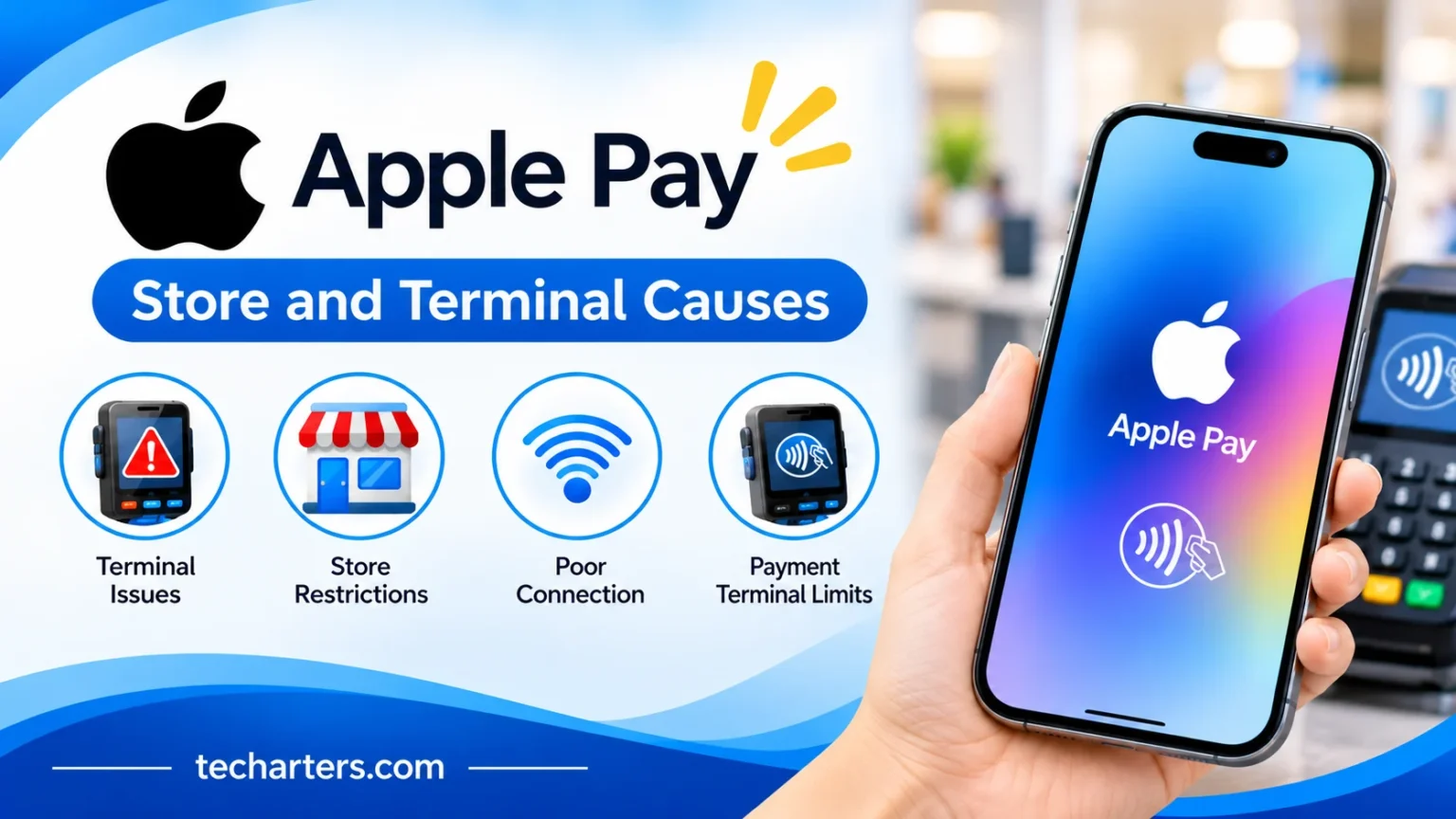
If Apple Pay works everywhere except one store, the store is almost certainly the problem. Nothing you change on your phone will fix it.
The store doesn’t take contactless. Some smaller shops, older terminals and certain chains still don’t accept tap-to-pay. Look for the contactless symbol (four curved lines) or the Apple Pay logo at the register or on the door.
Contactless is switched off on that terminal. Some stores disable tap payments on purpose, or a software update turns them off by mistake. The reader may have the symbol printed on it but not respond. Ask the cashier whether tap is enabled.
Faulty or slow reader. NFC antennas in terminals wear out, and card readers can freeze or lose their network connection. If other customers are also having trouble, it’s the terminal. Try another lane.
Network not accepted. A store may accept Visa and Mastercard but not American Express or a local network. That applies to Apple Pay too: the store has to accept your card’s network.
Fuel pumps and unattended kiosks. Apple Pay Not Working at Stores can sometimes be caused by poorly positioned or improperly calibrated contactless readers. This is common at gas pumps, parking meters, vending machines, and self-checkout kiosks. Hold your iPhone directly against the contactless symbol and keep it there slightly longer than usual to complete the payment.
Transaction already in progress. If a cashier starts a chip or swipe transaction first, the terminal may ignore taps. Ask them to cancel and choose a tap or contactless option.
Merchant-side limits. Some stores set their own maximum for contactless payments. Above it, the terminal asks for a chip card instead.
In every one of these cases, your card and device are fine. Insert your physical card or pay another way, and save Apple Pay for your next stop.
Hardware problems and when to contact Apple
If Apple Pay fails at every store, with every card, after you’ve restarted, updated and re-added your cards, the NFC hardware itself may be faulty.
Signs of a hardware problem:
- If Apple Pay Not Working at Stores happens because no payment terminal responds to your iPhone, even when other customers can pay successfully, your device may have an NFC hardware issue or a problem with its Secure Element.
- Other NFC features also fail, such as transit cards, car keys, hotel keys or reading NFC tags.
- The problems started after a drop, water exposure, or a repair, especially a screen or back-glass replacement by an unofficial shop.
- Wallet shows an error saying Apple Pay or the Secure Element isn’t available.
Before you book a repair, try two last steps. First, back up your iPhone and reset all settings under Settings > General > Transfer or Reset iPhone > Reset > Reset All Settings. This keeps your data but clears network and system settings that can interfere. Second, if that fails, back up and restore the iPhone completely.
If Apple Pay Not Working at Stores persists after trying these fixes, contact Apple Support through the Apple Support app or support.apple.com, or visit an Apple Store or authorized service provider. They can run diagnostics to check for problems with the NFC chip or Secure Element. Because the Secure Element is integrated into the logic board, a hardware fault may require board repair or device replacement. Before paying for repairs, check whether your device is still covered by Apple’s limited warranty or AppleCare.
If your phone was recently repaired by a third-party shop, mention it. Parts that aren’t genuine, or that weren’t paired correctly, can stop Apple Pay from working.
Troubleshooting checklist and prevention
Use the pattern of the failure to narrow it down fast:
| What you see | Most likely cause | First thing to try |
|---|---|---|
| Nothing happens at one store only | Store terminal | Another lane, or insert your card |
| Nothing happens at any store | Device or NFC hardware | Restart, remove the case, update iOS |
| Wallet won’t open or authenticate | Face ID, Touch ID or passcode | Pay with Passcode, check settings |
| “Payment Not Completed” with one card | Card or bank | Try another card, check the bank app |
| Declined with every card | Bank holds, or a device token problem | Call your bank, re-add cards |
| Works on iPhone, not Apple Watch | Watch setup | Wrist Detection, add card to the watch |
| Card shows as unavailable in Wallet | Suspended or stale token | Remove and re-add the card |
Habits that prevent most failures
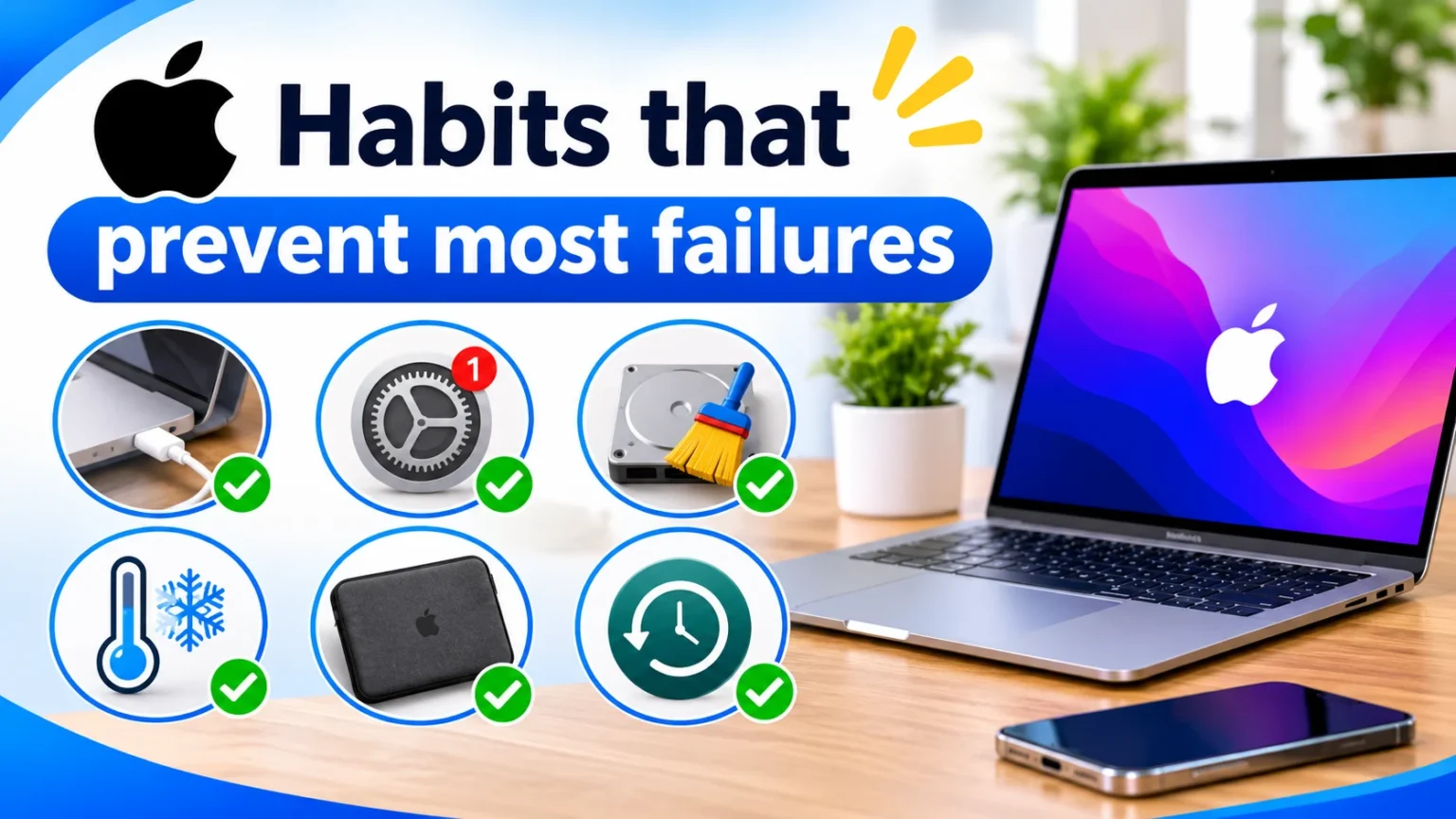
- Keep a backup. Carry one physical card or a second payment method, especially when travelling.
- Set up two cards in Wallet. If one is frozen or declined, you can switch in seconds.
- Stay updated. Install iOS and watchOS updates within a week or two of release.
- Turn on bank alerts. Push notifications let you approve a fraud hold on the spot instead of being declined.
- Re-check Wallet after a new card arrives. Open Wallet and make sure the card shows the right last four digits and expiry.
- Avoid magnetic or metal accessories on the back of your phone if you pay with it often.
- Wait for the total before tapping. It sounds small, but it avoids a large share of “it didn’t work” moments.
Frequently Asked Questions About Apple Pay Not Working at Stores
Why does Apple Pay work at some stores but not others?
When Apple Pay Not Working at Stores happens at only one location, the store’s payment terminal is likely the cause. It may not support contactless payments, have tap payments disabled, use a faulty reader, or fail to accept your card’s payment network.
Why does my iPhone say “Payment Not Completed”?
The Apple Pay Not Working at Stores error usually means your bank declined the transaction or the payment terminal lost its connection during checkout. Try paying with another card in Wallet. If that works, check the original card in your bank’s app or contact your bank to find out why the payment was declined.
Does Apple Pay work without internet or mobile data?
Yes. In-store payments use NFC and the token stored on your device, so your phone doesn’t need Wi-Fi or mobile data at the register. The store’s terminal needs its own connection to reach the bank.
Can I use Apple Pay if my iPhone battery is dead?
Usually not. Some newer iPhones keep Express Mode cards, such as transit cards, working for a few hours in power reserve. Regular store payments that need Face ID or Touch ID won’t work on a dead phone.
Is it safe to remove and re-add a card?
Yes. If Apple Pay Not Working at Stores requires you to remove and re-add a card, your bank account and physical card remain unaffected. Removing a card from Wallet only deletes its digital token from that device. When you add the card again, your bank issues a new token for Apple Pay.
Why does Apple Pay work on my iPhone but not my Apple Watch?
Each device has its own cards and tokens. Make sure the card is added to the watch’s Wallet, Wrist Detection is on, and the watch is unlocked.
Will a case stop Apple Pay from working?
Most ordinary cases won’t cause Apple Pay Not Working at Stores. However, metal cases, magnetic mounts, and wallet cases containing contactless cards can sometimes interfere with contactless payments. Remove your iPhone case and try making the payment again to see if the case is causing the problem.
Is there a limit on how much I can pay with Apple Pay?
Apple doesn’t set one. Your bank, card network, or the store may set contactless limits. Because you authenticate on your device, Apple Pay often goes above the usual tap limit, but not every terminal allows it.
Conclusion: How to Fix Apple Pay Not Working at Stores
Apple Pay at the register fails for a handful of reasons: a terminal that isn’t ready, a case in the way, a card that needs a fresh token, or a bank hold. Hardware faults are rare. Use the pattern of the failure to tell you where to look. One store means the terminal, one card means the bank, and everything at once means your device.
When dealing with Apple Pay Not Working at Stores, start with the quick fixes at the counter. If those don’t help, work through the device, card, and bank checks at home. Contact Apple Support only if every troubleshooting step fails. Keep a backup payment method and at least two cards in Wallet so a failed tap becomes a minor inconvenience rather than a frustrating checkout problem.