You open Apple Music, tap a song you love, and nothing happens. Maybe the play button flickers and resets. Maybe the progress bar sits frozen at 0:00. Maybe a track plays for a few seconds, then skips to the next one, or a grey, faded title refuses to respond at all. Few small tech problems are as irritating as Apple Music Not Playing Songs, especially when all you want is to enjoy your favorite music. The good news is that several simple fixes can get your music playing again.
The good news is that Apple Music not playing songs almost always has an ordinary cause. Most playback issues come down to a weak internet connection, a subscription or Apple ID hiccup, a corrupted download, a setting you forgot you changed, or a temporary software glitch. Very rarely is your device actually broken.
The symptoms usually fall into a few familiar patterns:
- Songs won’t start: You tap play, but the track never begins, or it spins endlessly while showing “Loading.” This is a common symptom of Apple Music Not Playing Songs, often caused by a weak internet connection, temporary app glitches, or problems with Apple’s music servers.
- Songs skip automatically: the app jumps through your playlist, playing nothing or only a few seconds of each track.
- Greyed-out tracks: some songs appear dimmed and can’t be selected.
- “Item not available” or “This song is not currently available in your country or region” messages.
- Playback stops partway: music cuts out after a minute or two, especially when switching networks or locking the screen.
- No sound: the song appears to play, but you hear nothing.
This guide walks you through every possible cause of Apple Music Not Playing Songs, starting with the quickest fixes and moving toward more advanced troubleshooting. It covers iPhone, iPad, Mac, Windows, Android, and accessories such as Bluetooth headphones, CarPlay, and HomePod. Follow the steps in order and test playback after each one. Most users can resolve Apple Music Not Playing Songs within the first few troubleshooting sections.
Why Apple Music Not Playing Songs
Knowing the likely cause makes it far easier to pick the right fix. Here are the most common culprits.
Poor or unstable internet. Apple Music streams most songs on demand. If your Wi-Fi is weak, your mobile data is throttled, or you’re moving between networks, tracks may fail to buffer and simply won’t start.
Subscription or account problems. If your Apple Music subscription has lapsed, a payment failed, or you’re signed in with a different Apple ID than the one that holds the subscription, catalogue songs stop playing even though they still show in your library.
Licensing and region restrictions. Record labels sometimes pull songs from Apple Music, or limit them to certain countries. Those tracks turn grey or show an “unavailable” message. Changing your Apple ID country can trigger the same issue.
Corrupted downloads or cache. A song downloaded for offline listening can become damaged, especially if the download was interrupted. A cluttered cache can also confuse the app and contribute to Apple Music Not Playing Songs. Removing the affected download and downloading the track again can often resolve the problem.
Low storage. When a device is nearly full, Apple Music may struggle to buffer streams or may quietly remove downloaded music to free space.
Sync Library glitches. Sync Library (formerly iCloud Music Library) keeps your collection consistent across devices. When it gets out of step, songs can appear but refuse to play.
Restrictive settings. Screen Time limits, explicit content filters, disabled cellular data for the Music app, or Low Data Mode can all block playback without an obvious warning.
Software bugs. An outdated version of iOS, macOS, Android, or the app itself may contain playback bugs. Occasionally a fresh update introduces one too.
Apple server outages. Now and then the problem isn’t on your end at all. Apple’s services go down briefly, and nothing will play until they recover.
Audio output issues. Sometimes, the song is playing, but the sound is being routed to a Bluetooth speaker in another room, a disconnected AirPlay device, or headphones you forgot were connected. This can make Apple Music Not Playing Songs seem like a playback failure when the audio is simply going to the wrong output device.
Quick Fixes to Try First
Start here. These steps take a minute or two each and solve a surprising number of playback problems.
- Check Apple’s System Status page. Visit apple.com/support/systemstatus and look for Apple Music. If it shows a yellow or red indicator, the outage is on Apple’s side. Wait it out; no fix on your device will help.
- Force close and reopen the Music app. On iPhone, swipe up from the bottom of the screen (or double-click the Home button on older models), find Music, and swipe it away. On Mac, press Command + Option + Escape, select Music, and click Force Quit. Then open the app again.
- Restart your device. Restarting your device clears temporary memory, refreshes network connections, and can resolve minor software glitches. It’s a simple but effective troubleshooting step that often fixes Apple Music Not Playing Songs and restores normal playback.
- Toggle Airplane Mode. Turn Airplane Mode on, wait ten seconds, and turn it off. This forces your phone to reconnect to Wi-Fi and mobile networks.
- Try a different song. If only one track or album fails, the issue is probably that specific item, not your device. If nothing plays, the problem is broader.
- Check the volume and output. Make sure your volume is up and the device isn’t silenced. On iPhone, open Control Center and tap the AirPlay icon on the music card to confirm sound is going to “iPhone” rather than a speaker or headphones.
- Switch networks. If you’re using Wi-Fi, switch to mobile data, or try Wi-Fi instead. If songs play on one network but not the other, you’ve likely found the cause of Apple Music Not Playing Songs. A weak connection, network restriction, or router issue may be preventing Apple Music from streaming properly.
If music still won’t play after these steps, move on to the account and connection checks below.
Check Your Subscription, Apple ID, and Connection
Confirm your subscription is active
If catalogue songs suddenly stop working while your own uploaded or purchased music still plays, your subscription is the first suspect. On iPhone or iPad, open Settings, tap your name, then Subscriptions, and look for Apple Music. On Mac, open the App Store, click your name, and choose Account Settings, then Subscriptions.
If Apple Music isn’t listed as an active subscription, it may have expired or a payment may have failed. Check that your payment method is valid under Payment & Shipping. Free trials and student plans can also expire without much notice, potentially causing Apple Music Not Playing Songs until your subscription is renewed.
If you’re part of a Family Sharing plan, ask the organiser to confirm the family subscription is still active and that you’re still a member of the family group.
Make Sure You’re Signed In With the Right Apple ID for Apple Music Not Playing Songs
Many people have more than one Apple ID, perhaps an old one and a newer one. If the Music app is signed in with an account that doesn’t hold the subscription, songs won’t play. On iPhone, go to Settings > Music or Settings > [your name] > Media & Purchases and check which Apple ID appears.
If something looks off, sign out of Media & Purchases and sign back in with the correct account. This also refreshes your authorisation, which can fix silent licence errors.
Check your country or region
Apple Music’s catalogue varies between countries. If you recently changed your Apple ID region or are travelling, some songs may become unavailable. Greyed-out tracks displaying an “unavailable in your country or region” message usually mean the song isn’t licensed in your account’s registered region. This can also explain Apple Music Not Playing Songs when only certain tracks are affected. Unfortunately, there’s no guaranteed workaround other than waiting to see whether the music label restores regional availability.
Test your internet connection
Open a browser or another streaming app. If pages load slowly, Apple Music will struggle too. Try moving closer to your router, restarting the router, or forgetting and rejoining the Wi-Fi network under Settings > Wi-Fi.
If you’re using a VPN, turn it off temporarily and try playing the song again. VPNs can make Apple’s servers detect a different country, triggering regional restrictions, or slow down streaming enough to interrupt playback. Disabling the VPN may resolve Apple Music Not Playing Songs and restore normal streaming.
Fix Downloads, Storage, and Library Sync Issues
Delete and re-download problem songs
If a downloaded song won’t play or produces audio glitches, the file may be corrupted. Press and hold the song (or right-click it on Mac), choose Remove, then select Remove Download. Once the download is removed, tap the download icon again to get a fresh copy. Repeat these steps for any other problematic tracks to fix Apple Music Not Playing Songs and restore smooth offline playback.
If many downloads fail, you can remove them all at once. On iPhone, go to Settings > General > iPhone Storage > Music, swipe left on All Songs, and tap Delete. Your library stays intact; only the offline copies disappear. Re-download the music you want afterwards, ideally on a strong Wi-Fi connection.
Free up storage space
Check Settings > General > iPhone Storage. If your device is nearly full, delete unused apps, old videos, or large message attachments. Aim to keep at least a few gigabytes free so Apple Music has room to buffer streams.
It’s also worth checking Settings > Music > Optimise Storage. When this option is enabled, your iPhone automatically removes downloaded songs you haven’t played in a while when storage runs low. This can explain why music you thought was saved offline suddenly won’t play without an internet connection, contributing to Apple Music Not Playing Songs.
Turn Sync Library off and on
Sync Library keeps your Apple Music collection matched across your devices. When it gets confused, songs may show up but refuse to play, or tracks may appear duplicated or greyed out.
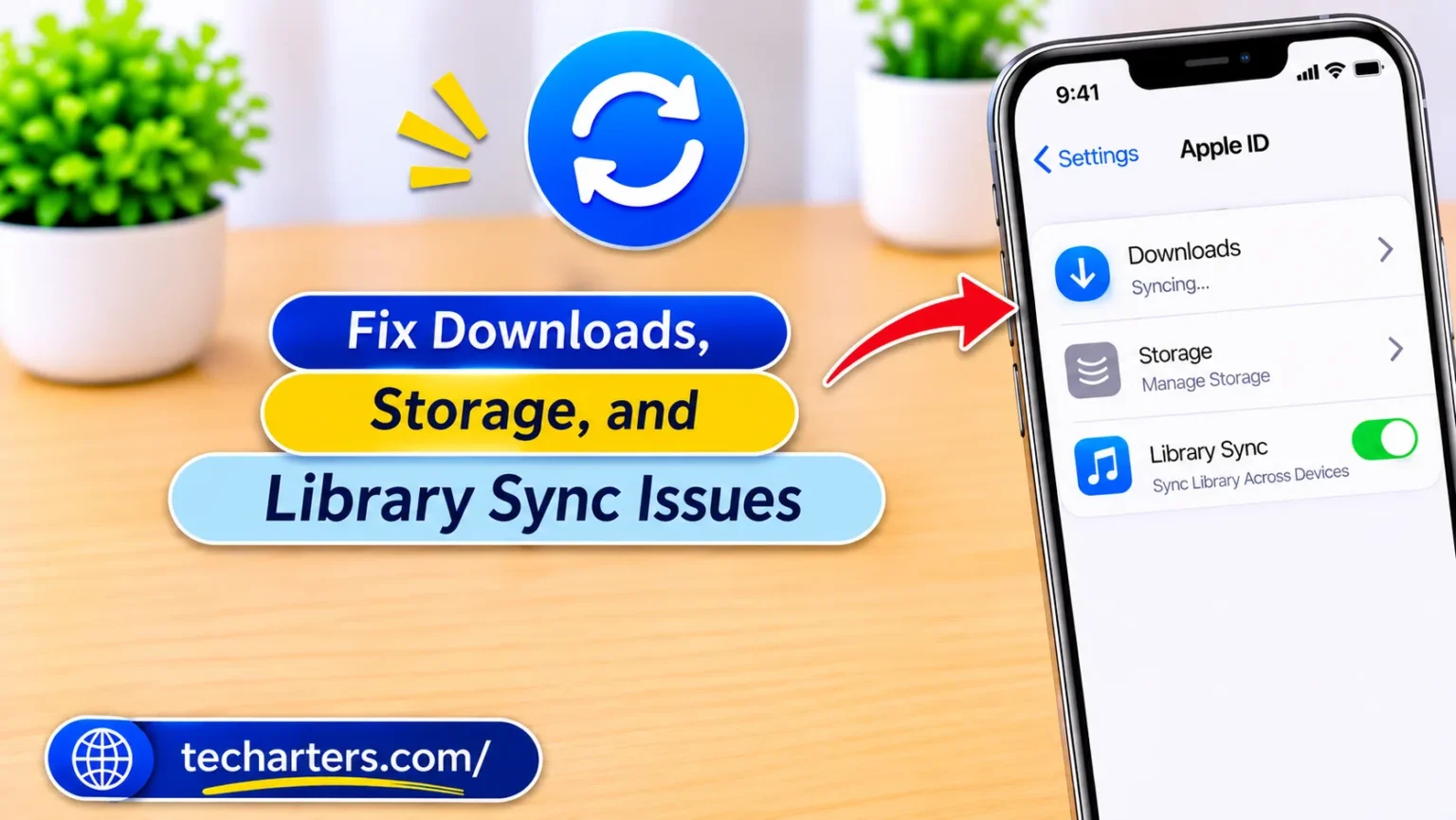
On iPhone or iPad, go to Settings > Music and switch off Sync Library. Wait a minute, then switch it back on. On Mac, open Music, choose Music > Settings (or Preferences), go to the General tab, and untick then re-tick Sync Library. Give it time to rebuild, especially for large libraries.
Turning Sync Library off can temporarily remove Apple Music songs from that device’s library view. This may look like Apple Music Not Playing Songs, but don’t panic. Your songs should reappear once Sync Library is turned back on and your device finishes syncing.
Clear the cache on Android
On Android, open Settings > Apps > Apple Music > Storage and tap Clear Cache. If that doesn’t help, Clear Data resets the app fully, though you’ll need to sign in again and re-download offline music.
Settings That Can Block Playback
Sometimes Apple Music isn’t broken at all. A setting is quietly preventing songs from playing. Check each of these.
Mobile data for Music. If songs play on Wi-Fi but not when you’re out, go to Settings > Mobile Data (or Cellular) and make sure Music is switched on. Also open Settings > Music > Mobile Data and confirm streaming over mobile data is allowed. These settings can help fix Apple Music Not Playing Songs when you’re away from a Wi-Fi connection.
Low Data Mode and Low Power Mode. Low Data Mode reduces background network use and can interfere with streaming. Find it under Settings > Mobile Data > Mobile Data Options or in the details of your Wi-Fi network. Low Power Mode, under Settings > Battery, can also limit background activity. Turn both off and test again.
Explicit content restrictions. If certain songs are greyed out and labelled with an “E,” content restrictions may be blocking them. Go to Settings > Screen Time > Content & Privacy Restrictions > iTunes & App Store Purchases or Content Restrictions > Music, Podcasts & News and allow explicit content. On a child’s device in a Family Sharing group, a parent may need to change this.
Screen Time limits. If a daily app limit for Music has been reached, the app may be blocked until the limit resets. Check Settings > Screen Time > App Limits and see whether Apple Music has a usage restriction. Removing or adjusting the limit can help resolve Apple Music Not Playing Songs and restore normal playback.
Audio quality settings. Lossless and Hi-Res Lossless audio use far more data than standard streaming. On a slower connection, they can cause long buffering or failed playback. Go to Settings > Music > Audio Quality and try setting mobile streaming to High Efficiency or High Quality instead of Lossless.
Dolby Atmos. Spatial Audio can occasionally cause playback issues with certain headphones or speakers. Go to Settings > Music > Dolby Atmos and temporarily switch it to Off to see whether playback improves. This simple adjustment may help resolve Apple Music Not Playing Songs and restore uninterrupted music playback.
Date and time. An incorrect date or time can break secure connections to Apple’s servers. Go to Settings > General > Date & Time and turn on Set Automatically.
Device-Specific Fixes
iPhone and iPad
Beyond the steps above, try resetting network settings if streaming fails on every network. Go to Settings > General > Transfer or Reset iPhone > Reset > Reset Network Settings. This erases saved Wi-Fi passwords and VPN configurations, so have them ready, but it often clears hidden connection problems.
If the Music app itself seems damaged, you can offload or delete it to fix Apple Music Not Playing Songs. Go to Settings > General > iPhone Storage > Music and choose Offload App (which keeps its documents and data) or Delete App. Then reinstall Music from the App Store and check whether your songs play normally again.
Mac
On a Mac, quit Music fully, then reopen it. If songs still won’t play, sign out via Account > Sign Out in the menu bar and sign back in. You can also check Account > Authorizations > Authorize This Computer to make sure your Mac is authorised to play your content.
If only purchased or imported tracks fail, the original files may have been moved or deleted. A song displaying an exclamation mark means the Music app can’t locate the original file. Right-click the track and choose Show in Finder, or locate the file manually. Fixing the missing file location can resolve Apple Music Not Playing Songs and restore access to your music library.
Windows
On Windows, Apple Music is available as its own app (older systems may still use iTunes). Make sure the app is updated through the Microsoft Store. Sign out and back in, check that Windows audio output is set to the right device, and try running the app after a full PC restart. If problems persist, use Settings > Apps > Installed apps > Apple Music > Advanced options > Repair or Reset.
Android
Update the Apple Music app through the Google Play Store and clear its cache as described earlier. Also, check that battery optimisation isn’t restricting background activity. Go to Settings > Apps > Apple Music > Battery and set it to Unrestricted. Aggressive battery-saving settings can stop music when the screen locks, contributing to Apple Music Not Playing Songs and unexpected playback interruptions.
Bluetooth headphones, CarPlay, and HomePod
If music plays on your phone’s speaker but not through an accessory, the connection is the problem. For Bluetooth, forget the device in Settings > Bluetooth and pair it again. For CarPlay, unplug and reconnect the cable, or remove and re-add your car under Settings > General > CarPlay. For HomePod, check that it’s on the same Wi-Fi network as your iPhone, restart it in the Home app, and confirm it’s signed in with the Apple ID that holds your subscription.
Advanced Fixes When Nothing Else Works
Update your software
Apple regularly fixes playback bugs in system updates. On iPhone or iPad, go to Settings > General > Software Update. On Mac, open System Settings > General > Software Update. On Android and Windows, update the Apple Music app through the Play Store or Microsoft Store. If Apple Music Not Playing Songs started immediately after an update, check Apple’s support forums to see whether others are reporting the same bug. A follow-up patch may resolve the issue within days or weeks.
Sign out of your Apple ID completely
Signing out of Media & Purchases is a light refresh. A full sign-out goes deeper. On iPhone, go to Settings > [your name], scroll down, and tap Sign Out. You’ll be asked which data to keep on the device. Restart, then sign back in. This re-establishes your account’s connection to every Apple service, including Apple Music.
Reset all settings
If you suspect a buried setting is to blame but can’t find it, go to Settings > General > Transfer or Reset iPhone > Reset > Reset All Settings. This returns system settings to their defaults without deleting your photos, apps, or music. You’ll need to reconfigure things like Wi-Fi passwords and wallpaper afterwards.
Restore your device as a last resort
If every other troubleshooting step fails, back up your device and restore it to factory settings, then set it up again from your backup. This process can be time-consuming, so treat it as a last resort for Apple Music Not Playing Songs. Before taking this step, contact Apple Support to check whether there is a simpler solution to the playback problem.
Contact Apple Support
If songs still won’t play, reach out to Apple through the Apple Support app, getsupport.apple.com, or a visit to an Apple Store or authorised service provider. Tell them exactly what happens, which devices are affected, and which steps you’ve already tried. That saves time and helps them spot account-level problems, such as billing holds or licensing errors, that you can’t fix from your device.
If a payment problem is suspected, check your purchase history at reportaproblem.apple.com. This can help identify unexpected charges, declined payments, or failed subscription renewals that may contribute to Apple Music Not Playing Songs. Fixing any outstanding billing issues can help restore access to your Apple Music subscription.
How to Prevent Playback Problems
Once your music is playing again, a few habits can keep it that way.
- Keep software updated. Install system and app updates whenever they become available. They often include important fixes for streaming, syncing, and playback problems. Keeping your device and Apple Music updated can help prevent Apple Music Not Playing Songs and ensure smoother listening.
- Download favourites on Wi-Fi. Saving playlists offline while on a strong connection reduces the risk of corrupted files and keeps music available when signal drops.
- Watch your storage. Keep a comfortable amount of free storage space on your device so Apple Music can download songs, store temporary data, and stream smoothly. Low storage can sometimes contribute to Apple Music Not Playing Songs, interrupted playback, or download failures.
- Keep your payment details current. An expired card is one of the most common reasons subscriptions lapse without warning.
- Use one Apple ID for media. Sticking to a single account for purchases and subscriptions avoids confusing authorisation problems.
- Restart now and then. A weekly restart clears memory and resets network connections before small glitches pile up.
- Review restrictions after changes. If you have Screen Time restrictions or content filters enabled, remember to check them whenever something stops working. These settings may restrict access to certain content or features and could contribute to Apple Music Not Playing Songs.
Frequently Asked Questions About Apple Music Not Playing Songs
Why are some songs greyed out in Apple Music?
Greyed-out songs are usually unavailable because of licensing changes or regional restrictions. The music label may have removed the track, or it may not be licensed in your Apple ID’s registered country. Explicit content restrictions can also grey out songs marked with an “E.” These issues can contribute to Apple Music Not Playing Songs, especially when only specific tracks are affected.
Why does Apple Music skip songs automatically?
Automatic skipping usually means the app can’t load the track. Common causes include a weak internet connection, corrupted downloads, or an expired subscription. Re-download the affected songs, check your network connection, and confirm your subscription is active. These steps can help resolve Apple Music Not Playing Songs and restore uninterrupted playback.
Why does Apple Music play on Wi-Fi but not mobile data?
Mobile data is probably switched off for the Music app. Check Settings > Mobile Data > Music and Settings > Music > Mobile Data. Low Data Mode and Lossless streaming over mobile data can also cause problems.
Will I lose my library if I turn off Sync Library?
No. Your music library stays stored in your Apple account. Apple Music songs may disappear from your device temporarily, but they should return once you turn Sync Library back on and syncing finishes. This can help resolve Apple Music Not Playing Songs caused by library syncing issues.
Why did my downloaded songs disappear?
If Optimise Storage is on, your device removes downloads you haven’t played recently when space runs low. Downloads can also vanish if your subscription lapses or you sign in with a different Apple ID.
Why does music stop when my screen locks?
On iPhone, Low Power Mode or a weak internet connection is often the cause of Apple Music Not Playing Songs. On Android, battery optimisation may close Apple Music while running in the background. To prevent this, open the app’s battery settings and set its battery usage to Unrestricted so music can continue playing without interruptions.
How do I know if Apple Music is down?
Visit Apple’s System Status page at apple.com/support/systemstatus. If Apple Music shows a problem there, wait for Apple to fix it. Nothing on your device will help in the meantime.
Does deleting and reinstalling the Music app delete my music?
It removes downloaded songs from that device, but your library and playlists stay safe in your Apple account. After reinstalling Apple Music, sign in with your Apple ID and re-download any songs you want to listen to offline. This can help fix Apple Music Not Playing Songs caused by app-related glitches or corrupted data.
Conclusion: Apple Music Not Playing Songs
When Apple Music won’t play songs, the cause is almost always something you can fix yourself in a few minutes. Start with the basics: check Apple’s status page, restart the app and your device, and confirm your internet connection. Then make sure your subscription is active and you’re signed in with the right Apple ID. If problems persist, look at downloads, storage, Sync Library, and restrictive settings before moving on to resets and reinstalls.
Greyed-out songs are a special case. They usually indicate licensing or region restrictions rather than a technical fault, and sometimes waiting is the only solution. For other Apple Music Not Playing Songs issues, following this guide step by step should help restore playback. If the problem persists, contact Apple Support to investigate account-level issues that cannot be fixed through your device settings.
Now put on something you love, and enjoy the music again.