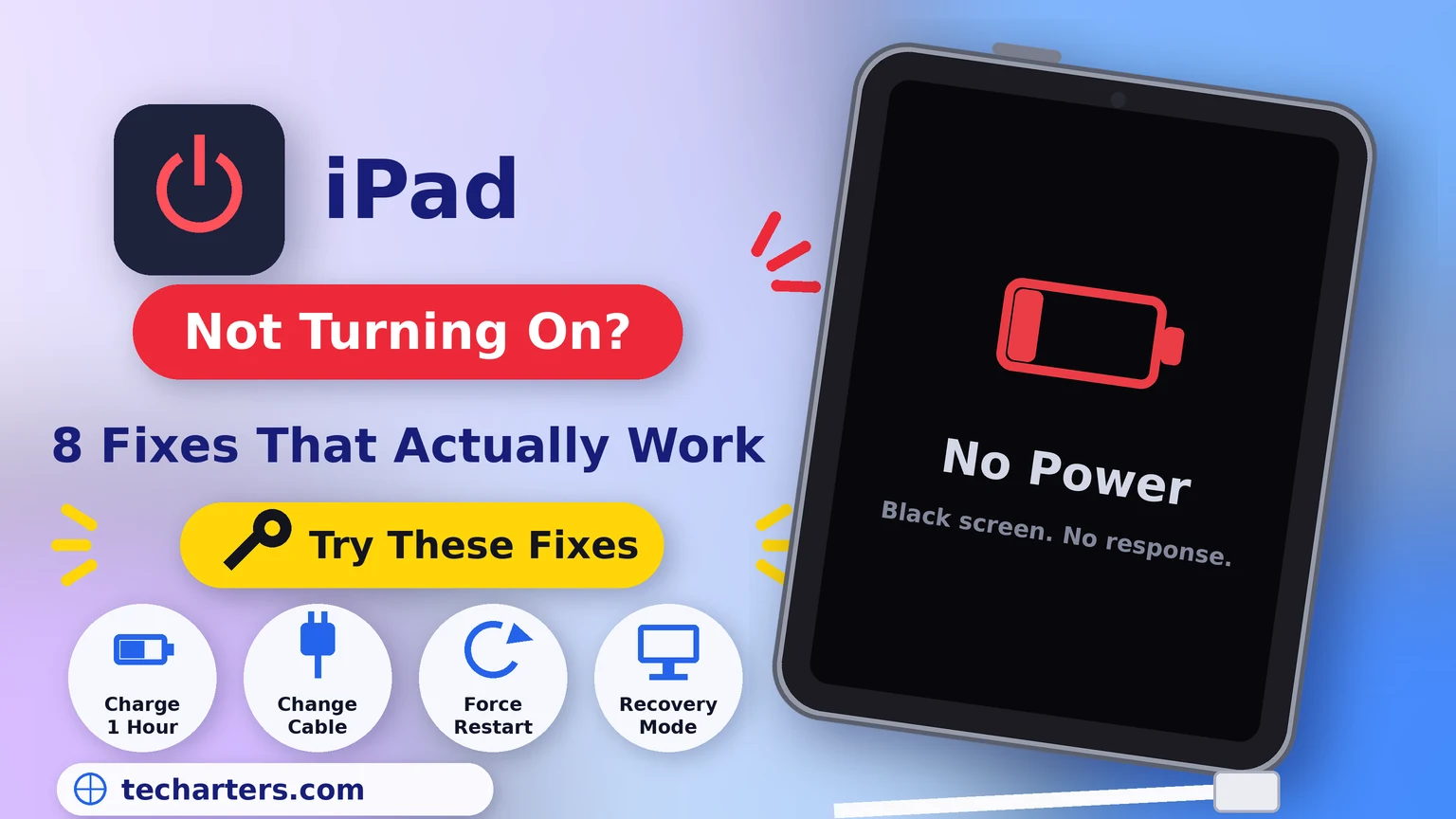
You press the power button, nothing happens, and the black screen stares back at you. An iPad not turning on is one of the most stressful problems a tablet owner can face, especially when the device holds school notes, work files, photos or a half-finished project. The good news is that in most cases an iPad not turning on is not a sign of a dead device. It is usually a drained battery, a faulty cable, a frozen system or a software glitch that you can fix at home in a few minutes.
This guide walks you through eight proven solutions for an iPad not turning on, starting with the simplest checks and moving step by step toward advanced options such as recovery mode and DFU restore. It also explains why an iPad not turning on happens in the first place, how to tell a software problem from a hardware problem, and when it is time to book a repair. Follow the steps in order, because the early fixes solve the majority of cases and take almost no effort.
Why Is Your iPad Not Turning On?
Before jumping into the fixes, it helps to understand what is going on inside the device. An iPad not turning on can come from several different causes, and knowing them saves you time.
1. A completely drained battery. If you left your tablet unused for weeks, the battery may have dropped to zero. A deeply discharged battery will not show any sign of life for several minutes after you plug it in. Many people assume they have an iPad not turning on problem when the tablet simply needs more charging time.
2. A faulty charger, cable or power adapter. Cheap or damaged accessories are among the top reasons for an iPad not turning on or not charging. Frayed wires, bent connectors and underpowered adapters cannot deliver enough current.
3. A software crash or freeze. Sometimes iPadOS locks up completely. The screen looks dead, but the system is actually frozen. This kind of iPad not turning on problem is fixed by a force restart.
4. A failed update or corrupted system files. If an iPadOS update was interrupted, the tablet may get stuck on the Apple logo, in a boot loop, or on a blank screen.
5. Dirt or lint in the charging port. Pocket lint, dust and debris pack into the port over time and block the connector from making contact. A blocked port can cause an iPad not turning on even with a perfectly good cable.
6. Extreme temperatures. Leaving your iPad in a hot car or in freezing weather can make it shut down to protect the battery. It may refuse to start until it returns to a normal temperature.
7. Physical or liquid damage. A drop, a cracked board, a swollen battery or water exposure can cause a permanent iPad not turning on situation that needs professional repair.
Once you know these causes, the troubleshooting steps below make much more sense. Start from Fix 1 and only move forward if the problem remains.
Fix 1: Charge Your iPad for at Least an Hour
The most common reason for an iPad not turning on is simply an empty battery. Plug your tablet into a wall outlet, not a laptop USB port, and leave it alone.
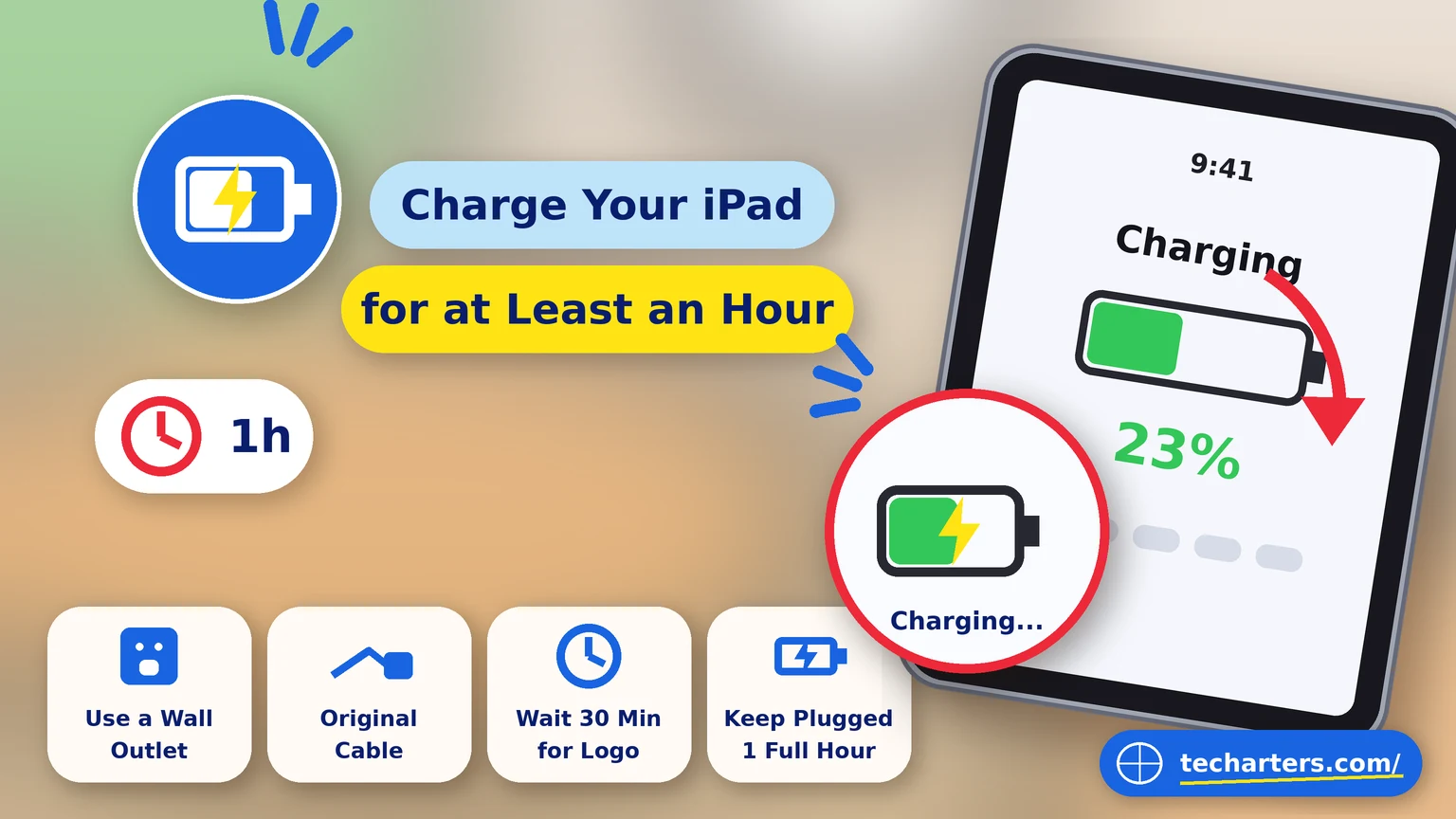
- Use the original Apple cable and adapter if you still have them.
- Plug the adapter into a working wall socket.
- Wait at least 30 minutes before checking for any sign of charging, such as the battery icon or the Apple logo.
- If nothing appears, keep it connected for a full hour.
Batteries that have been fully drained need a slow trickle charge first, which is why nothing appears immediately. Many users give up after five minutes and decide their iPad is broken, when in reality the tablet was only waking up its battery. If after one hour of charging you still have an iPad not turning on, move to the next fix.
Fix 2: Try a Different Cable, Adapter and Outlet
A bad accessory looks exactly like an iPad not turning on. To rule it out, test each part one at a time.
- Swap the cable. Try a different Lightning or USB-C cable that you know works with another device.
- Swap the adapter. Use a different power adapter, ideally one rated at 12W or higher for older iPads, or 20W for newer models.
- Change the outlet. Test another wall socket or a different room, because a faulty outlet or extension board can also lead to an iPad not turning on.
- Avoid unknown brands. Low-quality third-party chargers often fail to deliver stable power or may even be damaged inside.
Look closely at the cable ends for bending, discoloration or loose fit. If a new cable and adapter bring the charging screen to life, the iPad was fine all along, and you can stop here.
Fix 3: Force Restart Your iPad
When the system freezes, a normal power-off does nothing. A force restart cuts the power to the processor and reboots it, which is the single most effective fix for an iPad not turning on because of a software hang. It does not erase your data.
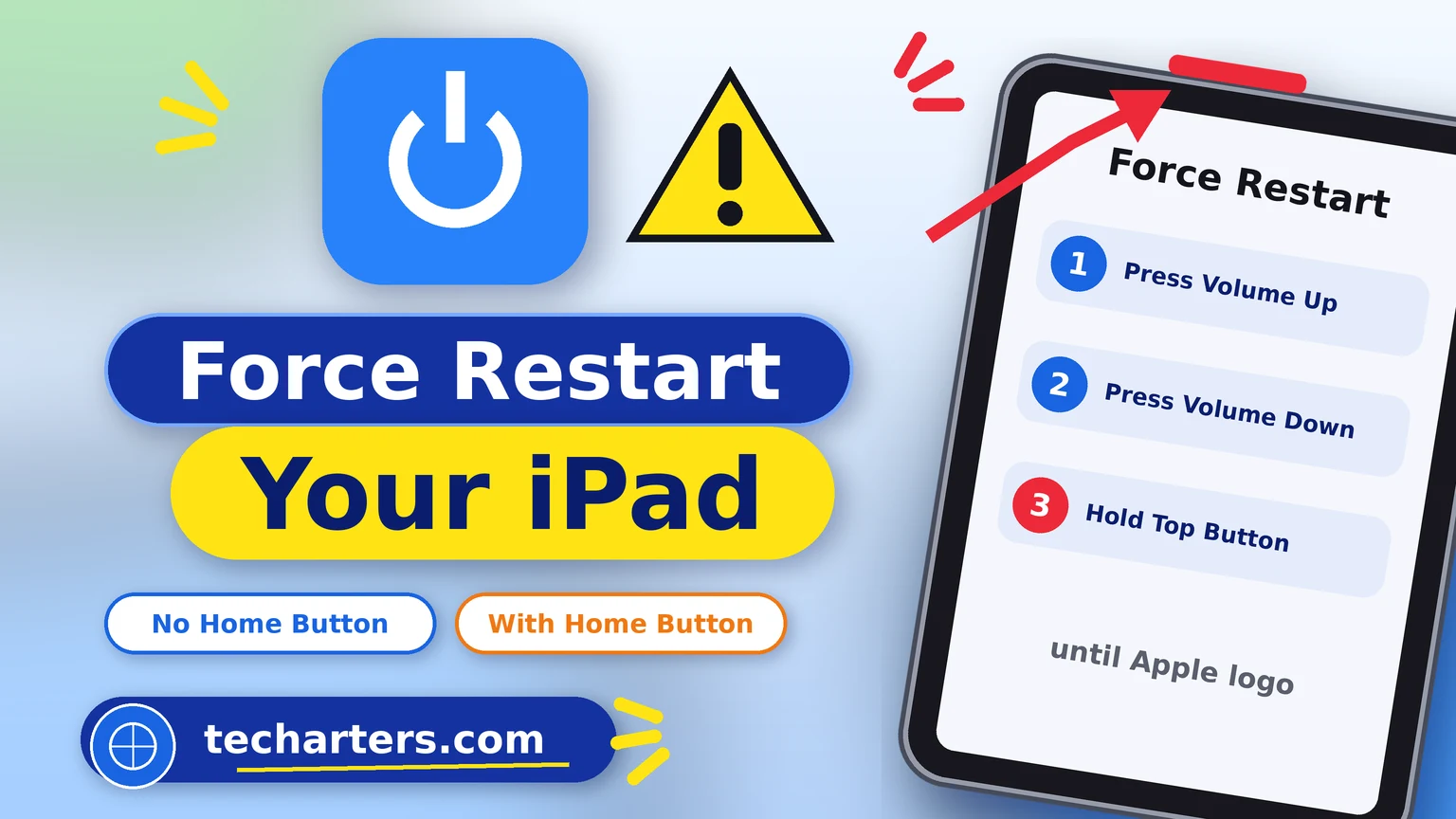
For iPads without a Home button (Face ID models, iPad Air, iPad Pro, newer iPad and iPad mini):
- Press and quickly release the Volume Up button.
- Press and quickly release the Volume Down button.
- Press and hold the top button until the Apple logo appears, even if the screen stays black for a while.
For iPads with a Home button:
- Press and hold the Home button and the top button together.
- Keep holding until the Apple logo appears.
Do not release the buttons too early. It can take up to 20 or 30 seconds for the logo to appear. If your iPad is plugged into a charger while you do this, the result is even more reliable, because a drained battery may be the hidden cause. Many cases of an iPad not turning on are solved right here with no further effort.
Fix 4: Clean the Charging Port Carefully
If your iPad is not charging properly, the port itself may be the problem. Over months of use, lint and dust are compressed deeper into the port every time you plug in the cable.
- Turn off the iPad if it is on, and unplug everything.
- Shine a small flashlight into the port and look for debris.
- Use a wooden or plastic toothpick, or a soft anti-static brush, to gently lift the lint out.
- Never use metal pins, needles or paper clips, because they can short the pins or scratch the contacts.
- Do not blow with your mouth or use liquids on an iPad not turning on, as moisture can cause more damage.
After cleaning, plug in the charger again and wait 15 minutes. People are often surprised at how much lint comes out and how quickly an iPad not turning on problem disappears after a simple cleaning.
Fix 5: Let the iPad Reach a Normal Temperature
Heat and cold can both cause an iPad not turning on. The tablet is designed to work between about 0 and 35 degrees Celsius. Outside this range, the system may refuse to boot to protect the battery.
- If your iPad not turning on is heat related, move it to a cool shaded place and let it rest for 15 to 30 minutes. Do not put it in a fridge or freezer.
- If the iPad is cold, bring it into a room at normal temperature and wait before powering on.
- Remove the case while the tablet cools down so heat can escape.
- Do not charge a very hot device, because that can damage the battery further.
After the temperature settles, try the force restart from Fix 3 again. This fix is often overlooked, yet it explains many unexpected cases of an iPad not turning on during summer or winter trips.
Fix 6: Use Recovery Mode and Update or Restore
If the tablet shows the Apple logo but never finishes starting, or if all earlier fixes failed, your iPadOS software may be damaged. Recovery mode lets a computer repair the software. You need a Mac with Finder (macOS Catalina or later) or a Windows PC or older Mac with the latest iTunes or Apple Devices app installed.
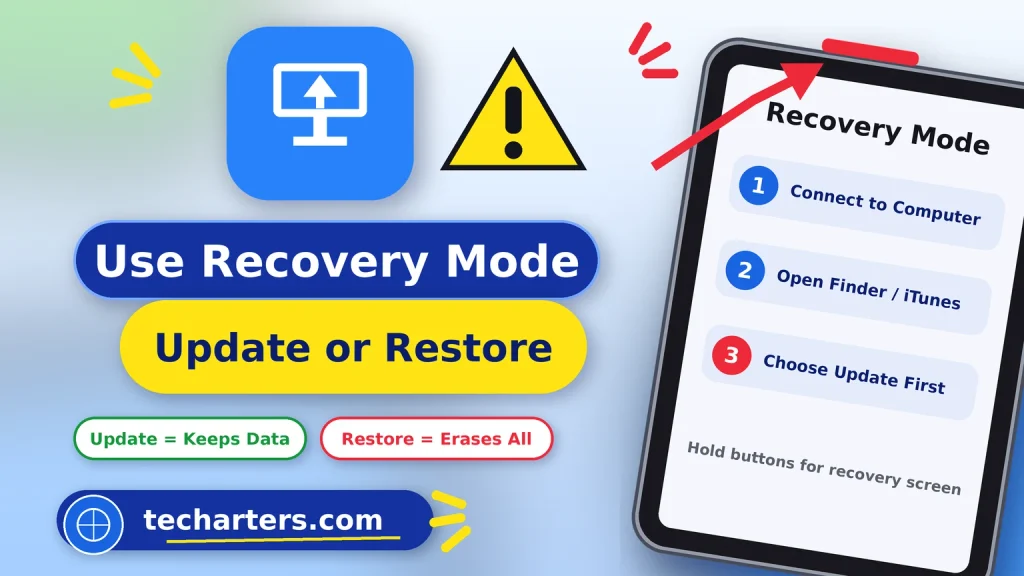
- Connect the iPad to the computer with a good cable.
- Open Finder on your Mac, or the Apple Devices app or iTunes on Windows, and keep it visible.
- Put the iPad into recovery mode:
- No Home button: Press and release Volume Up, press and release Volume Down, then hold the top button until the recovery mode screen with a computer or cable icon appears.
- With Home button: Hold the Home button and the top button together until the recovery mode screen appears. Do not let go when the Apple logo shows.
- When the computer asks, choose Update first. This reinstalls iPadOS without erasing your data.
- If the update fails or the iPad leaves recovery mode after about 15 minutes, repeat the steps and choose Restore. A restore erases everything, so use it only as a last resort.
If you have an iCloud or computer backup, you can restore your files afterward. Recovery mode fixes most software-related cases of an iPad not turning on, including boot loops and failed updates.
Fix 7: Try DFU Restore for Deep Software Problems
DFU, short for Device Firmware Update, is the deepest restore mode available. It reloads both the firmware and the software, and it can solve stubborn problems that recovery mode cannot touch. Use it only after the earlier fixes, because it erases all data on the tablet.
The key difference is that the screen stays completely black in DFU mode. The computer, not the iPad, tells you that the device has been detected.
- Connect the iPad to your Mac or PC and open Finder, iTunes or the Apple Devices app.
- Press the button sequence for your model. For iPads without a Home button, release Volume Up, release Volume Down, then hold the top button for about 10 seconds, then keep holding the top button and also hold Volume Down for around 5 seconds, release the top button, and continue holding Volume Down for another 10 seconds. For iPads with a Home button, hold the top button and Home for 8 seconds, then release the top button and keep holding Home.
- If the screen stays black and the computer reports an iPad in recovery mode, DFU worked.
- Click Restore iPad and wait for the process to finish.
If the Apple logo appears at any point, you have gone past DFU and need to try again. Timing is important, so do not worry if it takes two or three attempts. A successful DFU restore ends many cases of an iPad not turning on that were caused by corrupted firmware.
Fix 8: Contact Apple Support or Visit a Repair Center
If you have tried every step and still have an iPad not turning on, the cause is likely hardware. Signs include no response to any charger, no sign of life in recovery mode, a hot or swollen battery, a bent frame, or a history of drops or liquid contact.
- Book a Genius Bar or authorized service provider appointment. Technicians can run diagnostics that you cannot do at home.
- Check your warranty. Apple’s one-year limited warranty or AppleCare+ may cover battery and logic board faults, but not accidental damage unless you have AppleCare+.
- Ask about battery replacement. A worn battery is a common reason for an older iPad not turning on, and replacing it is usually much cheaper than buying a new tablet.
- Avoid unauthorized shops for newer devices. Cheap repairs can use low-quality parts and may void warranty coverage.
Ask for a diagnostic quote for the iPad not turning on before you agree to any repair. If the repair costs close to the price of a new model, replacement may make more sense, particularly for a tablet that is more than five or six years old.
How to Prevent an iPad Not Turning On in the Future
Preventing an iPad not turning on is much easier than repair. A few small habits keep your tablet healthy for years.
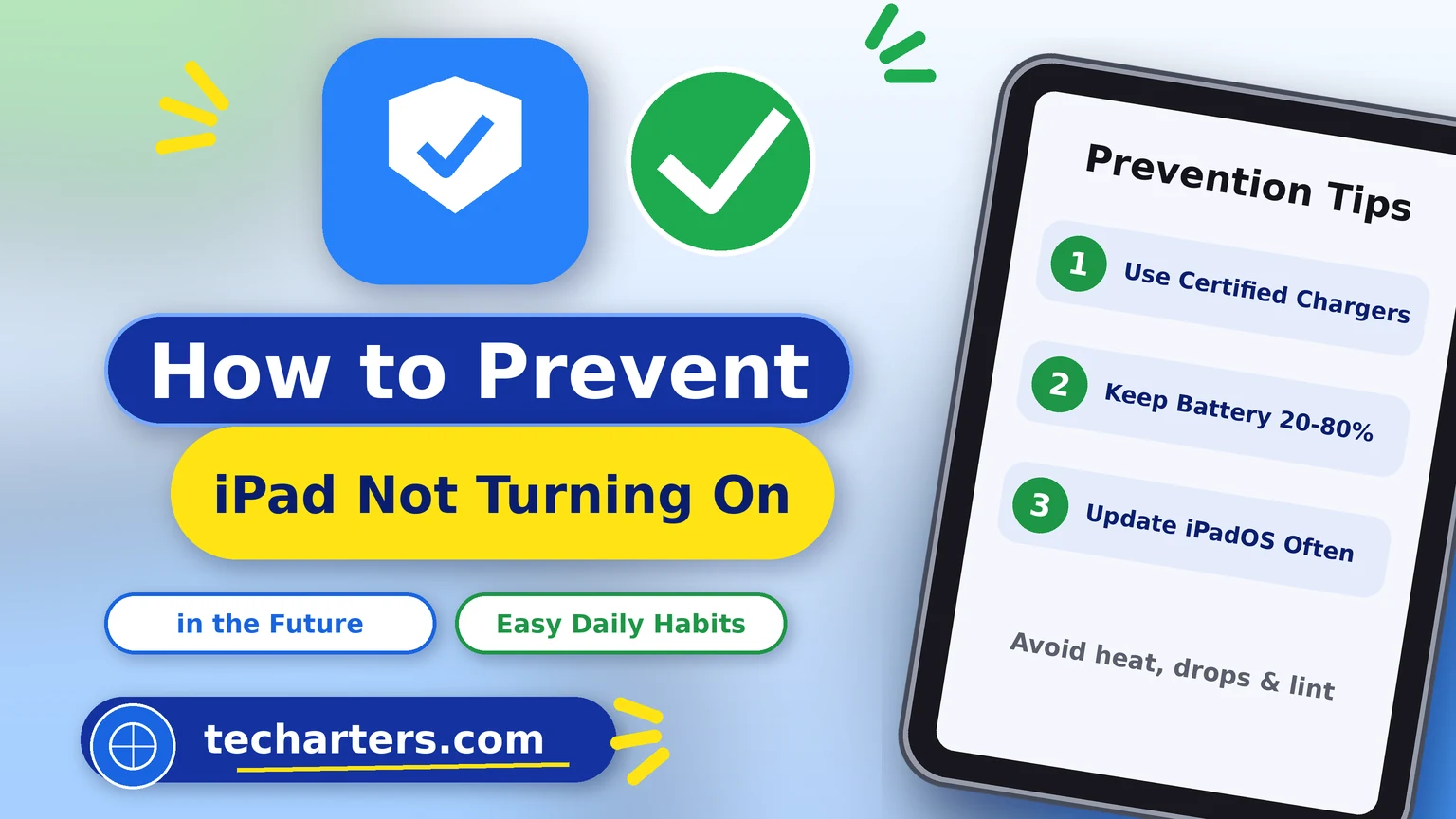
- Use certified accessories. To avoid an iPad not turning on, choose Apple or MFi-certified chargers and cables to avoid power problems.
- Do not let the battery drain to zero. Lithium batteries last longer when kept between 20 and 80 percent. If you store the tablet for months, leave it about half charged and turn it on every few weeks.
- Keep iPadOS updated. Updates fix bugs that may cause freezes and boot problems. Install them on stable power and good Wi-Fi to avoid an iPad not turning on after updating.
- Avoid extreme heat and cold. Never leave the tablet on a car dashboard, near a heater or in direct sunlight for long.
- Clean the port regularly. A quick check with a flashlight every few months prevents buildup.
Frequently Asked Questions: iPad Not Turning On
Why is my iPad not turning on even after charging?
The most likely reasons are a damaged cable or adapter, a dirty charging port, a frozen system or a failing battery. Try a different charger, clean the port and then force restart the device. If it still stays dark, use recovery mode or contact Apple.
How long should I charge an iPad that is not turning on?
Charge it for at least an hour using a wall outlet. A battery that is completely empty may take 30 minutes or more to show any sign of life.
Can a dead iPad be fixed without losing data?
Yes, in many cases. A force restart, a new cable and the Update option in recovery mode do not erase your files. Only Restore and DFU restore erase everything, even when the iPad not turning on issue is solved.
Is an iPad not turning on a battery problem?
Often, yes. Old batteries lose capacity and may fail to deliver enough power to boot the device. If your iPad is more than four years old and keeps shutting down, a battery replacement may solve the problem.
Final Thoughts: iPad Not Turning On
An iPad not turning on feels like a disaster, but most of the time the solution is simple. Start with a long charge, test a different cable and adapter, and perform a force restart. If the iPad is still not turning on, clean the port, let the temperature settle and try recovery mode or DFU restore. Only when every software step fails should you suspect a hardware fault and contact Apple or an authorized repair center.
Work through the eight fixes for an iPad not turning on in order, stay patient, and keep your backups current. With the right approach, you can bring your tablet back to life and avoid an iPad not turning on problem again in the future.