You press the side button. Nothing happens. You press it again, harder this time, as if effort could change the outcome. The screen stays black, and a small wave of panic sets in: your photos, messages, banking apps, and work contacts are all trapped inside a device that seems to be dead.
Take a breath. An iPhone that won’t turn on is rarely a lost cause. In most cases the problem is something simple, such as a drained battery, a dirty charging port, or a frozen operating system, and you can fix it at home in a few minutes. Even when the cause is more serious, there are clear steps that help you recover your data and decide whether to repair or replace.
This guide walks you through every reliable fix in the order you should try them, from the quickest checks to the more advanced options. It also explains what each symptom usually means, so you can stop guessing and start solving.
First, Work Out What Kind of “Not Turning On” You Have
Before trying fixes, take ten seconds to identify exactly what your iPhone is doing. The symptom points you toward the likely cause.
- Completely black screen, no response at all: Usually a fully drained battery, a failed charging connection, or a frozen system.
- Apple logo appears, then the phone restarts or freezes: Often a software problem, such as a failed update or corrupted data, sometimes called a boot loop.
- Screen is black, but you hear sounds or feel vibrations: The phone is probably on, and the display is the issue.
- Screen turns on briefly, then shuts off: Commonly a degraded battery or a power management fault.
- Phone gets hot, then goes dark: Possible overheating, liquid exposure, or an Intenal short.
- Red battery icon or “connect to charger” screen: The battery is empty. This is actually good news, because the phone is telling you it’s alive.
Keep your symptom in mind as you work through the fixes below.
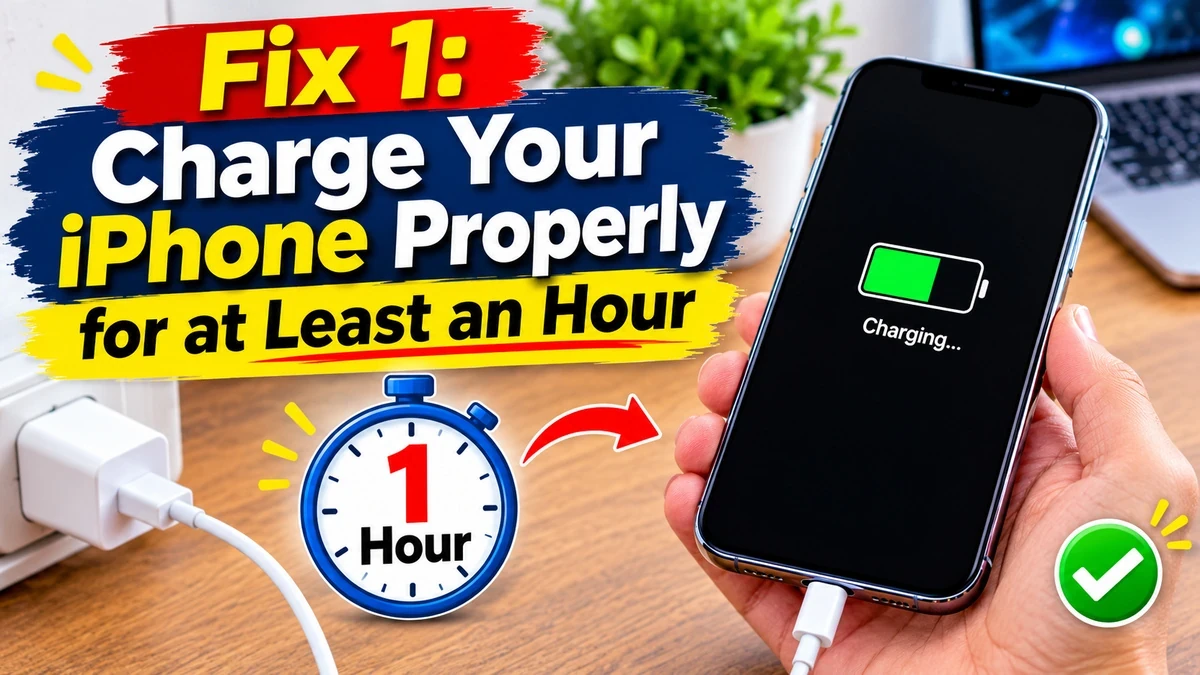
Fix 1: Charge Your iPhone Properly for at Least an Hour
It sounds obvious, but a deeply drained battery is the single most common reason an iPhone appears dead. When the battery is completely empty, the phone may not show any sign of charging for several minutes, and some people give up too early.
Here’s how to do it right:
- Plug your iPhone into a wall outlet rather than a computer USB port or a power strip, since those can deliver weaker or unreliable power.
- Use a genuine Apple cable and adapter, or one that is certified for iPhone (look for “MFi” certification on the packaging).
- Leave the phone connected for at least an hour before drawing any conclusions. Apple’s own guidance is to let a non-responsive iPhone charge for up to an hour.
- Watch for the charging screen, which shows a battery icon with a lightning bolt, or a red low-battery icon.
If the charging screen appears, you’re in luck. Leave the phone to charge until it turns on by itself. If it stays black after a full hour, move on to the next steps.
Fix 2: Inspect and Clean the Charging Port
Pocket lint is the silent enemy of the charging port. Over months of use, fabric fibers, dust, and debris compress into the port and stop the cable from making a solid connection. The cable may feel plugged in, but the metal contacts never touch.
To clean the port safely:
- Turn off any chance of power: unplug the cable and make sure nothing is connected.
- Shine a flashlight into the port and look for gray or brown packed debris.
- Use a wooden or plastic toothpick, or a soft anti-static brush, to gently scrape the debris out. Go slowly and keep the tool angled away from the contacts.
- Never use metal pins, needles, or paper clips. They can short-circuit or bend the delicate pins inside.
- A quick burst from a can of compressed air held at a distance can help, but don’t spray at close range.
After cleaning, plug the cable back in. Many people find their phone suddenly begins charging normally, and a “dead” iPhone turns out to have been a blocked port all along.
Fix 3: Try a Different Cable, Adapter, and Outlet
Sometimes the iPhone is fine, and the accessories are the problem. Cables fray internally, especially near the connector ends, and cheap adapters can fail without any visible damage.
Test each piece separately:
- Swap in a different Lightning or USB-C cable, ideally one you know works with another device.
- Try a different power adapter.
- Plug into a different wall outlet, in case the first one is dead or the circuit is tripped.
- Avoid wireless chargers for this test, since they won’t help a phone that is too drained to respond properly.
If the iPhone springs to life with a different cable or adapter, you’ve found the culprit. Replace the faulty accessory with a certified one, because low-quality chargers can also damage your battery over time.
Fix 4: Force Restart Your iPhone
If your iPhone has plenty of battery but is frozen on a black screen, the software may simply be stuck. A force restart doesn’t erase any data. It cuts power to the system and starts it fresh, much like pulling the plug on a stuck computer.
The method depends on your model:
- iPhone 8 and later (including iPhone SE 2nd and 3rd generation, and all Face ID models): Press and quickly release the volume up button. Press and quickly release the volume down button. Then press and hold the side button until the Apple logo appears.
- iPhone 7 and iPhone 7 Plus: Press and hold the volume down button and the side button together until the Apple logo appears.
- iPhone 6s, iPhone SE (1st generation), and earlier: Press and hold the Home button and the side (or top) button together until the Apple logo appears.
Be patient. The button needs to be held for around ten seconds or more. If the Apple logo appears, let the iPhone finish starting up. If it doesn’t, try the sequence again while the phone is connected to power, because some devices respond only when they sense a charger.

Fix 5: Check for a Display Problem, Not a Power Problem
Sometimes your iPhone is working perfectly, and only the screen has failed. This catches many people off guard, because a black screen looks identical to a dead phone.
Signs the phone is actually on:
- You hear a ringtone, notification sounds, or startup chime when someone calls or texts.
- The phone vibrates when you flip the silent switch.
- Your computer recognizes the iPhone when you plug it in.
- You can see a very faint image when you angle the screen under a bright light.
If any of these are true, the display or its connection is likely damaged, perhaps from a drop or from moisture. Don’t keep forcing restarts. Instead, connect the iPhone to a computer to back up your data if possible, then arrange a screen repair. A technician can often replace the display without touching your data.
Fix 6: Look for Liquid or Physical Damage
Water and iPhones are a complicated relationship. Modern models carry water-resistance ratings, but those ratings apply to clean water under specific conditions, and the seals weaken with age. Spilled coffee, soda, salt water, and sweat can all cause corrosion that stops the phone from powering on.
Signs of liquid damage include:
- A red or pink liquid contact indicator in the SIM tray slot.
- Visible moisture or residue in the charging port.
- Spots or streaks behind the screen.
- A phone that stopped working after exposure to water, rain, or humidity.
If you suspect liquid damage, do not charge the phone. Applying power to a wet device can short circuit components and cause permanent damage. Power it off if possible, wipe the exterior, and let it dry in open air. Don’t put it in rice, which is a persistent myth that doesn’t pull moisture out effectively and can introduce dust into the ports. Take it to a repair professional as soon as you can, since corrosion spreads quickly.
Likewise, look closely for physical damage: bent frames, cracked glass, or dents from drops. Impact can dislodge Intenal connectors, including the battery connection, without any obvious outward sign.
Fix 7: Consider the Temperature
Batteries hate extremes. If your iPhone has been sitting in a hot car or exposed to freezing weather, it may shut down to protect itself and refuse to restart until it returns to a normal temperature.
In cold conditions, lithium-ion batteries lose their ability to deliver power, so a phone showing 30 percent may suddenly power off. Warm the phone gradually in your hand or in a room-temperature space, then try charging it. Don’t use a heater, hair dryer, or microwave, which can damage the battery.
In hot conditions, your iPhone may display a temperature warning and become unusable until it cools. Move it out of direct sun, remove the case, and let it rest in a cool, shaded place for a while before charging again.
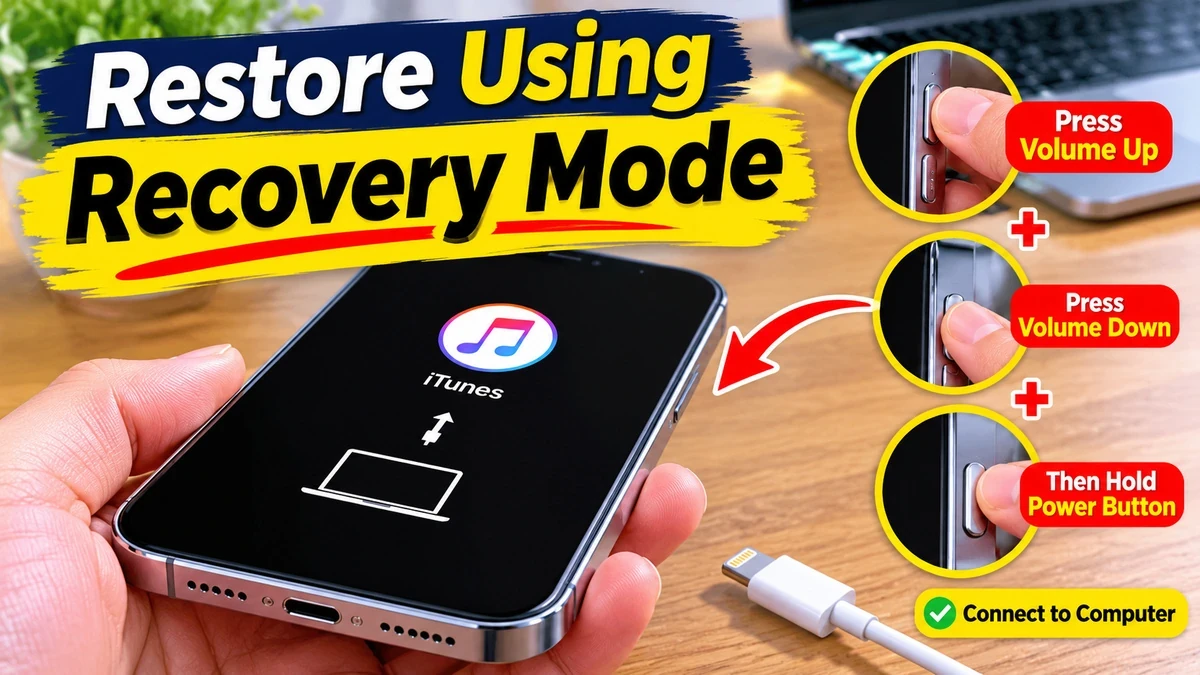
Fix 8: Restore Using Recovery Mode
If your iPhone shows the Apple logo but won’t finish starting, or restarts over and over, the operating system itself may be damaged. Recovery mode lets a computer reinstall iOS, and you can often do this without losing your data.
You’ll need a Mac or a Windows PC with a working cable. On a Mac running macOS Catalina or later, use Finder. On older Macs or on Windows, use iTunes or the Apple Devices app.
- Connect your iPhone to the computer.
- Perform the force restart sequence for your model (see Fix 4), but keep holding the final button even after the Apple logo appears, until you see the recovery mode screen, which shows a cable pointing to a computer.
- On your computer, a message will say there’s a problem with the iPhone and offer Update or Restore.
- Choose Update first. This reinstalls iOS while trying to keep your data intact.
- Wait for the download and installation to finish. If it takes more than 15 minutes, the iPhone exits recovery mode and you may need to repeat the steps.
If Update fails, the next option is Restore, which erases the iPhone completely and installs a fresh copy of iOS. You can then recover your information from an iCloud or computer backup. This is why regular backups matter so much.
Fix 9: Use DFU Mode as a Last Software Resort
DFU (Device Firmware Update) mode is a deeper restore state than recovery mode. It lets the computer communicate with the iPhone’s hardware even when the operating system and bootloader won’t load. It’s useful when recovery mode doesn’t work or when an update has failed badly.
A few important points about DFU mode:
- The screen stays completely black in DFU mode, which can make it hard to tell whether you’ve succeeded. Your computer will tell you it has detected an iPhone in recovery.
- Restoring from DFU mode erases the device, so use it only when other methods have failed.
- The button timing is precise and differs by model, so follow Apple’s official instructions or a trusted guide for your exact iPhone.
If DFU restore also fails or the computer can’t see the iPhone at all, the problem is almost certainly hardware, and it’s time to talk to a professional.
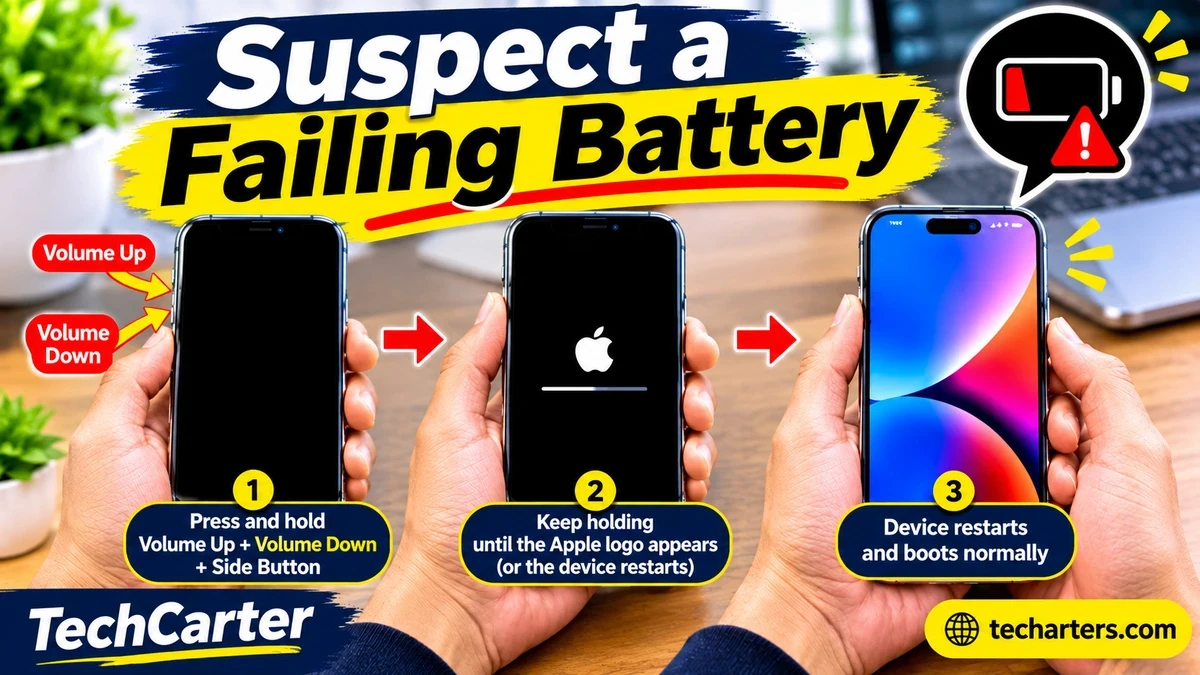
Fix 10: Suspect a Failing Battery
An aging battery is a leading cause of iPhones that die suddenly or refuse to start. Lithium-ion batteries wear down with each charge cycle, and after a couple of years of heavy use they may no longer deliver enough power for the phone to boot, even when they claim to hold a charge.
Warning signs you may have noticed before the phone died:
- The percentage dropped quickly or jumped from 20 percent to zero.
- The phone shut down unexpectedly, especially in the cold.
- The phone slowed down noticeably.
- The back of the phone seemed to bulge slightly. A swollen battery is a safety hazard, so stop using the device and get it inspected immediately.
A battery replacement is typically one of the cheapest and most effective repairs, and it can make an older iPhone feel new again. If your device is out of warranty, an Apple Store, an Apple Authorized Service Provider, or a reputable independent repair shop can test the battery and replace it.
Fix 11: Rule Out Logic Board and Intenal Hardware Faults
If you’ve tried everything above and the iPhone still shows no sign of life, the cause is probably Intenal. Possible culprits include a faulty power management chip, a damaged logic board, a failed charging IC, or a disconnectedIntenal cable.
These problems can’t be solved with software or a simple cleaning. They require diagnostic tools and micro-soldering skills. Don’t open the phone yourself unless you have experience, because iPhones are sealed with adhesive and contain components that are easy to damage. Opening the device may also affect water resistance and warranty coverage.
When to Take Your iPhone to a Professional
Stop troubleshooting and seek professional help if any of the following apply:
- The phone stays dead after a full hour of charging with a known-good cable and adapter.
- You can’t enter recovery mode, and your computer doesn’t detect the iPhone.
- You suspect liquid damage, a swollen battery, or physical impact.
- The phone gets very hot while charging.
- You smell burning or notice smoke.
Check whether your iPhone is still covered by AppleCare+ or the standard one-year limited warranty, since either may reduce or remove the cost of a repair. You can verify coverage on Apple’s support website by entering your serial number. Apple’s official repair channels use genuine parts and keep your warranty intact. Independent shops are often faster and cheaper, but quality varies, so read recent reviews and ask what parts they use and what guarantee they offer.
If the repair quote approaches the cost of a newer used or refurbished phone, replacement may make more sense, especially for older models that no longer receive the latest software updates.
How to Recover Your Data From a Dead iPhone
Your main worry is probably not the phone itself but what’s on it. Here are your best options:
- iCloud backup: If iCloud Backup was on, your latest backup is stored online and can be restored to a new or repaired phone during setup.
- Computer backup: If you’ve ever backed up through Finder or iTunes, that backup lives on your computer.
- iCloud Photos and synced services: Photos, contacts, notes, and messages may already be stored in iCloud, Google, or other cloud accounts.
- Professional data recovery: If no backup exists, specialist labs can sometimes retrieve data directly from the device’s storage, although this can be expensive and isn’t guaranteed.
If your phone is repairable, a technician can often restore power long enough for you to back it up before any further work.
How to Prevent Your iPhone From Dying Again
A few habits significantly reduce your odds of facing a black screen again:
- Back up regularly. Turn on iCloud Backup and check it occasionally, so a dead phone is an inconvenience instead of a disaster.
- Keep iOS updated. Updates fix bugs that cause crashes and boot loops. Make sure the battery is well charged and you have good Wi-Fi before installing them.
- Use certified accessories. Cheap, uncertified chargers can deliver unstable power and damage your battery or charging port.
- Clean the charging port occasionally. A quick, careful clean every few months prevents lint buildup.
- Avoid temperature extremes. Don’t leave your iPhone on a car dashboard in summer or in a coat pocket during a freezing walk.
- Monitor battery health. Go to Settings, then Battery, then Battery Health & Charging. If maximum capacity has dropped substantially, consider a replacement before the battery fails completely.
- Protect against drops and water. A sturdy case and a screen protector help guard against the impacts that disconnect Intenal parts.
Frequently Asked Questions
Why won’t my iPhone turn on even after charging?
The most common reasons are a faulty cable or adapter, a dirty charging port, a failed battery, or a software freeze. Try a different cable and outlet, clean the port, and force restart. If none of that works, the issue may be Intenal hardware.
How long should I charge a dead iPhone before it turns on?
Give it at least an hour. A deeply drained battery can take several minutes to show the charging screen and longer to reach enough power to boot.
Can a dead iPhone be fixed without losing data?
Often, yes. A battery replacement, port cleaning, or display repair doesn’t touch your data. Recovery mode with the Update option can also reinstall iOS without erasing anything. Only the Restore option and some hardware repairs may result in data loss, which is why backups are essential.
Why is my iPhone stuck on the Apple logo?
This usually points to a software problem, such as a failed update or corrupted system files. Force restart first, then try recovery mode and choose Update.
Is it worth repairing an old iPhone that won’t turn on?
It depends on the repair cost, the age of the phone, and whether it still receives iOS updates. A battery replacement on an older but supported iPhone is usually worth it. Expensive logic board repairs on very old models often aren’t.
Final Thoughts – iPhone Not Turning On?
A dead iPhone feels like an emergency, but most of the time it’s a solvable problem. Start with the basics: charge the phone for a full hour with reliable accessories, clean the port, and force restart. If the phone still won’t respond, check for display faults, liquid damage, and temperature issues, then move on to recovery mode and DFU restore. And if every software fix fails, trust a qualified technician to diagnose the battery or logic board.
Most importantly, build the habit of backing up your data before trouble strikes. With a recent backup in place, even the worst-case iPhone failure becomes a minor setback rather than a loss of everything you care about.