You press the power button, the Apple logo appears, and then… nothing happens. Your iPad stuck on Apple logo, leaving you unable to reach the Home Screen, access your files, or open your apps. Sometimes the logo stays frozen on the screen for several minutes. In other cases, the screen repeatedly goes black before the Apple logo appears again, creating an endless boot loop. Whatever the situation, your iPad cannot complete the startup process, making it impossible to use your device normally.
This problem is commonly called an Apple logo freeze or a boot loop, and it is one of the most frequent iPad failures. It is alarming, but it is rarely the end of the road. In most cases the cause is a software problem: a failed update, a full storage drive, a corrupted system file, or a glitch that prevents iPadOS from finishing its startup sequence. Those problems can usually be fixed at home.
This guide explains what is happening inside your iPad when it gets stuck, then walks through every reliable fix in a sensible order, from the gentlest to the most drastic. It also covers how to protect your data, how to recognize a hardware fault, and how to avoid the problem in the future.
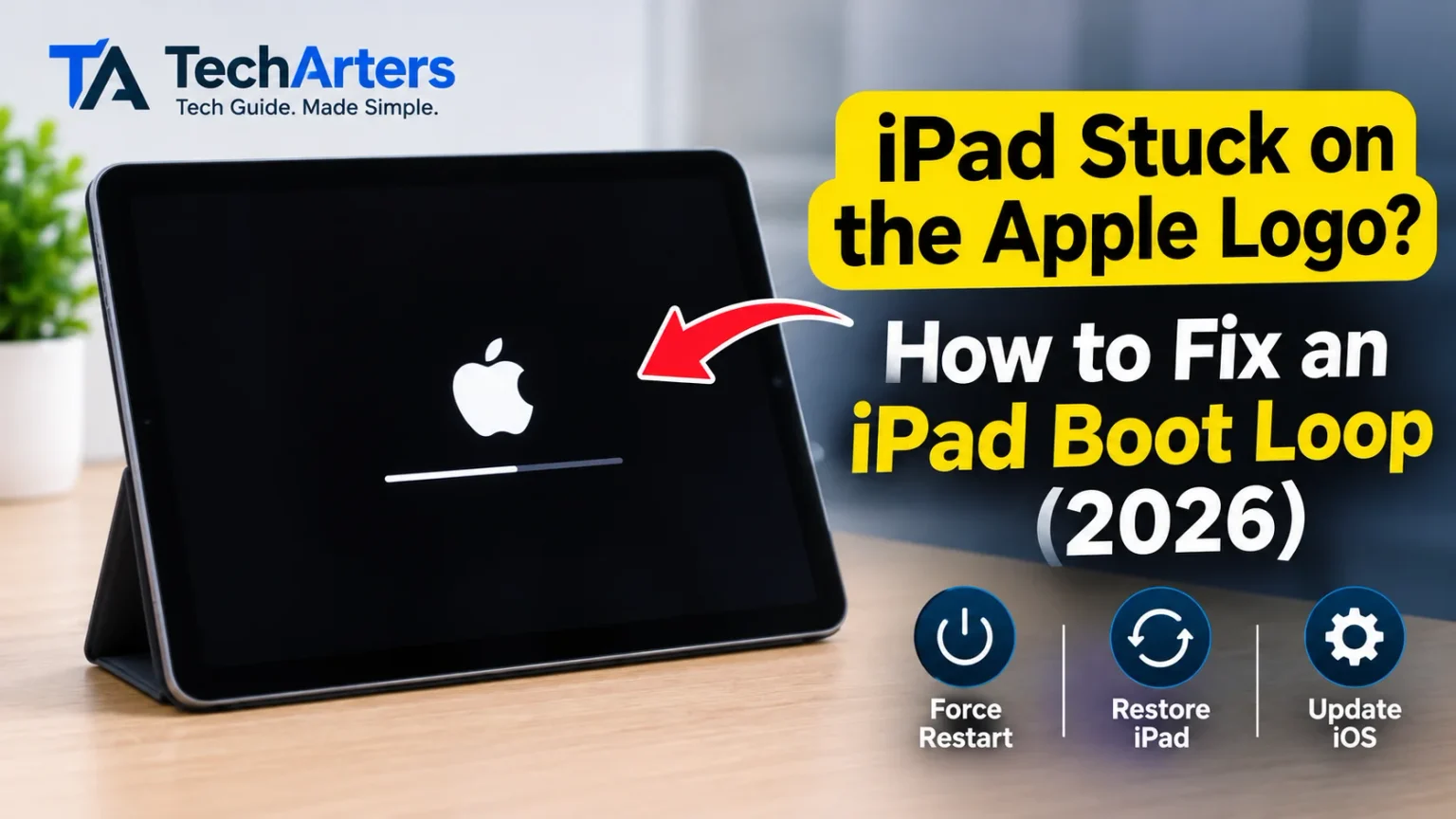
What Is a Boot Loop, Exactly?
When you switch on an iPad, a precise chain of events takes place. First, a small piece of read-only code called the boot ROM runs and verifies the next stage. Then the bootloader starts, followed by the operating system kernel, and finally the system services and the Home Screen. The Apple logo appears early in this chain and remains on screen while the later stages load.
A stuck logo means the chain stalls at some point after the logo appears. The device is on, but a stage cannot finish. A boot loop means the chain fails, the iPad gives up and restarts itself, and the same failure happens again and again. The two symptoms differ slightly, but the causes and solutions overlap almost completely.
The important point is that a stalled startup usually signals that the software is damaged or blocked, while the hardware still works. That is why the logo itself is actually reassuring: it proves the screen, the processor, and part of the storage are functioning.
Common Reasons an iPad Gets Stuck on the Apple Logo
Knowing the likely trigger helps you choose the right repair. These are the most common causes:

- An interrupted or failed iPadOS update. If the iPad lost power, lost its Wi-Fi connection, or ran out of space mid-update, the system files may be incomplete.
- Almost no free storage. The system needs working room during startup. A drive that is completely full can stop the boot process.
- A buggy beta or an unstable software version. Public and developer betas sometimes contain startup bugs.
- Corrupted system data. Sudden shutdowns, app crashes during a write, or file system errors can damage important files.
- A failed restore or backup recovery. Restoring from a corrupted backup can leave the device half configured.
- Jailbreaking or unauthorized modifications. Altering the operating system is a well-known source of boot loops.
- A problem with a connected accessory. Occasionally a faulty keyboard, adapter, or cable keeps the iPad from completing startup.
- Battery or power faults. A weak battery can cause the iPad to restart repeatedly before the system finishes loading.
- Hardware damage. Drops, liquid exposure, and failing storage chips can all produce the same symptom, although this is less common.
Most of the fixes below address software causes, so they cost nothing but patience.
Before You Start: Three Quick Preparations
A little preparation makes the troubleshooting safer and faster.
1. Charge the iPad. A low battery can interrupt every recovery step, especially an update. Plug the iPad into a wall adapter with a good cable and let it charge for at least thirty minutes to an hour. If the iPad is stuck on the logo, it can still charge in the background.
2. Gather your equipment. For the later steps you will need a Mac or a Windows PC and a working USB cable. Choose a cable you trust, since a flaky one is a classic cause of failed restores. On older Macs or PCs, you may need to update the operating system or install the latest Apple software.
3. Remove accessories. Disconnect keyboards, adapters, memory card readers, hubs, and anything else attached to the port. Remove the case if it presses on the buttons.
Fix 1: Wait and Let It Finish
This may sound unhelpful, but it is a legitimate first step, especially after an update. Large iPadOS updates sometimes show the Apple logo with a thin progress bar beneath it, and the process can take a long time on older models. A frozen-looking screen is sometimes a slow update in disguise.
If you see a progress bar, leave the iPad plugged in and wait. Give it at least thirty minutes, and up to an hour if the bar is moving even slightly. If there is no progress bar, no movement, and the logo has stayed unchanged for an hour, move on to the next fix. Never interrupt an update that is still advancing, since that can make the damage worse.
Fix 2: Force Restart the iPad
A force restart is the most effective first remedy for a stuck iPad. It does not erase anything, and it clears many temporary software jams. The procedure depends on your model.

iPads without a Home button:
- Press and release the volume up button.
- Press and release the volume down button.
- Press and hold the top button. Keep holding it, even when the screen goes black, until the Apple logo appears again.
iPads with a Home button:
- Press and hold the Home button and the top button together.
- Keep holding both until the Apple logo appears.
Timing is the common mistake. Press the volume buttons quickly one after the other, and hold the final button for a full ten to fifteen seconds. If the iPad restarts and reaches the Home Screen, the problem was a temporary glitch. Open the Settings app and install any available updates, then restart again to confirm the fix lasted.
If the logo returns and freezes once more, do not repeat the force restart ten times in a row. One or two attempts are enough. Move on.
Fix 3: Charge Fully, Then Try Again
Some boot loops occur only because the battery cannot supply enough current during the demanding startup phase. Leave the iPad connected to a wall outlet for one to two hours without touching it. Then force restart it while it is still plugged in. Using a different cable and adapter at this stage is worthwhile, because a weak power source can fool you into suspecting deeper problems.

Fix 4: Update the iPad Through a Computer (Recovery Mode)
If the force restart fails, recovery mode is your most important tool. It allows a computer to reinstall iPadOS directly, and its first option, Update, attempts this without erasing your files.
Step 1: Prepare the computer
- On a Mac with macOS Catalina or later, use Finder.
- On a Windows PC, use the Apple Devices app. If your system uses an older setup, iTunes may be required.
- On an older Mac, use iTunes.
Make sure the computer’s software is current, and connect the iPad with a USB cable.
Step 2: Put the iPad into recovery mode
iPads without a Home button:
- Press and release the volume up button.
- Press and release the volume down button.
- Press and hold the top button until the recovery mode screen appears. It shows a cable or computer symbol. Do not release the button when the Apple logo appears. Keep holding.
iPads with a Home button:
- Press and hold the Home button and the top button together.
- Keep holding until the recovery mode screen appears.
Step 3: Choose Update
Your computer should display a message saying it has detected an iPad in recovery mode, with the choices Update and Restore. Pick Update. The computer downloads the latest compatible iPadOS and tries to reinstall it while preserving your data.
The download can take a while. If it takes longer than about fifteen minutes, the iPad may leave recovery mode on its own. When that happens, let the download finish, then repeat Step 2 and click Update again.
If the update succeeds, the iPad restarts normally and your content is intact. This fix works for a large share of boot loops caused by corrupted system files or a failed update.
Fix 5: Restore the iPad Through a Computer
When Update fails or produces an error, the next option is Restore. A restore wipes the iPad completely and installs a fresh, clean copy of iPadOS. Think of it as a factory reset delivered through the computer.
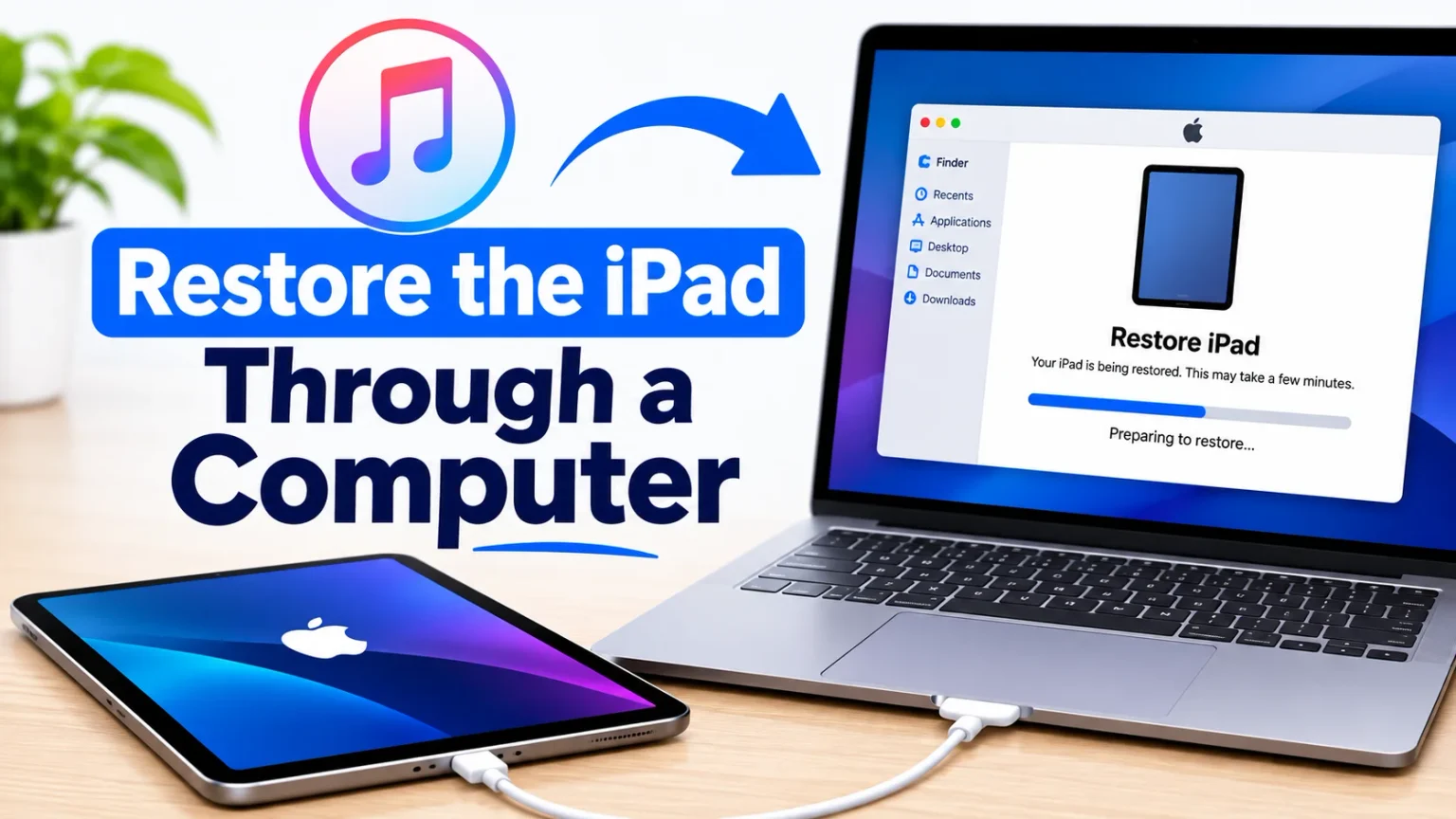
Because a restore erases everything, use it only after Update has failed. Before you begin, consider what data you might lose. If you have a recent iCloud Backup or a computer backup, you can bring almost everything back afterward. If you do not, the data on the iPad is at risk, and you may want to talk to a professional recovery service before proceeding.
To restore:
- Put the iPad into recovery mode as described above.
- When prompted on the computer, choose Restore.
- Confirm the choice and wait while the software downloads and installs.
- When the process finishes, the iPad restarts to the setup screen.
- Choose to set up as new, or restore from your iCloud or computer backup.
Setting the iPad up as new first is a smart diagnostic step. If it works perfectly as a blank device, the hardware is healthy, and you can then restore your backup. If the loop returns after restoring the backup, the backup itself may contain the corrupted element, and you can try an older backup or set up fresh and reinstall apps manually.
Fix 6: Use DFU Mode for Stubborn Cases
DFU mode, short for Device Firmware Update mode, goes deeper than recovery mode. In recovery mode, the iPad runs a small piece of software that talks to the computer. In DFU mode, the device connects to the computer without loading the bootloader or operating system at all. This lets the computer rewrite every layer of the firmware, which can solve problems that survive an ordinary restore.
DFU mode is more delicate. The button timing is strict, and the screen remains completely black when you succeed, which confuses many people into thinking it failed. Because a mistake does no lasting harm but wastes time, follow Apple’s official instructions for your exact iPad model rather than relying on memory. You will know it worked when your computer reports an iPad in recovery mode while the iPad screen is black.
Once the computer detects the device, choose Restore. As with any restore, this erases the iPad. Use DFU mode only when recovery mode has failed or when the computer cannot see the device in recovery mode.
Fix 7: Free Up Space If You Can Reach Settings
Sometimes an iPad stays stuck on the logo only because the storage is nearly full, and after one successful restart it behaves normally for a short time. If you manage to get past the logo, even once, act immediately.
- Open Settings, then General, then iPad Storage.
- Delete large unused apps, old videos, and downloaded media.
- Offload apps you rarely use.
- Move photos to iCloud or to a computer.
- Aim to keep at least 10 to 15 percent of the storage free.
An iPad with ample free space starts more reliably, updates more easily, and is less likely to fall into a loop in the future.
Fix 8: Remove Beta Software or Profiles
If you installed an iPadOS beta, you may have triggered the problem by using unfinished software. If you can reach the Home Screen between restarts, go to Settings, then General, then VPN and Device Management, and remove any beta profile. Then look for a stable public release in Software Update and install it.
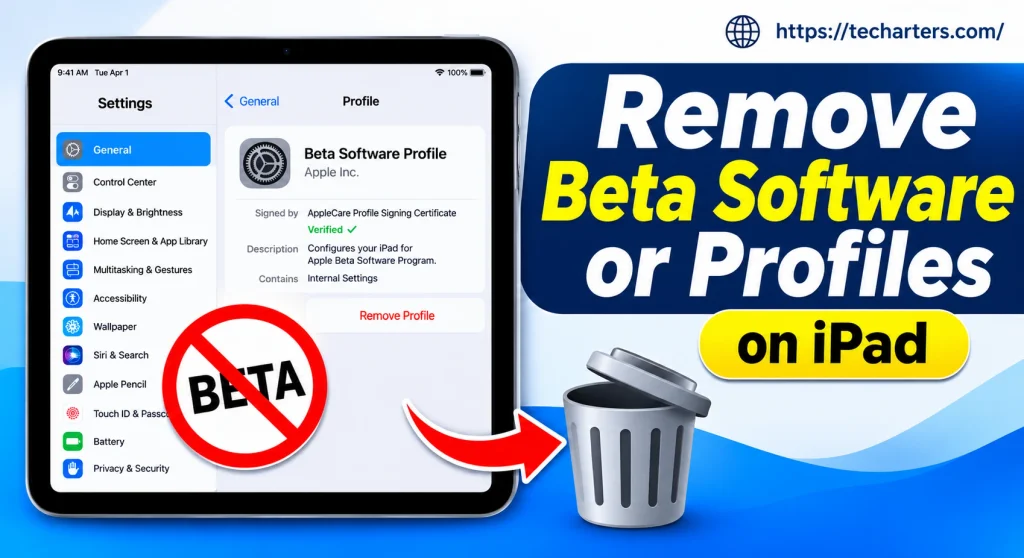
If you cannot reach Settings, recovery mode is again the way out. When you restore through a computer, the computer installs the latest public release, which also removes the beta.
Fix 9: Try a Different Computer, Cable, and Port
A surprising number of failed restores come from the connection, not the iPad. If the computer does not recognize the device, or if the update stops with an error code, change the variables one at a time:
- Use a different USB cable.
- Plug directly into the computer, not into a hub or keyboard.
- Try another USB port.
- Restart the computer.
- Try another computer entirely.
- Temporarily disable security software that may block the connection.
When error numbers appear, note them down. Apple’s support pages list common codes and their meanings, and a technician can use them to narrow down the cause quickly.
Fix 10: Check for Battery and Hardware Warning Signs
If every software step fails, your iPad may have a hardware problem. The following signs point in that direction:
- The computer never recognizes the iPad, even in recovery or DFU mode.
- The restore stops at the same point every time, with hardware-related error codes.
- The iPad was dropped, bent, or exposed to liquid before the problem began.
- The battery drains very fast, the iPad shuts down randomly, or the case bulges.
- The iPad feels unusually hot while stuck on the logo.
Battery wear is one of the most common hidden causes. An old battery may be unable to deliver the surge needed during startup, so the iPad cuts out and restarts repeatedly. Replacing the battery often cures the loop.
If you see swelling, a lifted screen, or a split case, stop charging the device and take it to a professional. A swollen lithium-ion battery is a safety risk.
Other hardware faults include a failing storage chip, a damaged logic board, or corrosion after liquid contact. These require professional diagnosis, and the repair may not be cost effective on an older device.
Fix 11: Contact Apple Support or an Authorized Service Provider
When home remedies fail, professional support is the right step. Before you book:
- Check your warranty status. Enter the serial number on Apple’s support website to see whether the device is covered. AppleCare+ may reduce costs for accidental damage or battery service.
- Describe the problem accurately. Mention that the iPad is stuck on the Apple logo, list the fixes you tried, and include any error codes.
- Ask for a clear quote. Compare the repair price with the value of a similar replacement.
- Ask about data. Technicians may need to erase the device. Tell them what matters to you, and ask what is possible before they begin.
Authorized providers use genuine parts and maintain your coverage. Independent repair shops can be cheaper, but quality varies, so check reviews and ask about parts and guarantees.
What Happens to Your Data?
Data is the real worry for most people. The outcome depends on which fix works and on your backups.

- Force restart and Update: Your data should stay intact.
- Restore and DFU restore: Everything on the iPad is erased. You can recover it from a backup.
- Hardware repair: Results vary. Some repairs preserve data, and others require erasing.
If you use iCloud Backup, iCloud Photos, and cloud services for documents and notes, you may lose very little. Sign in with your Apple Account on the restored or replacement iPad and let your content download again. If you had no backup and a restore is the only option, think carefully. Specialist data recovery services exist, but success is uncertain and the cost can be high.
How to Prevent Boot Loops in the Future
Good habits remove most of the risk.

- Back up often. Turn on iCloud Backup and make an occasional backup to a computer. A backup transforms a disaster into an inconvenience.
- Install updates safely. Update on a stable Wi-Fi connection and keep the iPad plugged in or above 50 percent battery. Never turn the device off during an update.
- Keep free space. Avoid running your storage down to the last gigabyte.
- Skip beta software on your main iPad. If you want to test betas, use a spare device.
- Do not jailbreak. Modified system software is a common cause of boot loops and security trouble.
- Use quality accessories. Choose Apple or certified chargers and cables.
- Watch battery health. If the iPad starts shutting off unexpectedly, replace the battery before it fails completely.
- Protect against drops and moisture. A sturdy case and careful use reduce the chance of hardware damage.
Frequently Asked Questions
Why is my iPad stuck on the Apple logo after an update?
The update may have been interrupted, or there may not have been enough free space for it to finish. Wait for a progress bar if one is visible, then try a force restart. If that fails, use recovery mode and choose Update.
Will I lose my data if I fix the boot loop?
Not necessarily. Force restart and the Update option in recovery mode normally keep your data. Restore and DFU restore erase the iPad, so you would depend on a backup.
How long should I wait before assuming the iPad is frozen?
If a progress bar is moving, wait up to an hour. If the logo has not changed at all for an hour, treat it as stuck.
Can a boot loop fix itself?
Occasionally, a long charge and a force restart will clear a temporary fault. If the loop continues after a few attempts, it is unlikely to resolve on its own.
My computer does not recognize my iPad. What should I do?
Switch cables, ports, and computers, update the computer’s software, and repeat the recovery mode steps carefully. If the iPad still does not appear, a hardware fault is more likely.
Is a boot loop caused by a virus?
Very unlikely. iPads are tightly controlled, and boot loops usually come from failed updates, corrupted files, storage issues, jailbreaks, or hardware problems.
Should I repair or replace an old iPad stuck in a boot loop?
If a restore fixes it, no repair is needed. If it needs paid hardware work, compare the quote with the price of a replacement and consider whether the old model still receives updates.
Final Thoughts – iPad Stuck on Apple Logo
An iPad stuck on Apple logo looks like a serious failure, but the Apple logo itself carries good news: your screen and core hardware are alive. Begin with patience, a full charge, and a force restart. If those do not help, a computer and recovery mode give you a powerful way to reinstall iPadOS, first by updating, which preserves your data, and then by restoring, which wipes the device clean. DFU mode remains available for the hardest software cases. Only when all of that fails should you suspect a worn battery or damaged hardware and seek professional repair.
The best protection is preparation. Keep your iPad backed up, give it room to breathe with free storage, install updates carefully, and replace an aging battery before it causes trouble. With those habits in place, a boot loop becomes a minor detour rather than a crisis, and your iPad stays ready whenever you need it.